
- Created Date : 11 July 2014
- Updated Date : 31 July 2025
- Support Email : support@pixelnx.com
Introduction
RockOn The Rocking Wordpress Theme
Proudly presenting the one of its kind, the musical wordpress theme - RockOn which set all your senses free to swing with the music of your desires as RockOn say's Set Youself Free powered by the most popular Redux theme options framework and the well known Visual composer editor. RockOn is a multi-purpose wordpress theme specially designed for the energetic people who love parties. Although multi-purpose RockOn Theme is feasible enough to be suited for other wordpress website designs too.
The theme is also integrated with AI content generator plugin, that allows you to quickly and easily generate massive content for your blogs. Utilizing the power of natural language processing technology, this plugin makes it simple to generate valuable, engaging, relevant, and high-quality content for your WordPress website. It generates and transforms text using OpenAI API. It has various features like content generation, image generation, chatbot, question and answer, generate SEO optimized content and can schedule post.
So, lets get started with the theme installation & configuration with your wordpress.
RockOn The Rocking Wordpress Theme
Created Date:
Updated Date:
Please check Live Preview:
Creative Author Portfolio:
Features
RockOn Club/Party WordPress theme has warm intense features which can smoothly accelerate your business and visitors. Theme comes with 3-lavish stylish demo; compatible with Woo Commerce & cross-browsers, powered by redux framework and supports unlimited colors & backgrounds, which make your eCommerce site brilliantly outstanding. Its striking personality will fluently catch the eye of visitor. Music Club RockOn – band/club/party/dj/pub music club WordPress theme make your business bountifully monetizing and you hilarious.
Features of the theme
- Content Generator
- Custom post and Page Content Writer
- Image Generator
- WP Media Images
- Chatbot
- SEO Optimizer
- Q&A - Question And Answer
- 3 Pre built demos
- 06 Color Pre-Options
- 05 Background Pre-Options
- Revolution Slider
- Short code Generator (Columns, Buttons, Toggles, Tabs)
- Full Localisation Support (contains .po/.mo files)
- Page Templates (Blog, Home Page, Contact us etc.)
- Working PHP Ajax Contact Form
- Optimized Source Code Included
- Filterable Portfolio (Supports Images, Video & Audio etc.)
- Well Organized Codes
- Cross browser Compatible
- Extensive Documentation
- Clean, Minimal Design
- Custom Widgets (footer Widgets)
- Simple Theme Options
- Active and Hover Options
- Sorting Gallery

Installation
To use RockOn wordpress theme, you need a working wordpress software on your domain minimum recommended version of wordpress is 3.8 & higher.
For more information in regard to installing the WordPress platform, please see the WordPress Codex
When you are ready to install this theme, you must first upload the theme files and then activate the theme. The theme files can be uploaded in two easy ways:
1) Installation via Wordpress.
2) Installing via FTP client.
Theme Requirements
To use this theme you must be running at least WordPress 5.x, 6.x
We recommend that please make sure that your server PHP configuration limits are as follows:
- max_execution_time 600
- memory_limit 128M
- post_max_size 32M
- upload_max_filesize 32M
If you are running unmanaged dedicated server or VPS, you should check your php.ini file.
- php_value max_execution_time 600
- php_value memory_limit 128M
- php_value post_max_size 32M
- php_value upload_max_filesize 32M
Wordpress Installation
How To Install Training Institute WordPress Theme! via WordPress
Navigate to Appearance > Themes > Add New > Upload Theme. Go to browse, and select the zipped theme folder. Hit Install Now and the theme will be uploaded and installed. Once the theme is uploaded, you need to activate it.
Go to Appearance Themes and activate your chosen theme.
Note: The download zip will contain a folder called "upload", inside which you will see a zip file called rockon.zip that is the main theme file.
NOTE: From 5th step onwards all the points are same for both installation method ie WP installation and FTP installation.
FTP Installation
How To Install RockOn WordPress Theme! via FTP
Step 1 – Log into your hosting space via an FTP software.
Step 2 – Unzip the traininginstitute.zip file and only use the extracted Rockon theme folder.
Step 3 – Upload the extracted rockon theme folder into wp-content > themes folder.
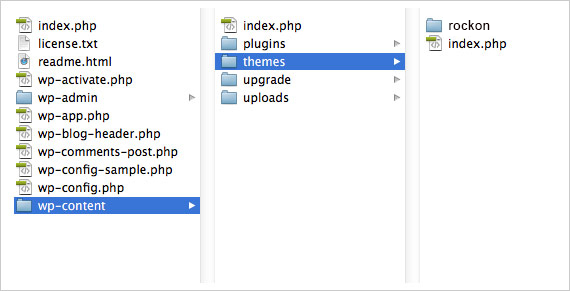
Step 4 – Navigate to the wp-dashboard and then activate the newly installed theme by going to Appearance > Themes and clicking the Activate button.
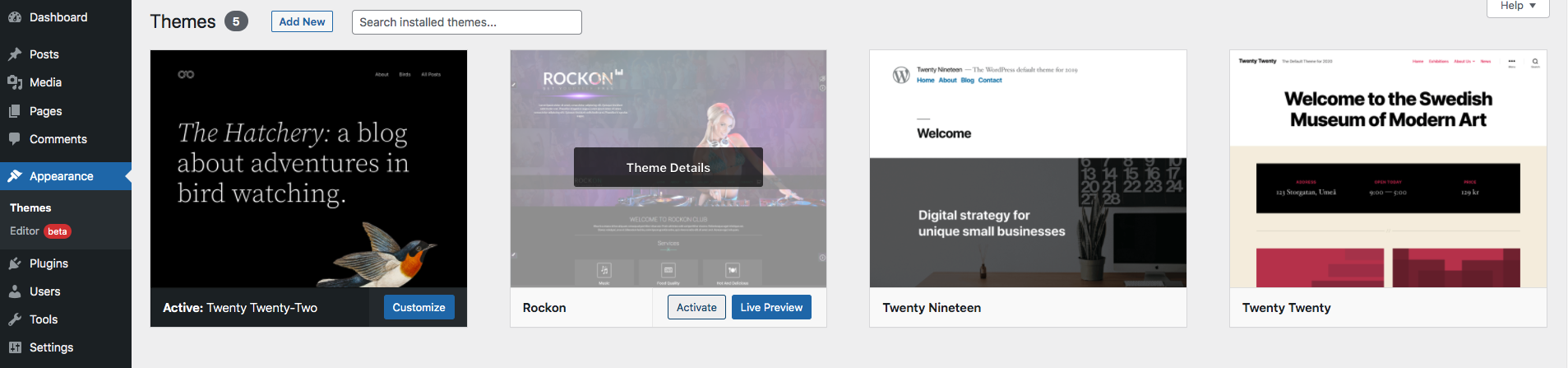
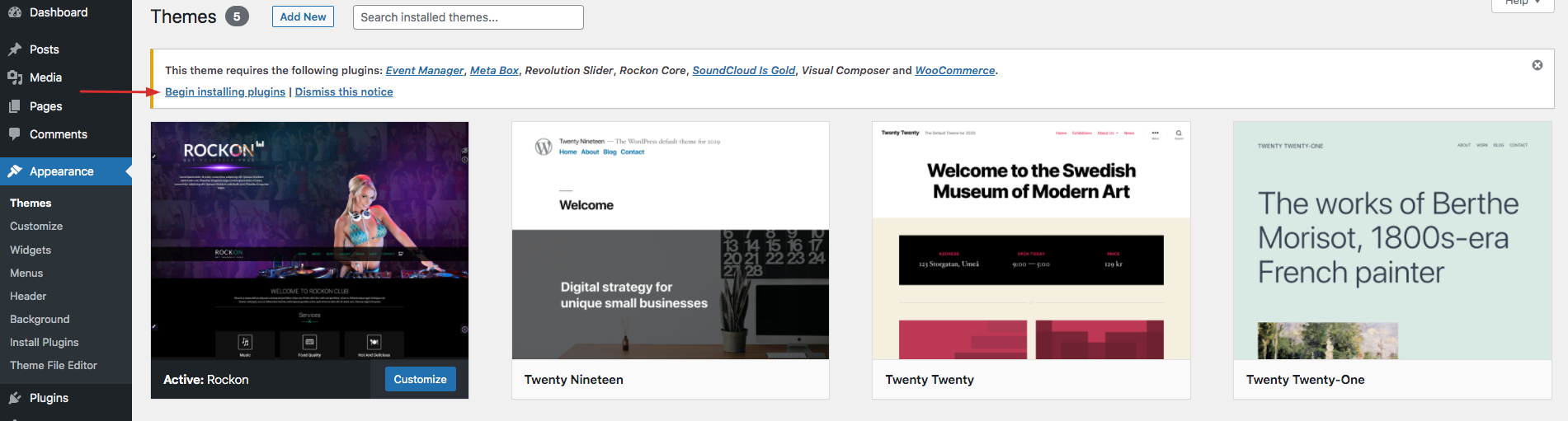
Step 5 – Once uploaded, activate the theme. Go to Appearance > Themes and activate it. Then you will see a notification message to activate the required & recommended plugins: .
Step 6 – All plugins shown in screenshot are the required and recommended plugins.
All the recommended plugins are the optional plugins.
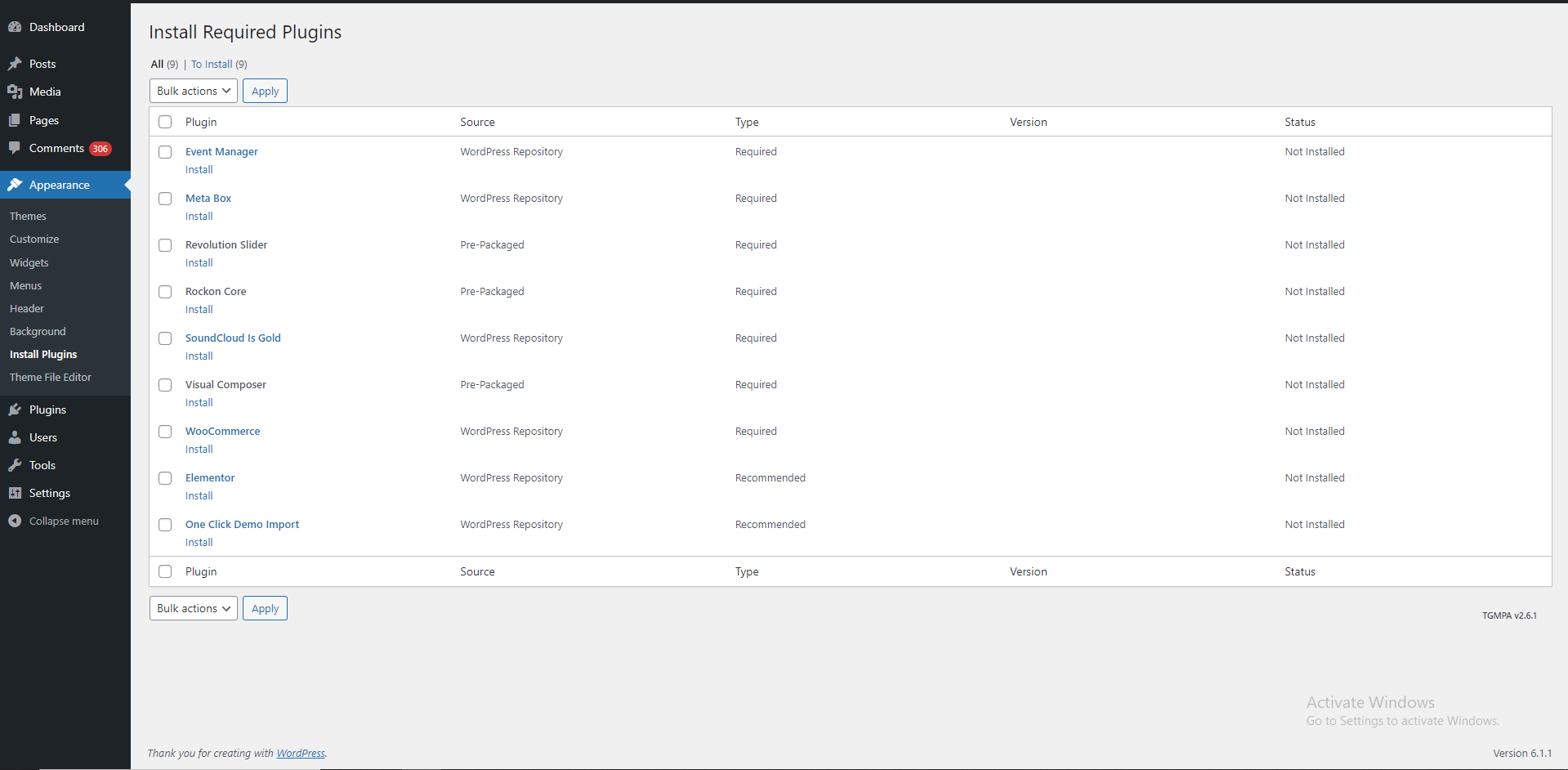
Plugins that will need to be installed and activated: Rockoncore, slider Revolution, soundcloud is gold, Woocommerce Plugin are required for the theme to work, it contains all of our theme features like shortcodes and shortcode generator.
1. RockOn Core – This plugin create custom post type and some meta option.
2. Event Manager – A Complete Event Solution for WordPress by MagePeople.
3. Slider Revolution – Slider Revolution is an innovative, responsive WordPress Slider Plugin that displays your content the beautiful way. Whether it's a Slider, Carousel, Hero Scene or even a whole Front Page, the visual, drag & drop editor will let you tell your own stories in no time!
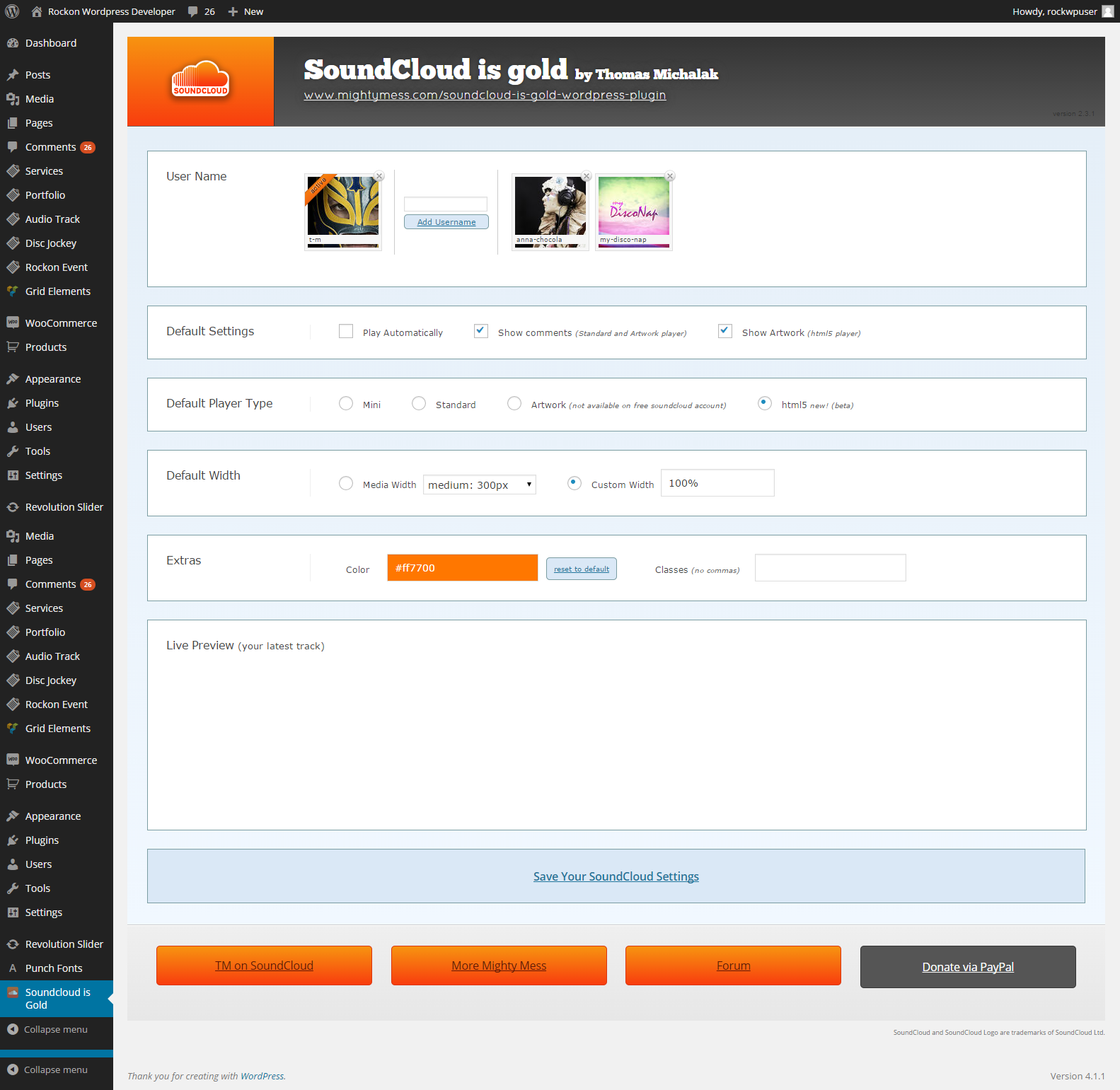
4. SoundCloud Is Gold – Soundcloud is gold integrates perfectly into wordpress. Select, set and add track, playlists or favorites to your post using the soundcloud player. Live Preview, easy, smart and straightforward. You can set default settings in the option page, choose your defaut soundcloud player (Standard, Artwork, Visual), its width, extra Css classes for you CSS lovers and your favorite colors. You'll still be able to set players to different settings before adding to your post if you fancy a one off change!
5. WP Bakery – Drag and drop page builder for WordPress. Take full control over your WordPress site, build any layout you can imagine – no programming knowledge required.
6. WooCommerce – WooCommerce is a free eCommerce plugin that allows you to sell anything, beautifully. Built to integrate seamlessly with WordPress, WooCommerce is the world's favorite eCommerce solution that gives both store owners and developers complete control.
7. Elementor - The Elementor Website Builder has it all: drag and drop page builder, pixel perfect design, mobile responsive editing, and more. click here to know more: https://wordpress.org/plugins/elementor/
8. GPT Sniper Plugin - This plugin allows you to quickly and easily generate massive content for your blogs.
Demo Importer
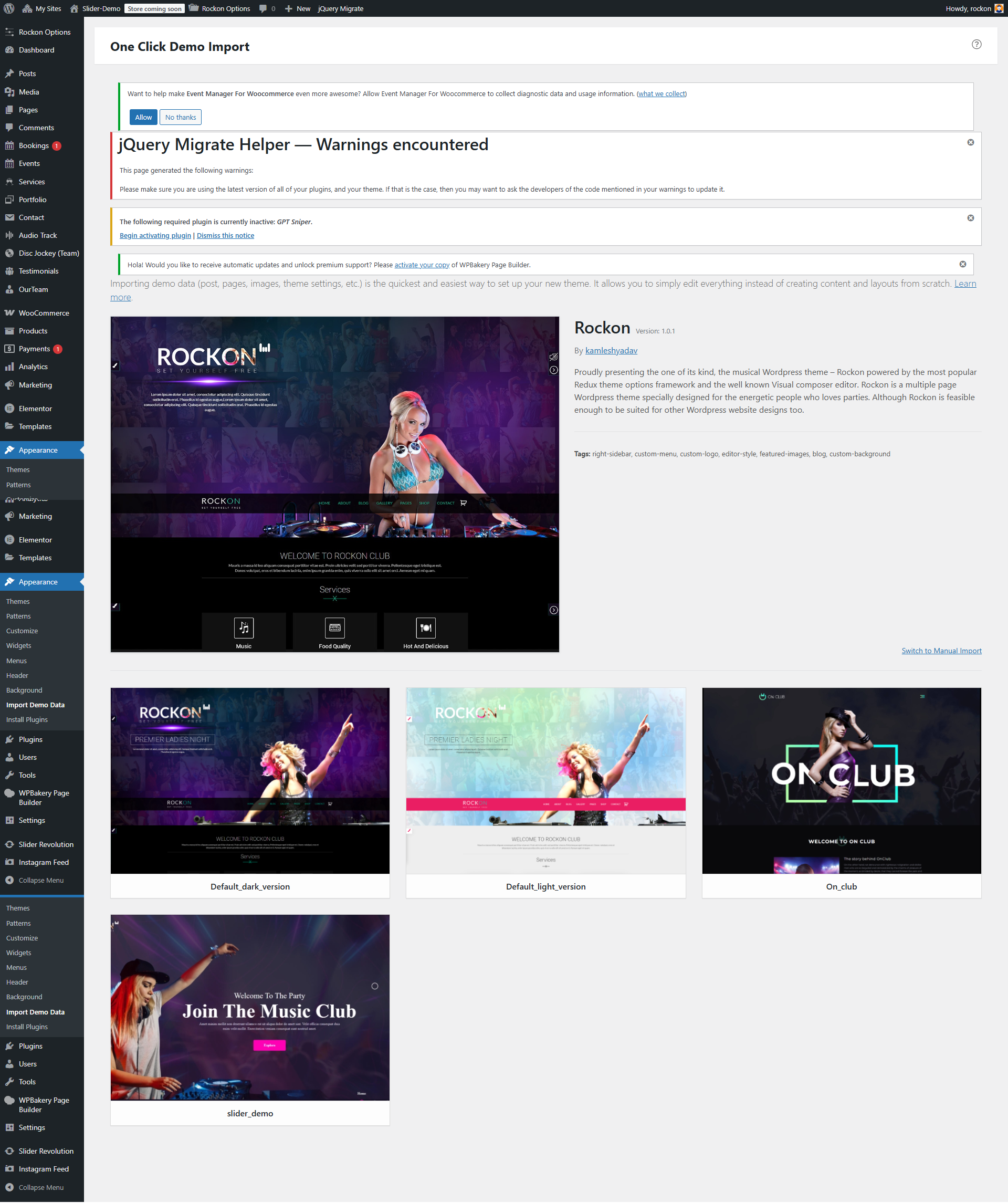
Navigate to Appearance >> Import Demo. Hover on the desired demo, and hit Import Demo button. Wait for sometime, the demo will imported successfully.
Theme Settings
Before proceeding to "Setting up pages" let's have a look on the theme options in rockon theme it is called as "Rockon Options". To access the settings provided by theme options you need to navigate to "Appearance > Rockon options". This is a very powerful options panel powered by redux framework.
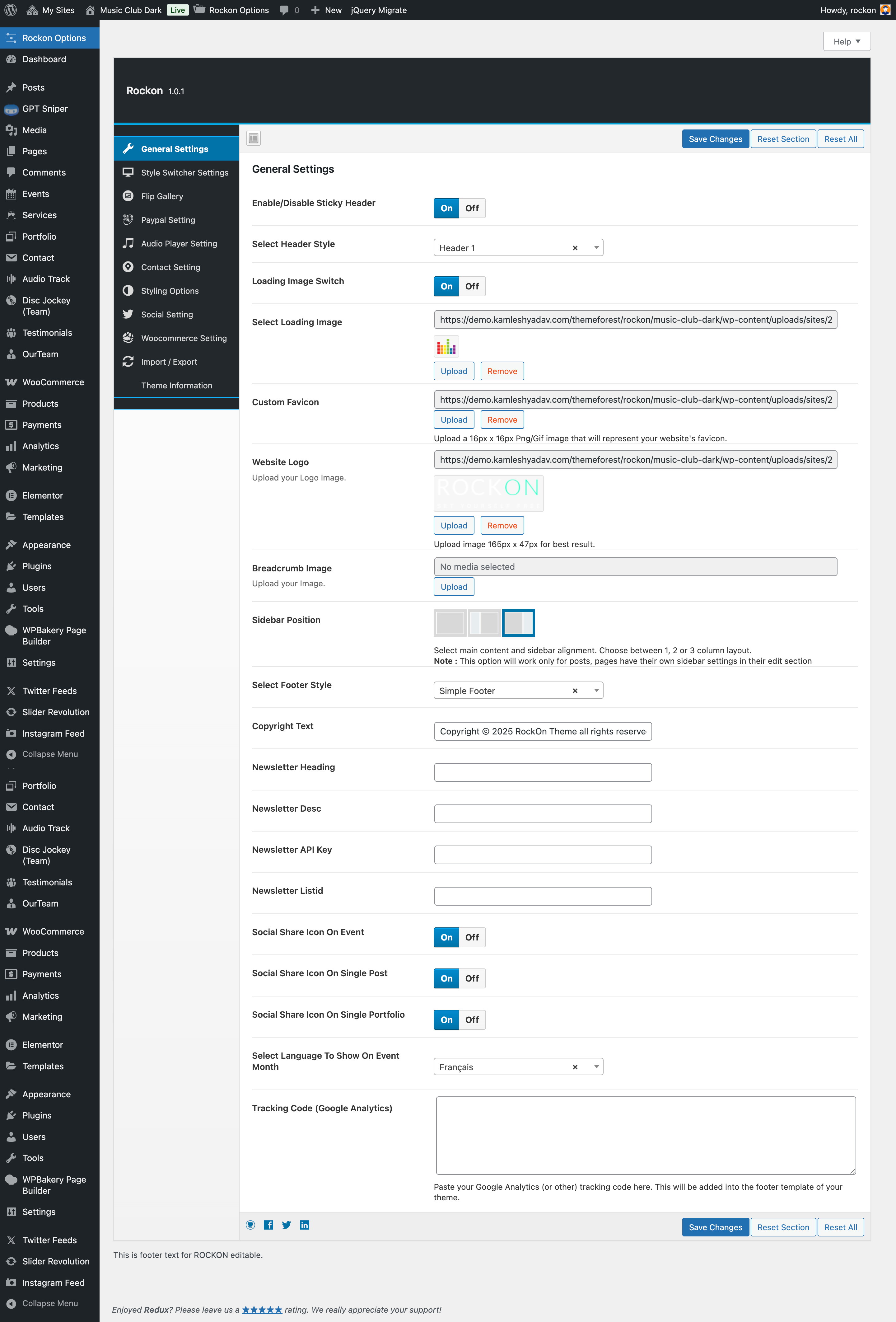
The various options provided by rockon options are as follows :
General Settings
General settings consist of the settings related to the, preloader image, favicon, site audio player, website logo, sidebar position for the posts, footer copyright text, and google analytics code input section.
Style Switcher Settings
Style switching is additional feature you got with rockon theme you can choose any one colour layout from here and background option too. Also you can choose other color as per your choise and for that you need to keep both of the Color Option and Background Option none. You can enable and disable the colour style switcher for the admin and the user both from here.
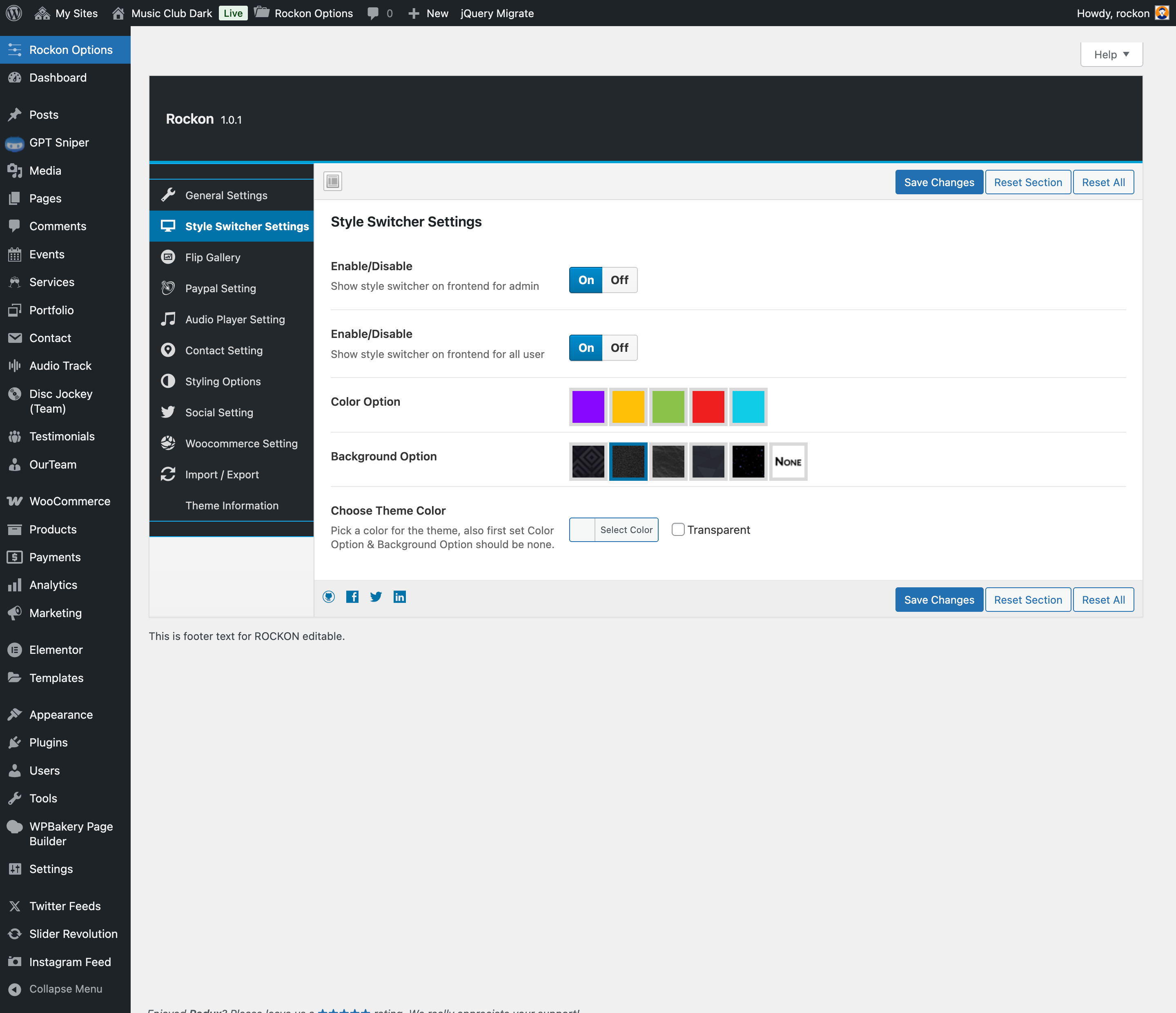
NOTE: In this "style switcher settings" the "- Color Option" & "- Background Option" have two variants, which can be visible on choosing theme versions in the "Styling Options" if you choose any one version either "Dark version" or the "Light Version" then the "Color Option" & "Background Option" here will be according to the version choosen.
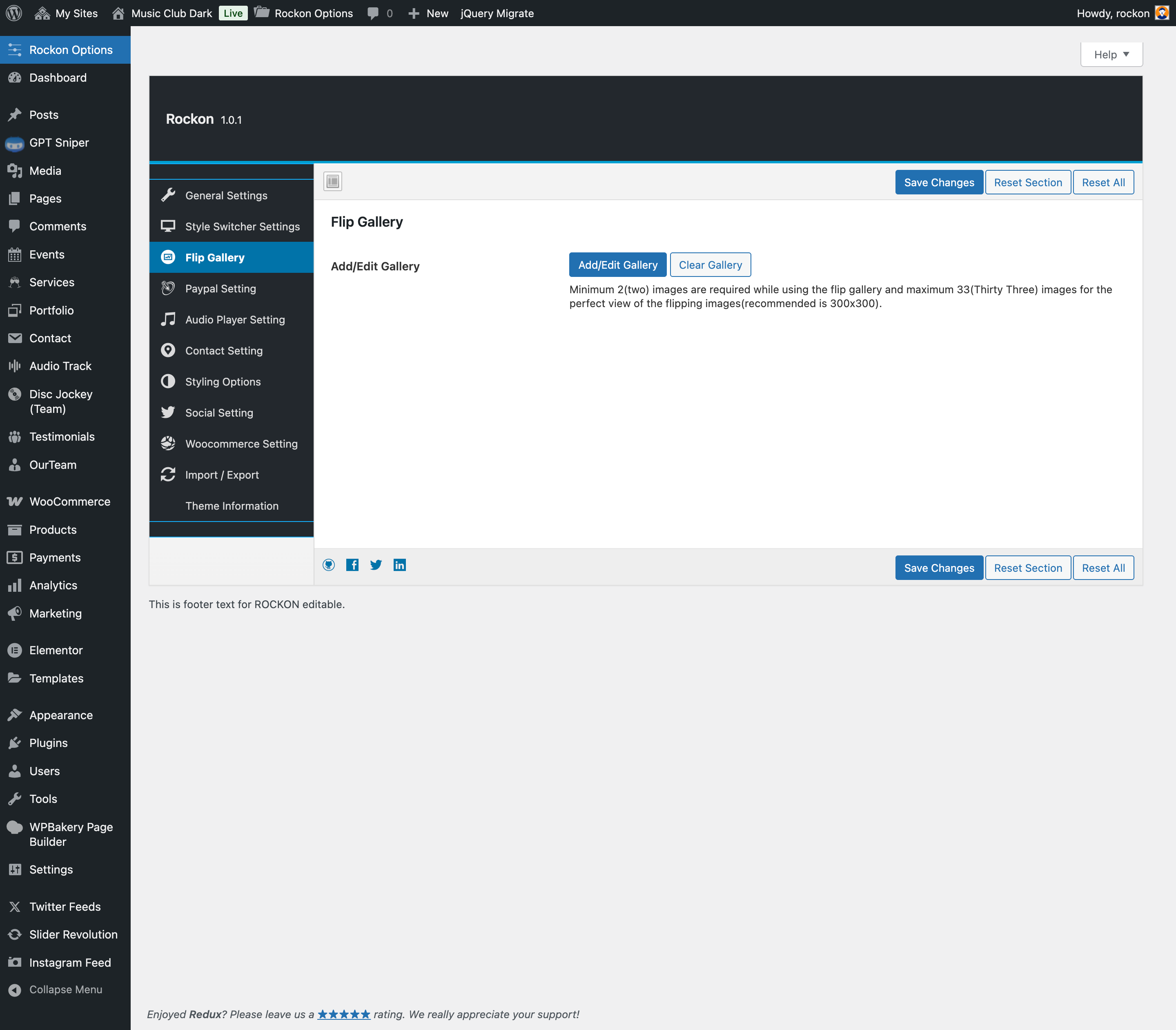
Flip Gallery
Rockon theme comes with the beautiful flip gallery which is visible on the home page when used with home simple slider and by default in the footer on all pages.
The main thing to be kept in mind while using flip gallery is that minimum 2(two) images are required while using the flip gallery and maximum 33(Thirty Three) images for the perfect view of the flipping images unless less than 33 images will be repeated automatically. The recommended size of the images is 300x300 in width & height.
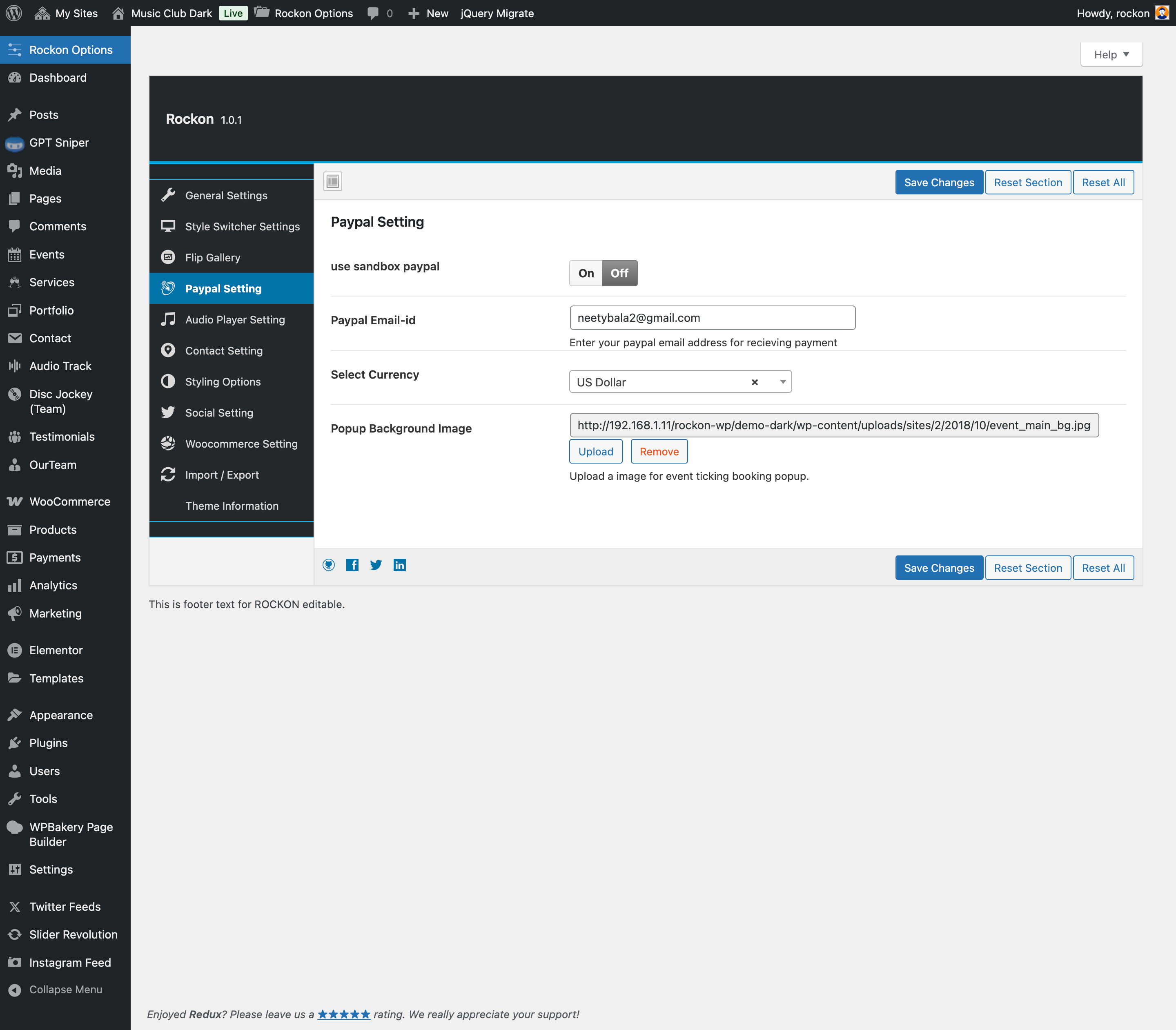
Paypal Setting
Paypal Setting have the settings for the event ticket booking. User have to put PayPal Email ID, select currency, and upload popup background image.
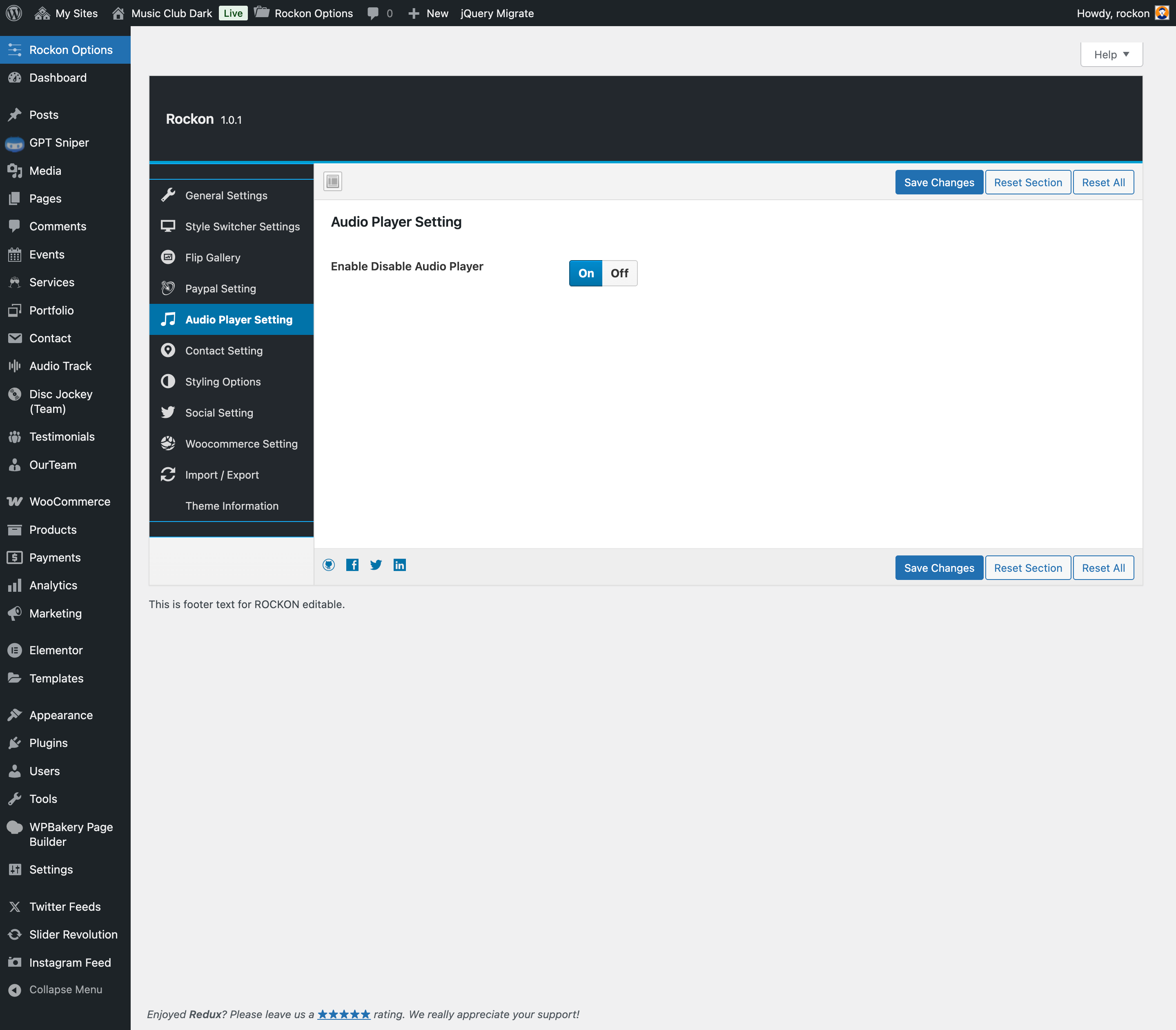
Audio Player Setting
Enable disable the audio player.
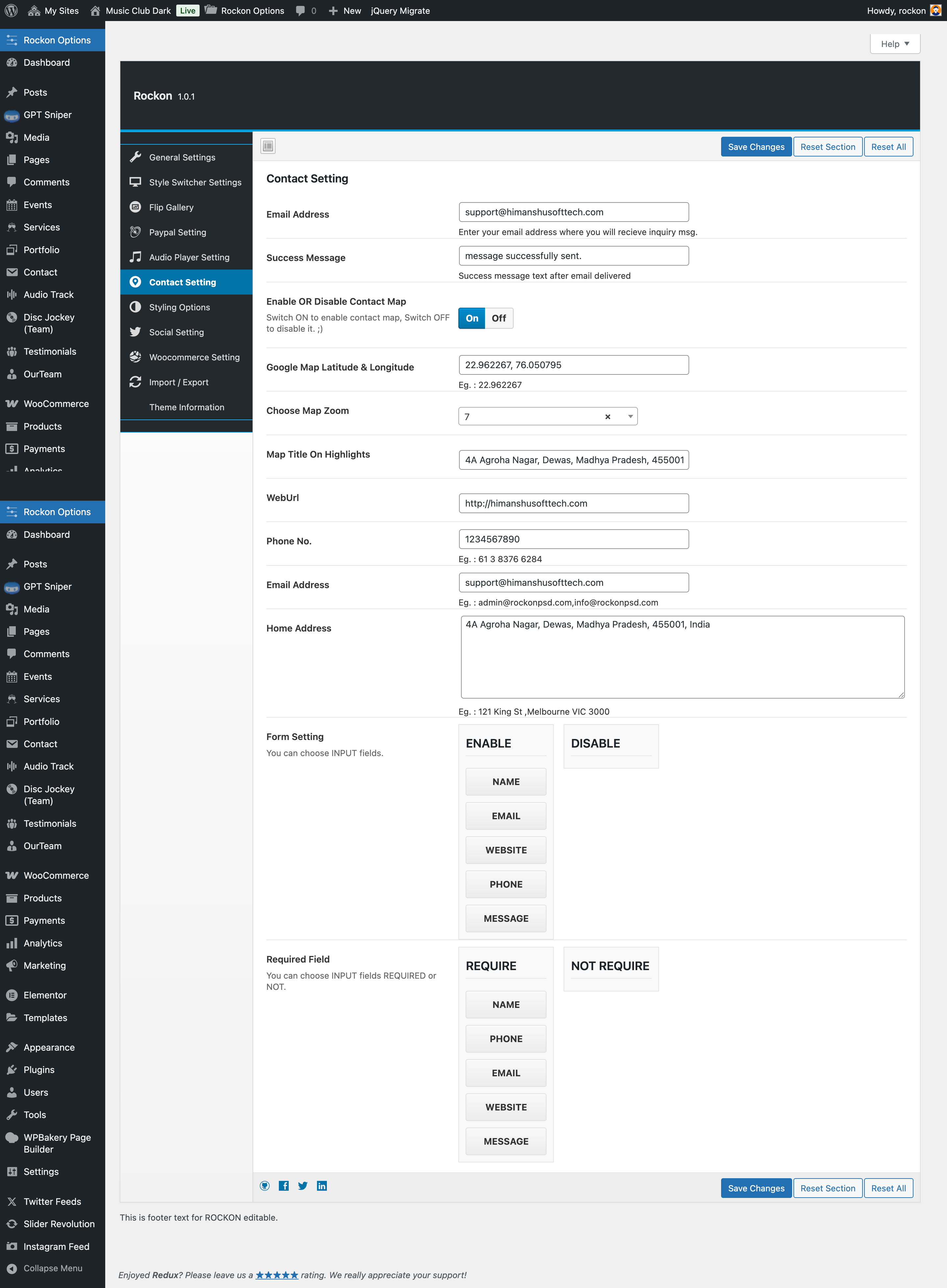
Contact Setting
Contact settings have the settings for the contact page, the contact form and the map location can be added from here. Setting up the contact page is further explained in "Setting up pages" of this documentation.
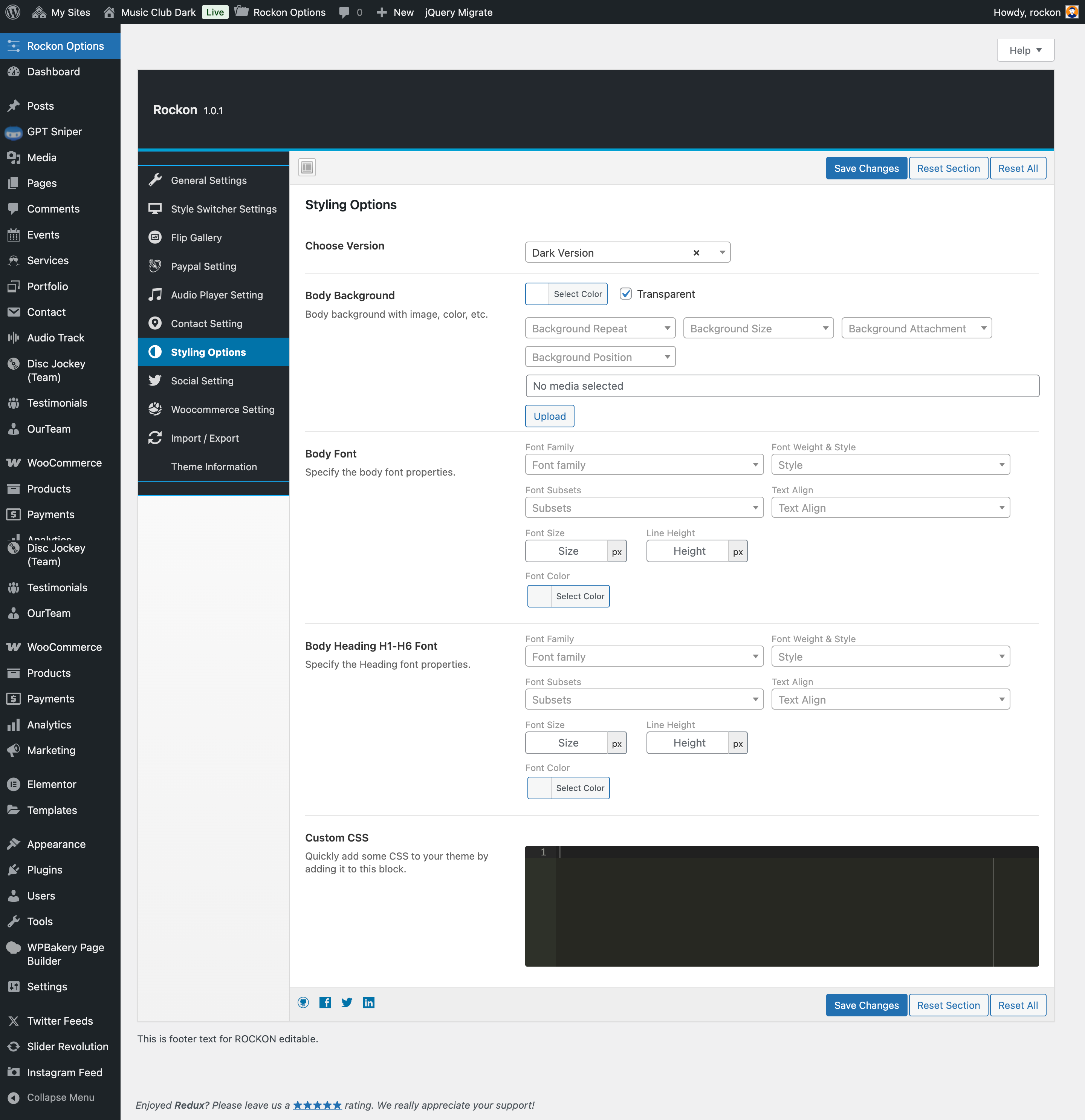
Styling Options
Styling option consists of the custom styling for the body background, body font, body heading, and implementation of custom style CSS codes.
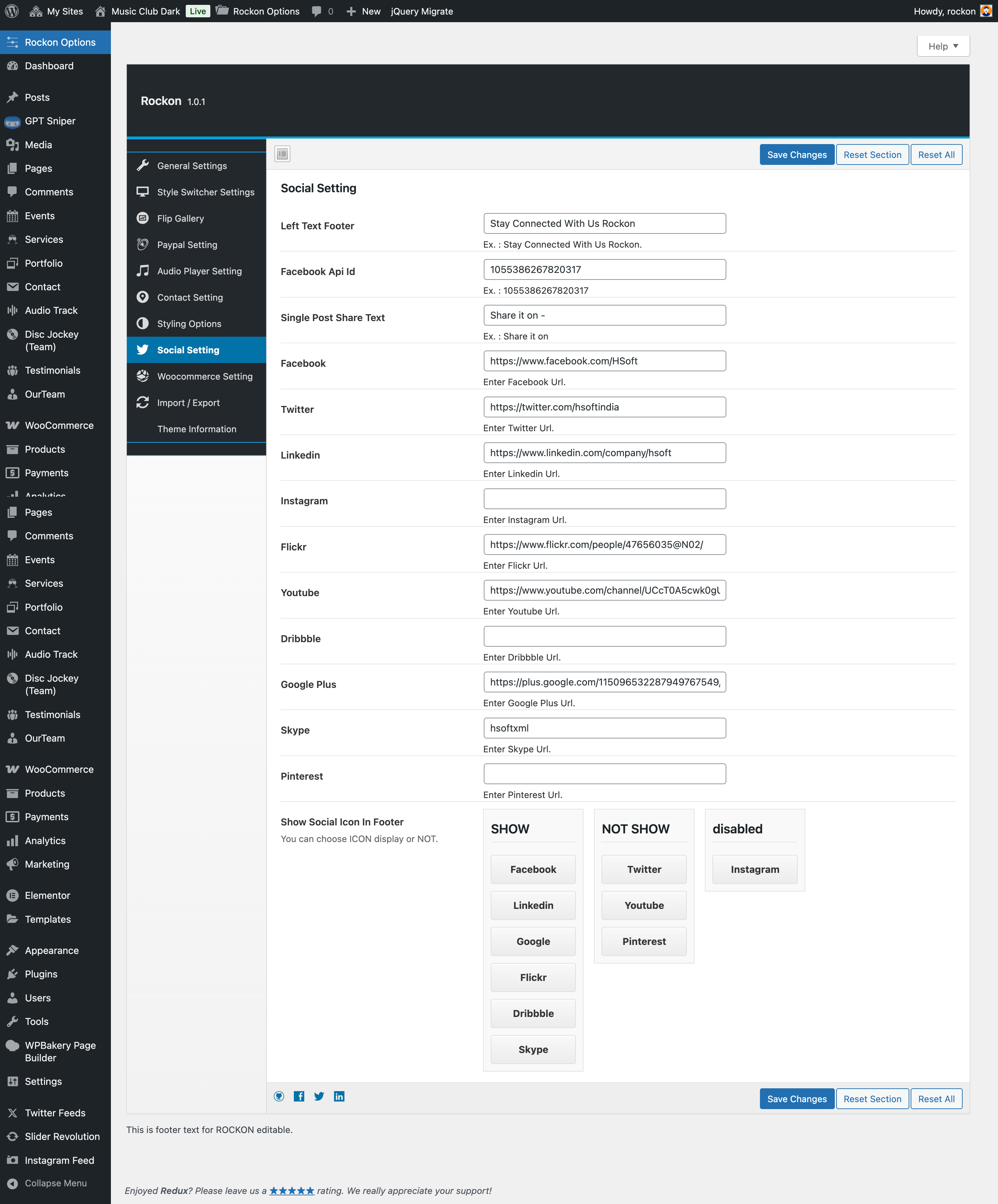
Social Setting
Social settings consist of the linking your site to the social media, just add your social profile link and save.
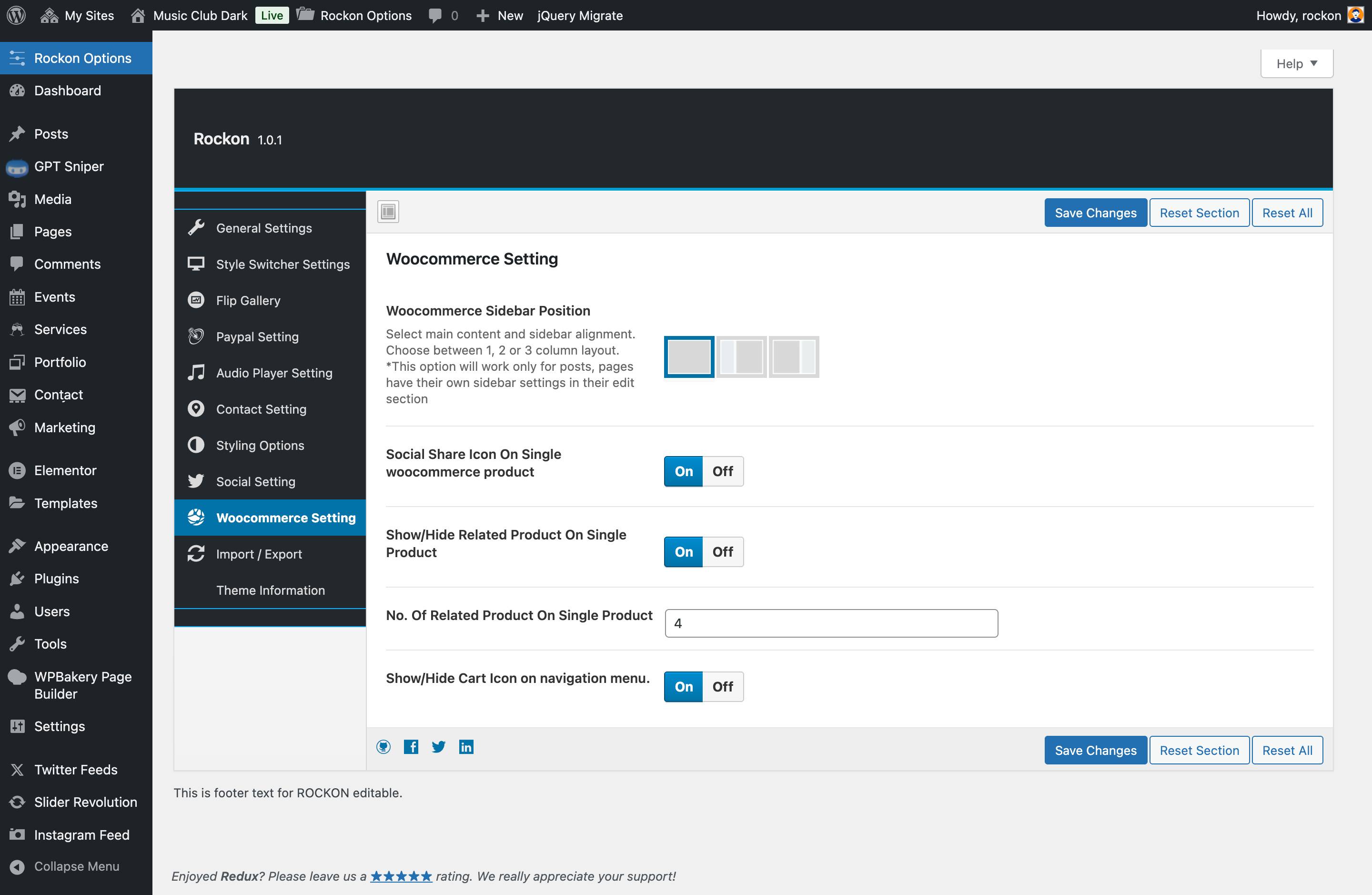
Woocommerce Setting
WooCommerce settings consist of WooCommerce poage settings and the cart setting at the menu/header.
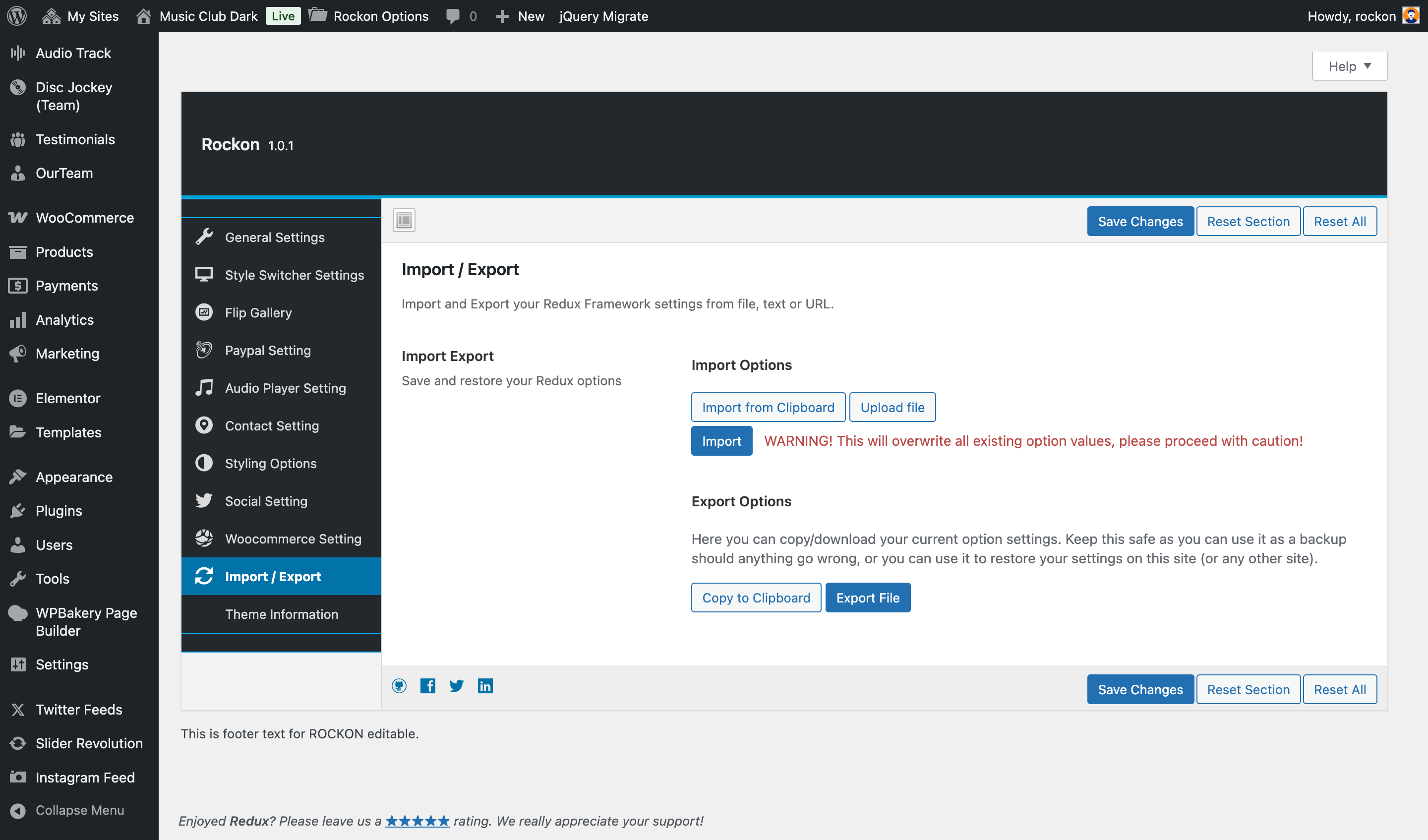
Import/Export
Import export option provides the settings to backup by exporting the theme options settings & importing the old settings from the file.
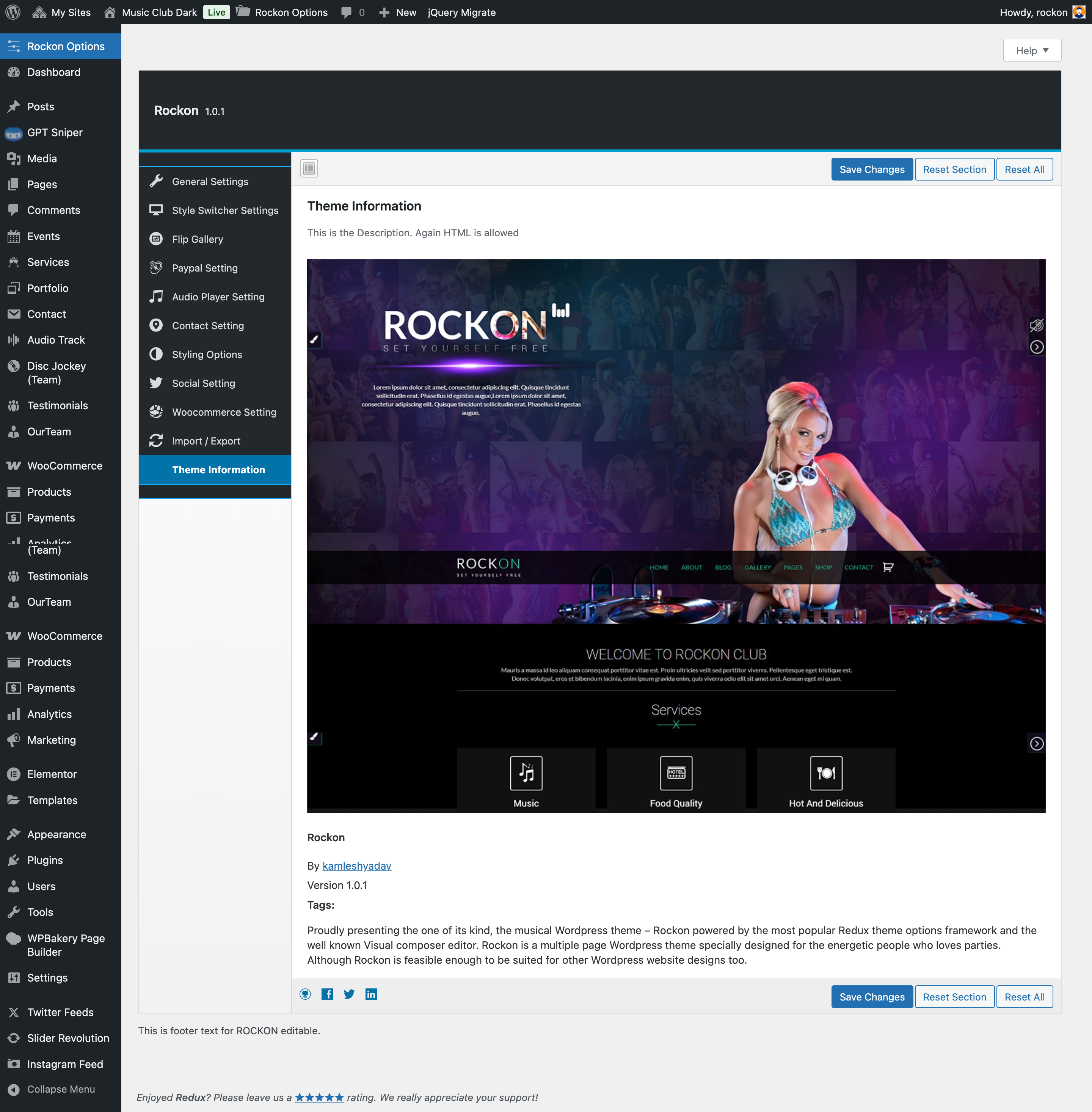
Theme Information
This is simply the information about the theme, and the developers of this theme, the current version of rockon theme 2.2.2
Shortcodes
A specific code that lets you do difficult things with very little effort. Shortcodes can embed files or create objects that would normally require lots of complicated, ugly code in just one line.
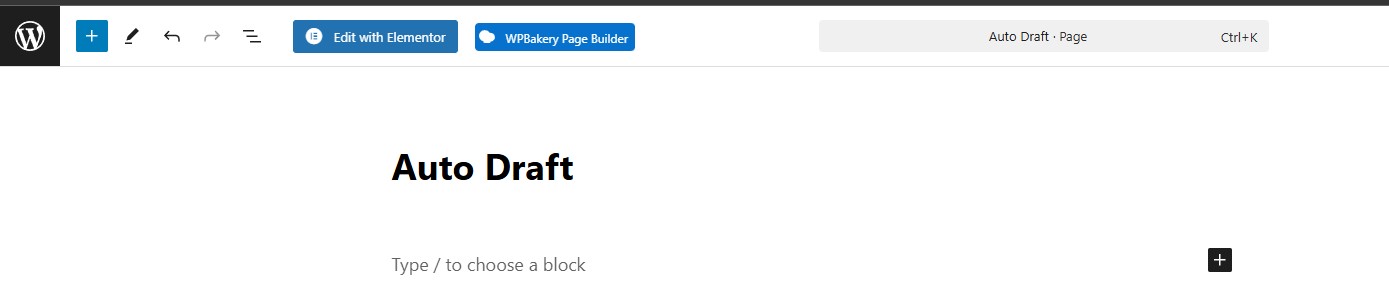
We Provide 2 Page Builders for the shortcode
How To Add ShortCode
Navigate to Pages >> Add New >>Edit with Elementor Or WPBakery.
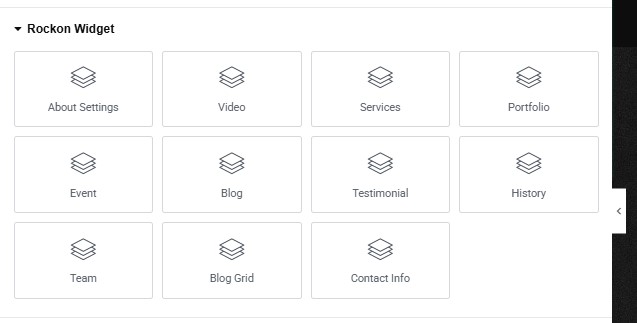
These are the theme shortcodes, you can use to display different thing on the page.
Elementor Shortcodes
These are the theme shortcodes, you can use to display different thing on the page.
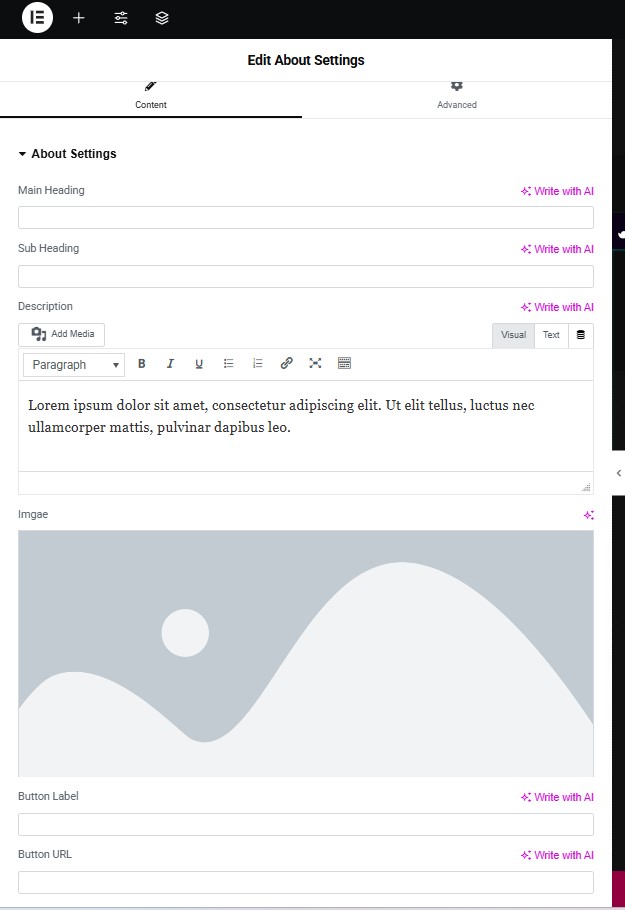
About Settings
User can manage the About section through this shortcode. User have to add headings and Description,Button lable,url and image.
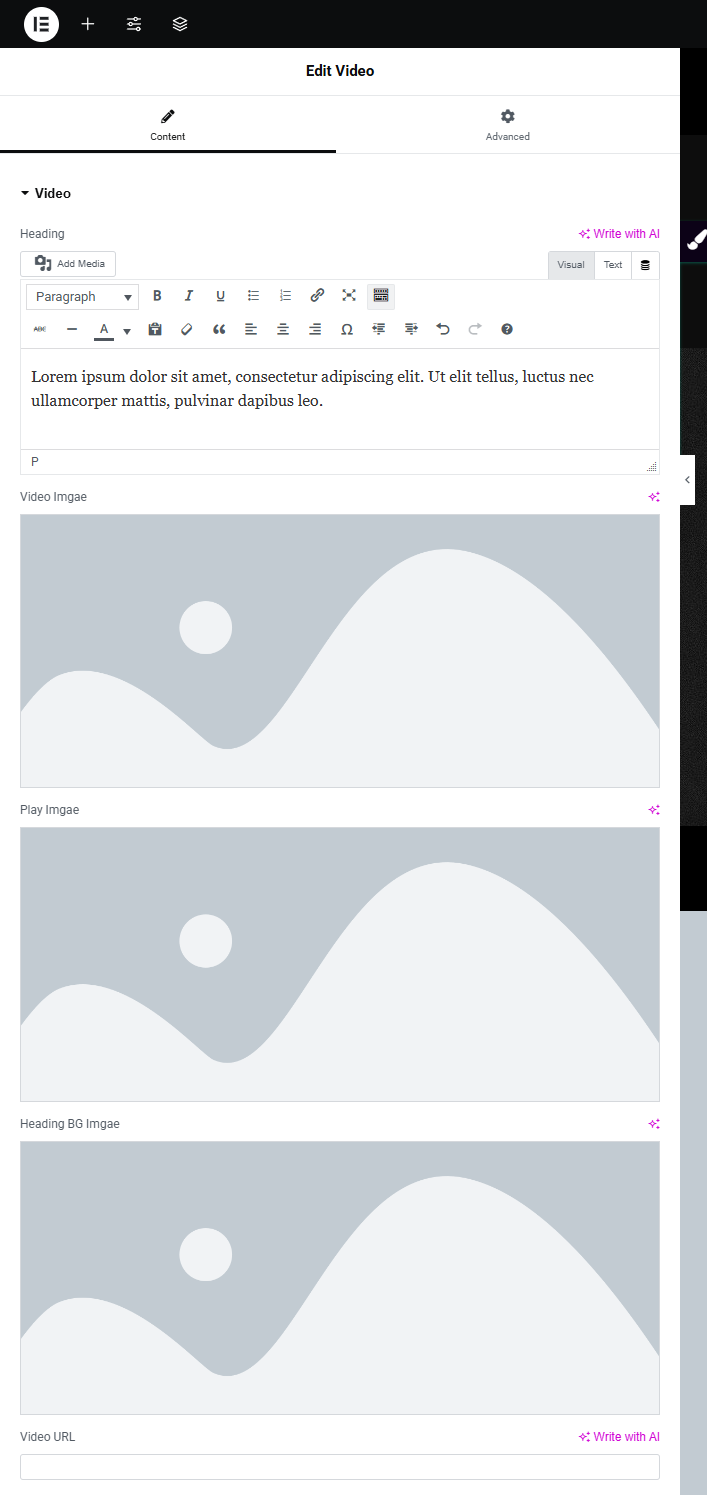
Video
User can manage the Video section through this shortcode. User have to add headings and Video Image, Play image, Heading background image and Video URL.
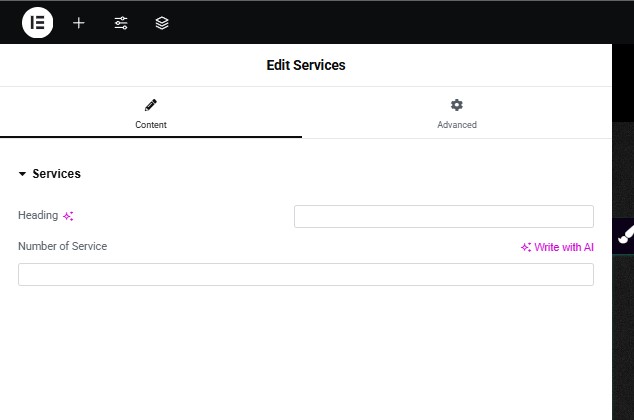
Services
User can manage the Services section through this shortcode. User have to add headings and number of services.
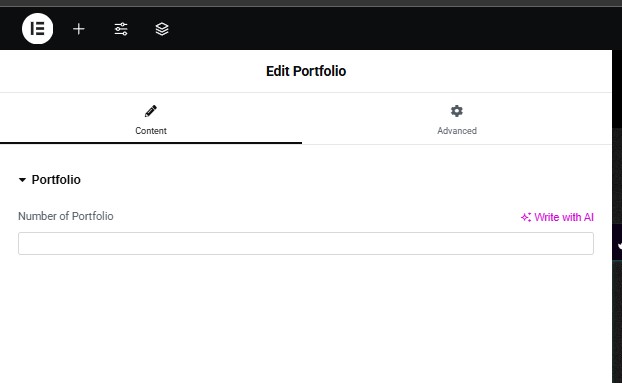
Portfolio
User can manage the Portfolio section through this shortcode. User have to add Number of portfolio.
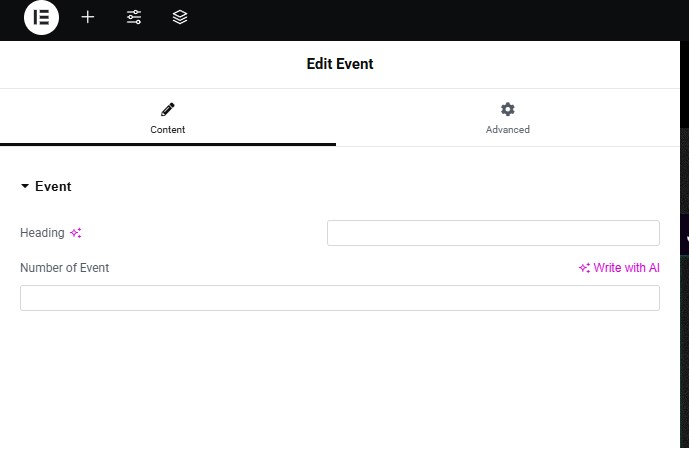
Events
User can manage the event section through this shortcode. User have to add headings and Number of Events.
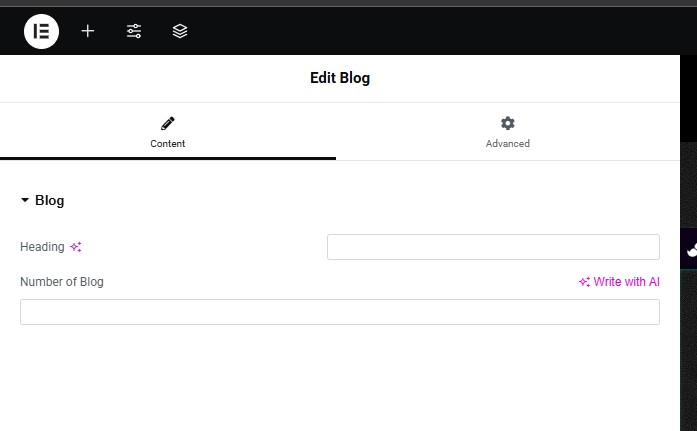
Blog
User can manage the section through this shortcode. User have to add headings and Description,Button lable,url and image.
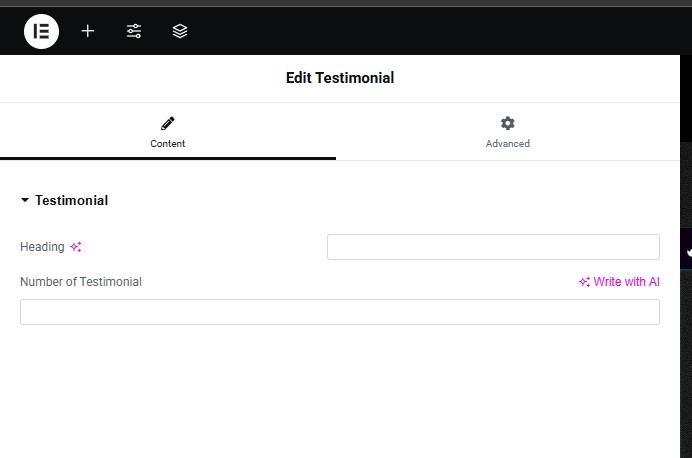
Testimonial
User can manage the Testimonial section through this shortcode. User have to add headings and Number of testimonial.
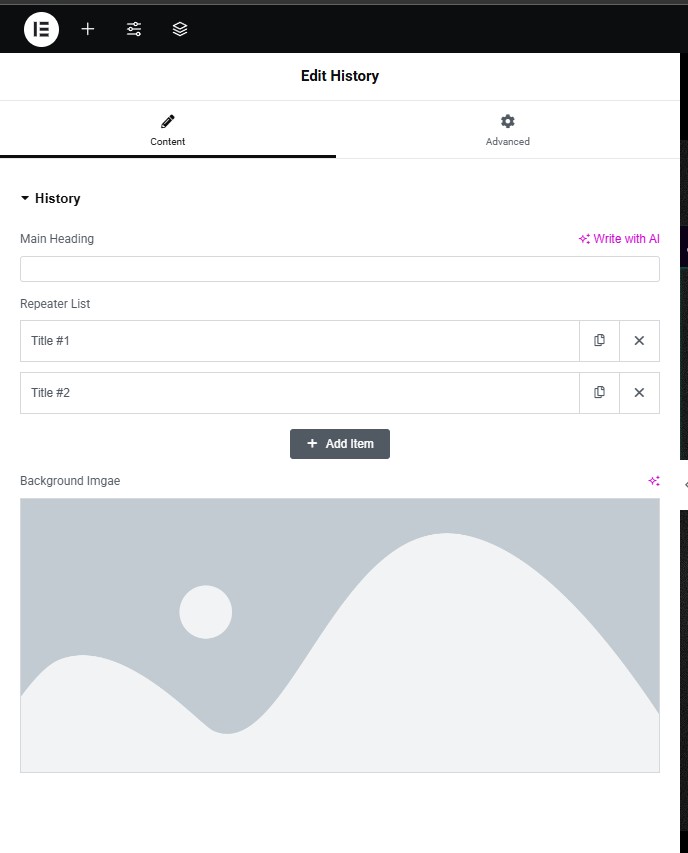
History
User can manage the History section through this shortcode. User have to add headings and repair list , back ground image.
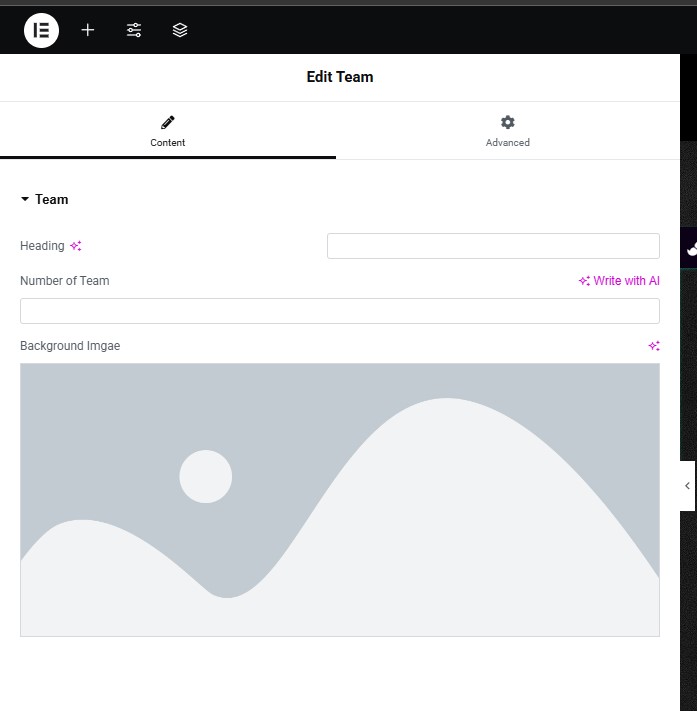
Team
User can manage the Team section through this shortcode. User have to add headings, number of team and back ground image.
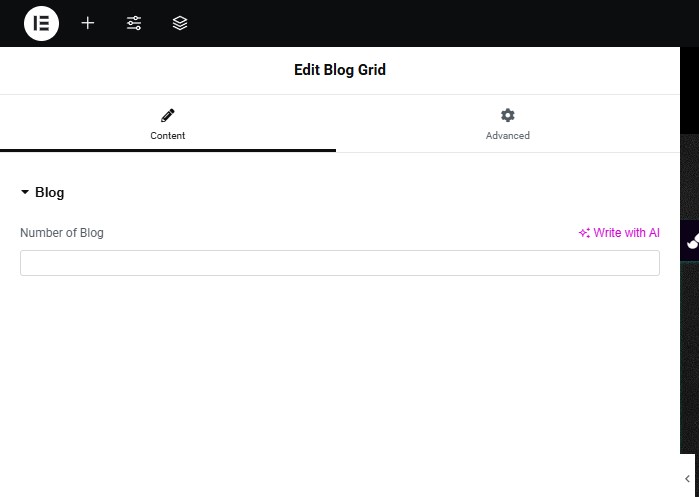
Blog Grid
User can manage the Blog Grid section through this shortcode. User have to add Number of blog.
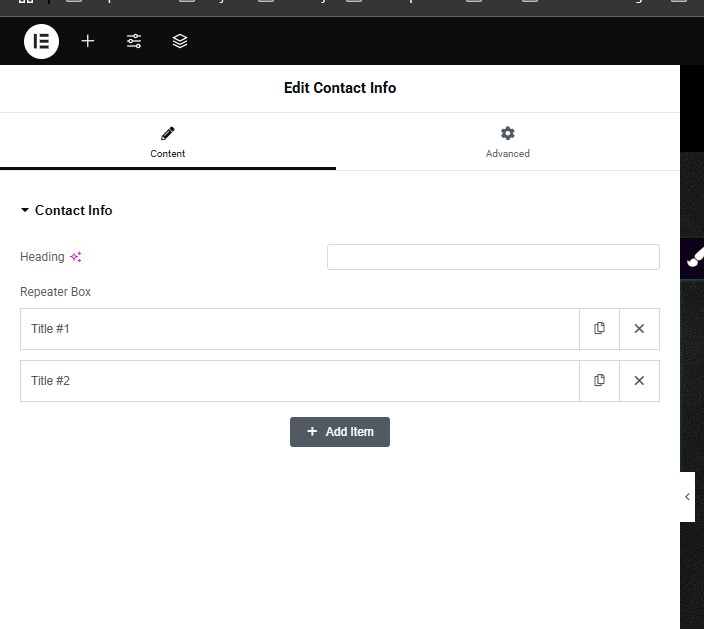
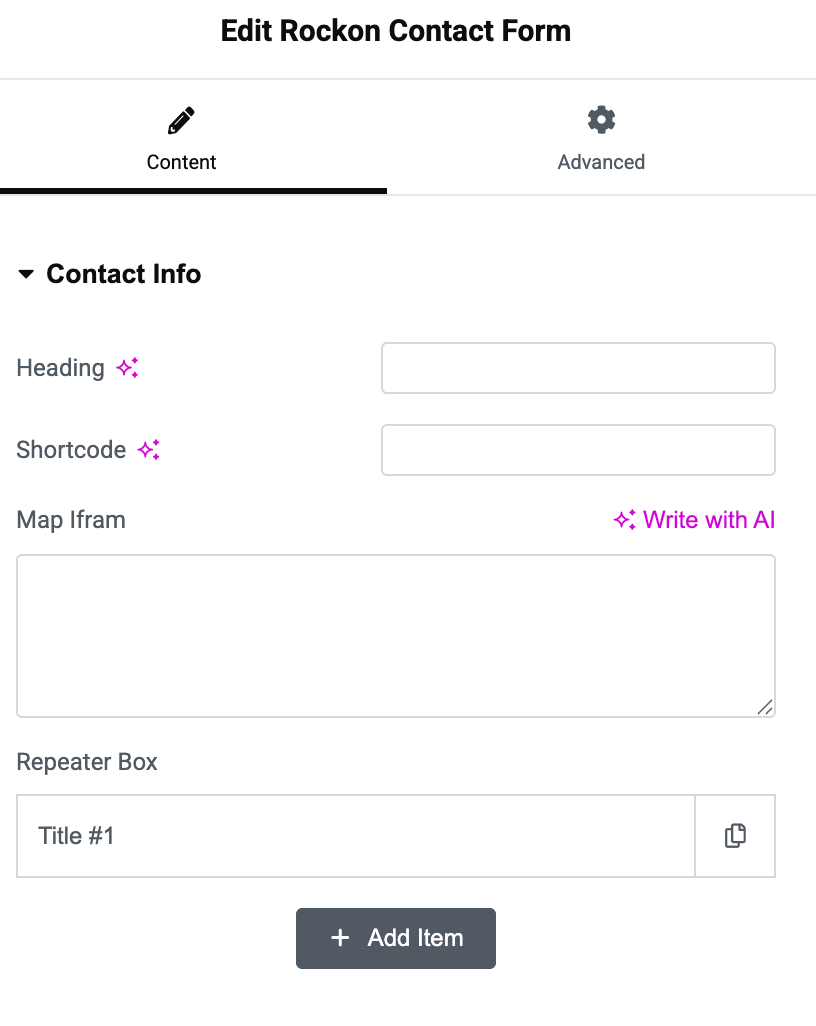
Contact Info
User can manage the Contact Info section through this shortcode. User have to add headings and repeater Box.
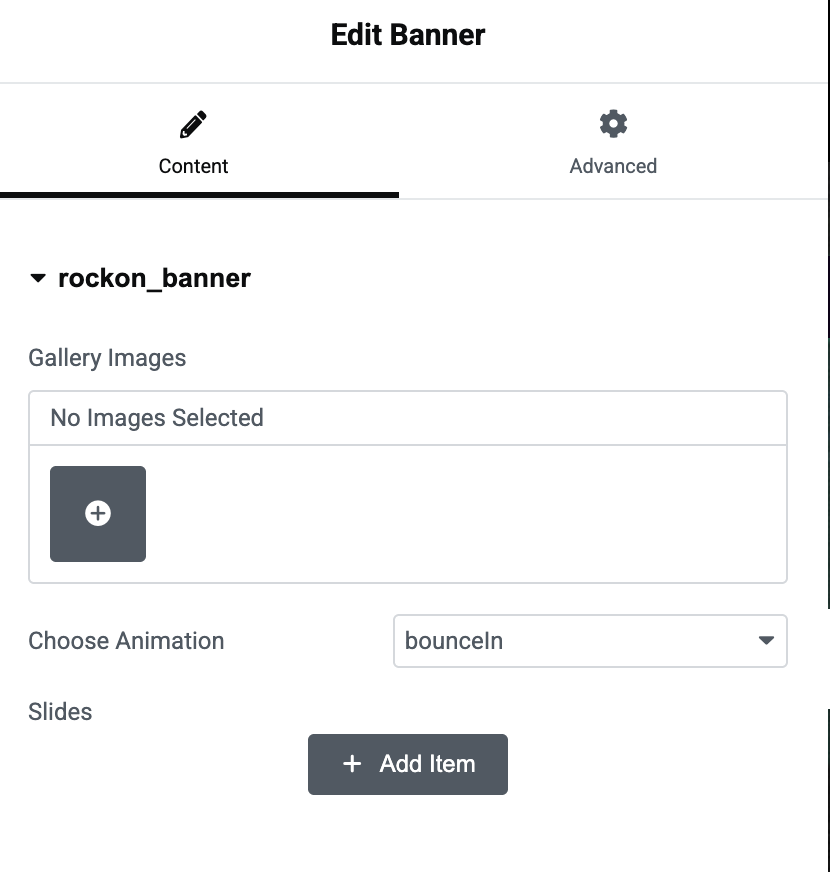
Banner
User can create banner using this shortcode.
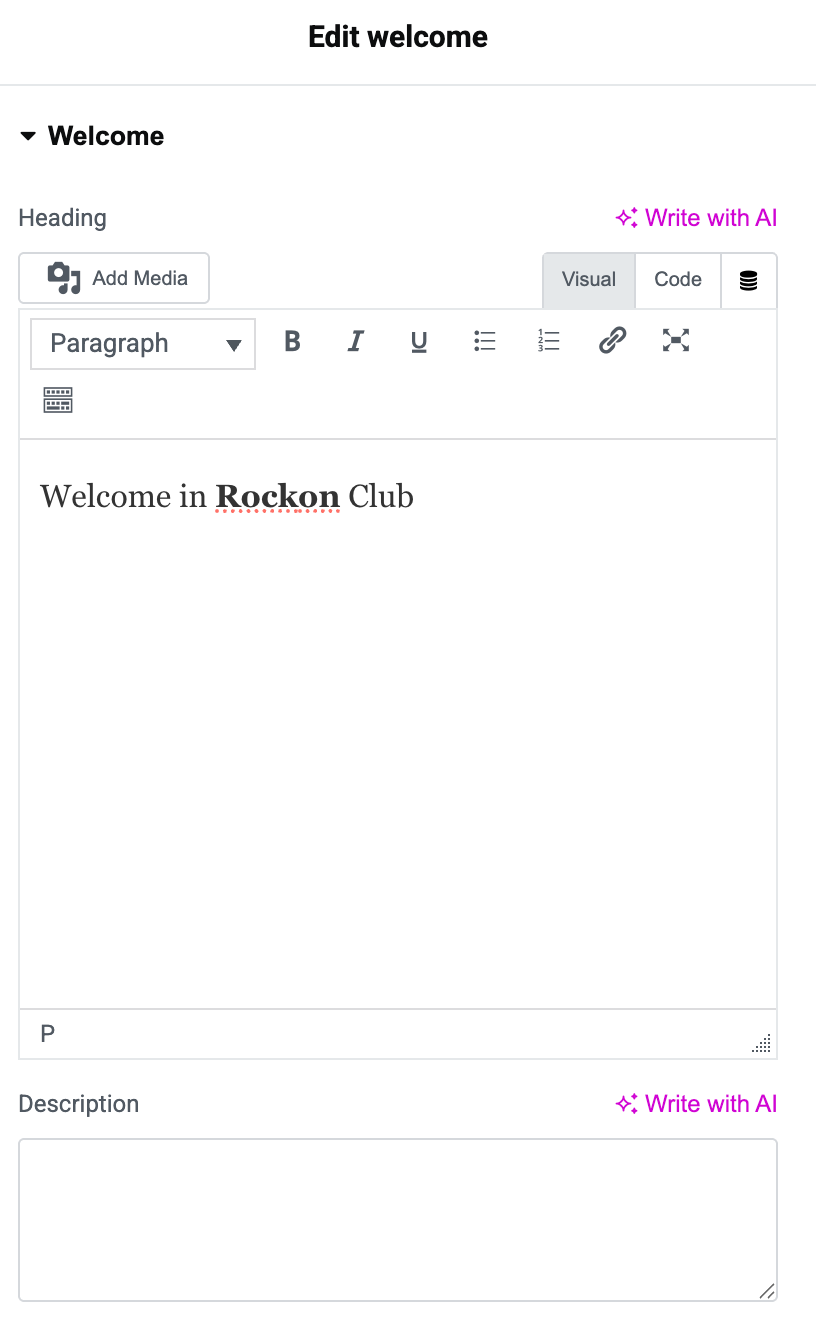
Welcome
With this shortcode, user can add welcome message on the page.
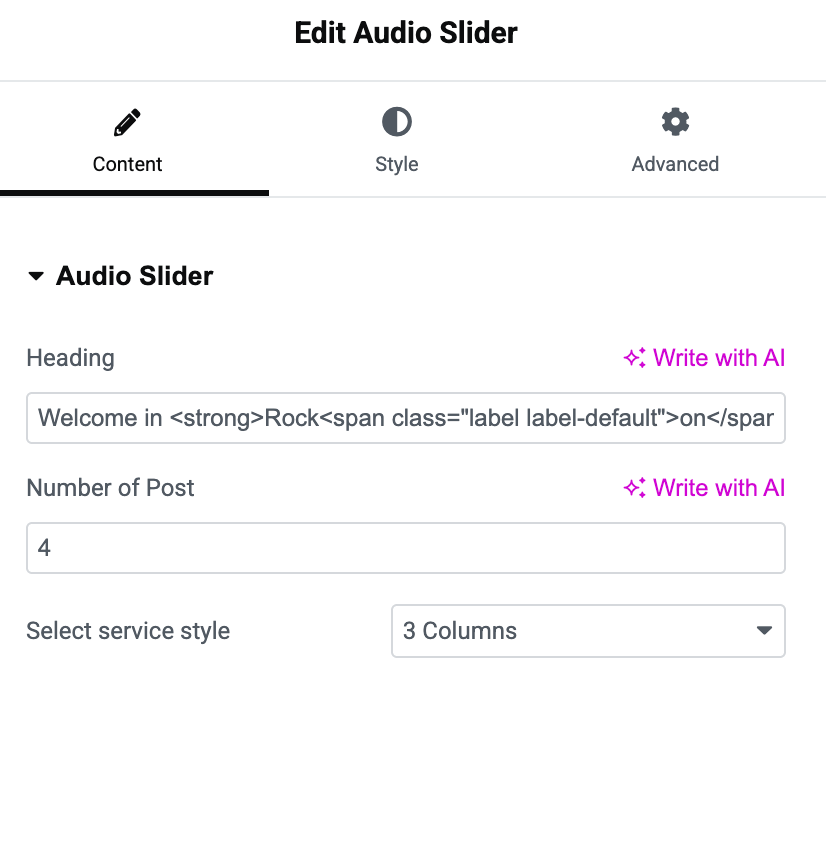
Audio Slider
This shortcode allows user to add the audio in the slider layout.
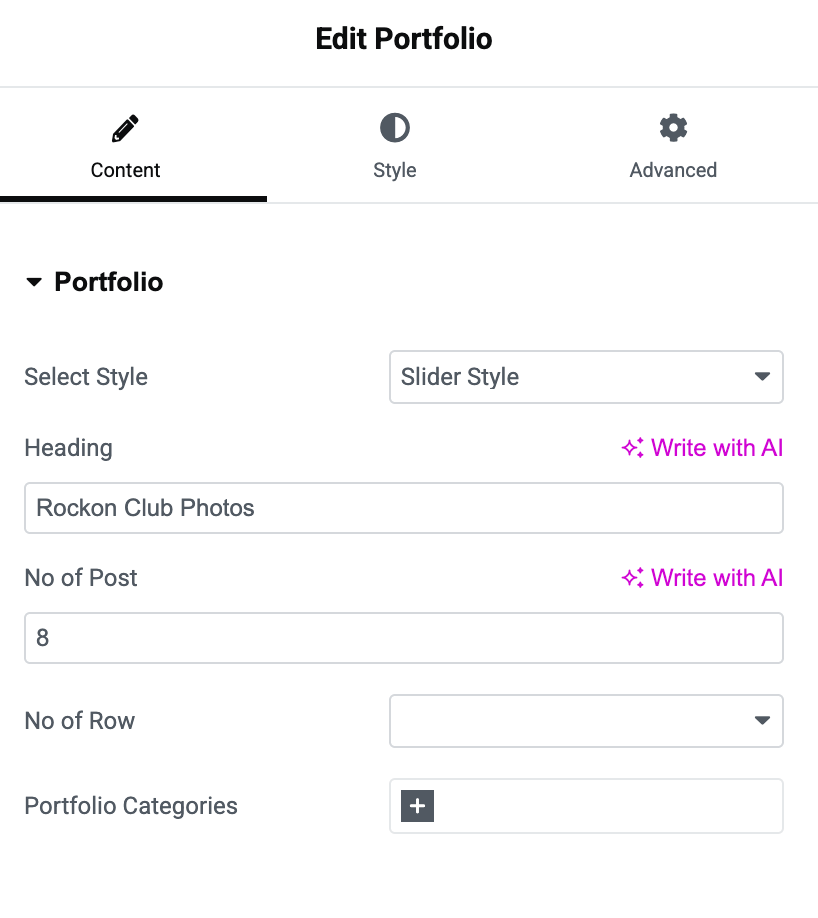
Portfolio
Using this shortcode, user can showcase the portfolio on the website.
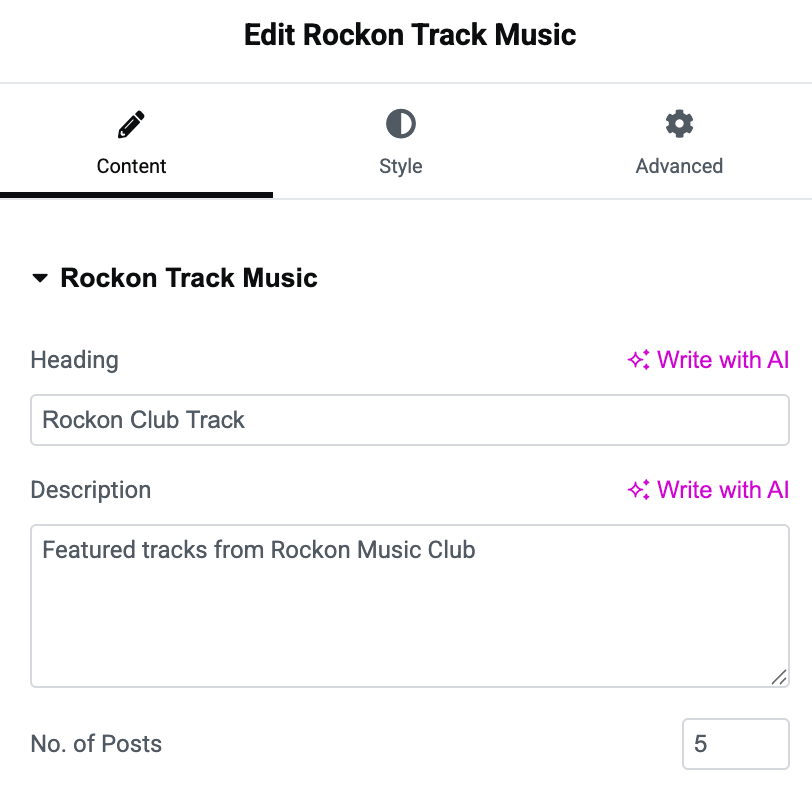
Track Music
Track Music shortcode helps you to display the tracks on the website.
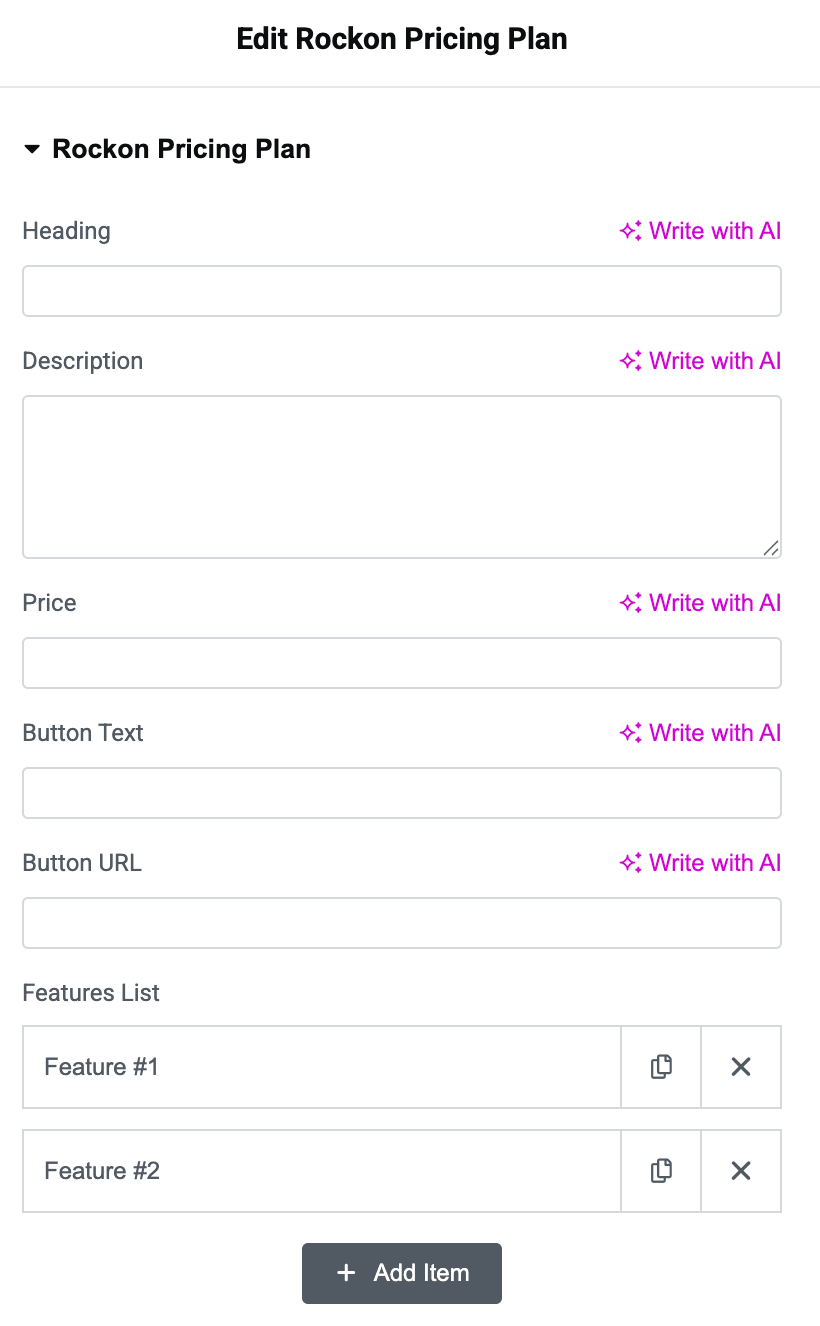
Pricing plan
As the name depicts, user can add pricing plan and display on the website using the Pricing Plan shortcode.
Contact Form
This shortcode, helps user in adding the contact form on the website.
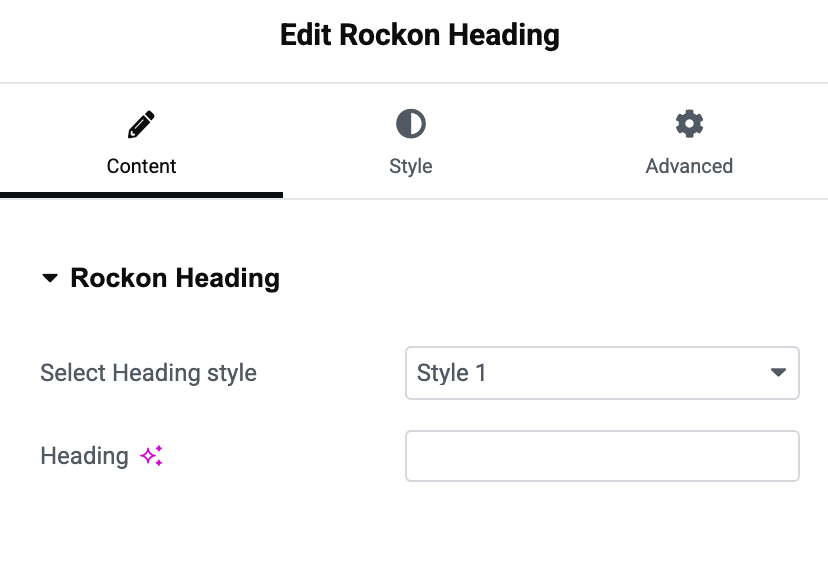
Heading
Heading shortocde is used to add the heading on any section of the website.
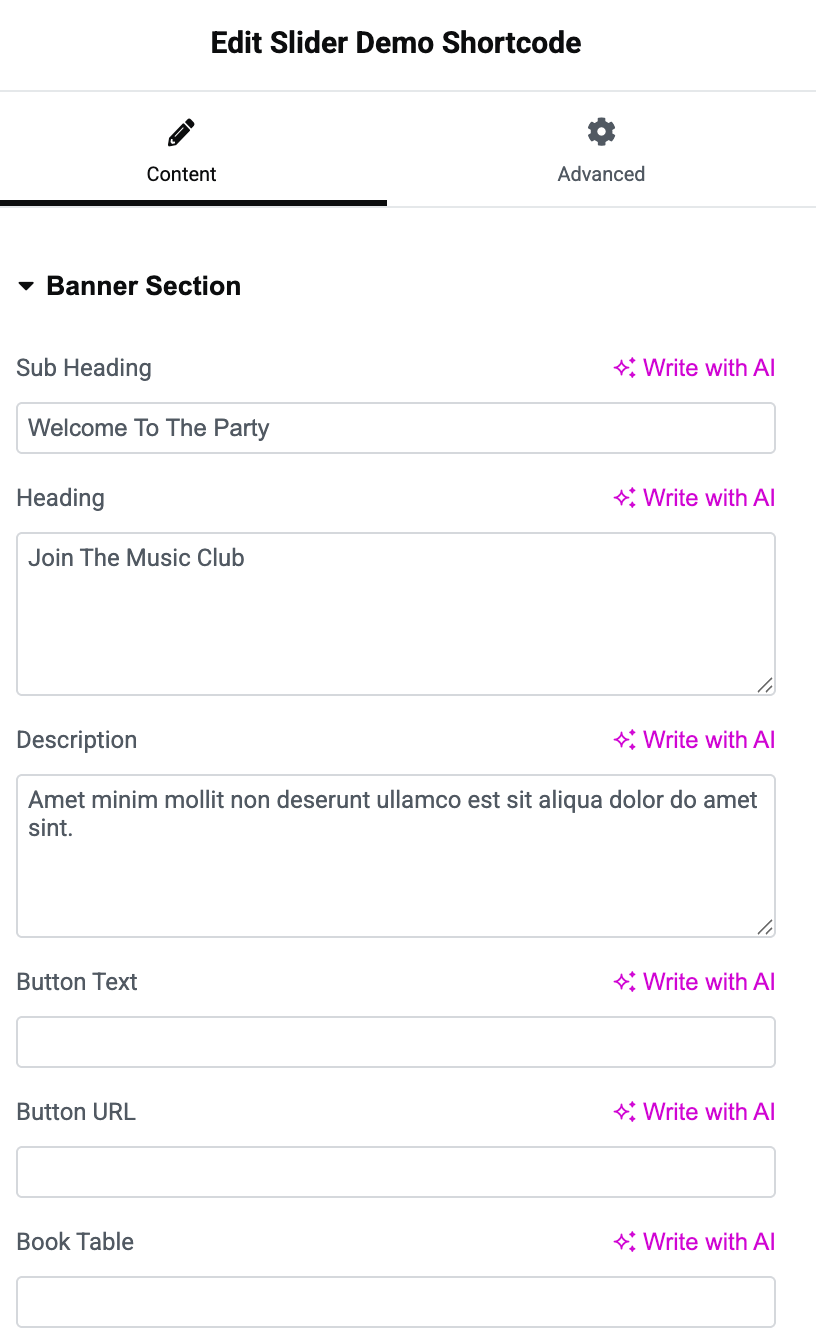
Slider Demo
This shortcode allows user to create the slider according to Demo 3.
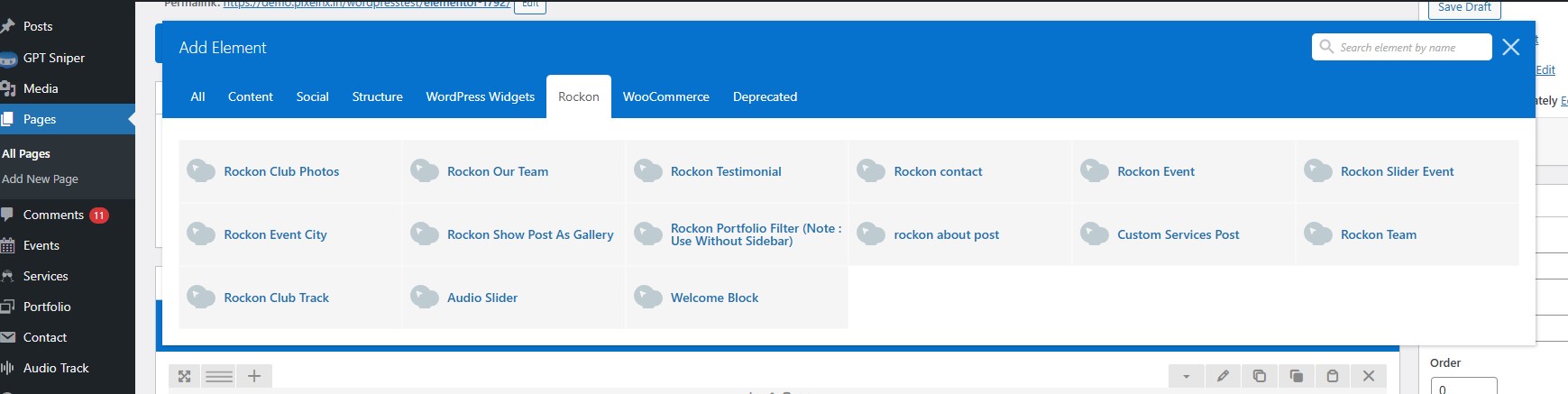
WP Bakery Shortcodes
These are the theme shortcodes, with the WP Bakery Shortcodes. you can use to display different thing on the page.
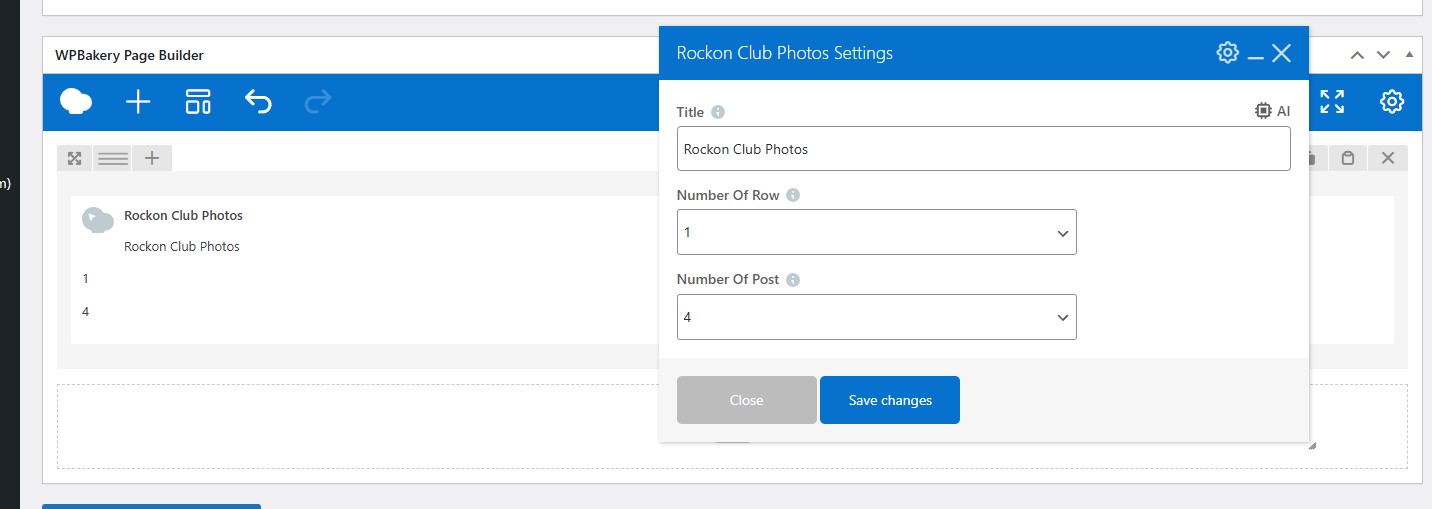
Rockon Club Photos
User can manage the Rockon Club Photos section through this shortcode. User have to add Title. Rockon Club Photos Number Of Row Number Of Post .
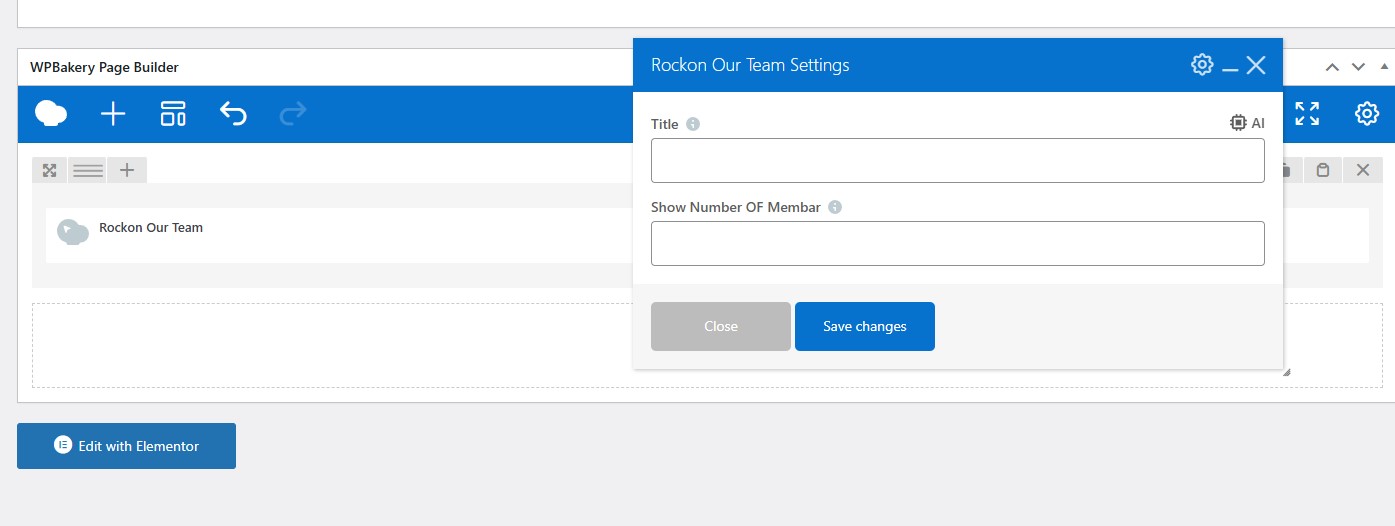
Rockon Our Team
User can manage the Rockon Our Tea section through this shortcode. User have to add Title AI Show Number OF Membar
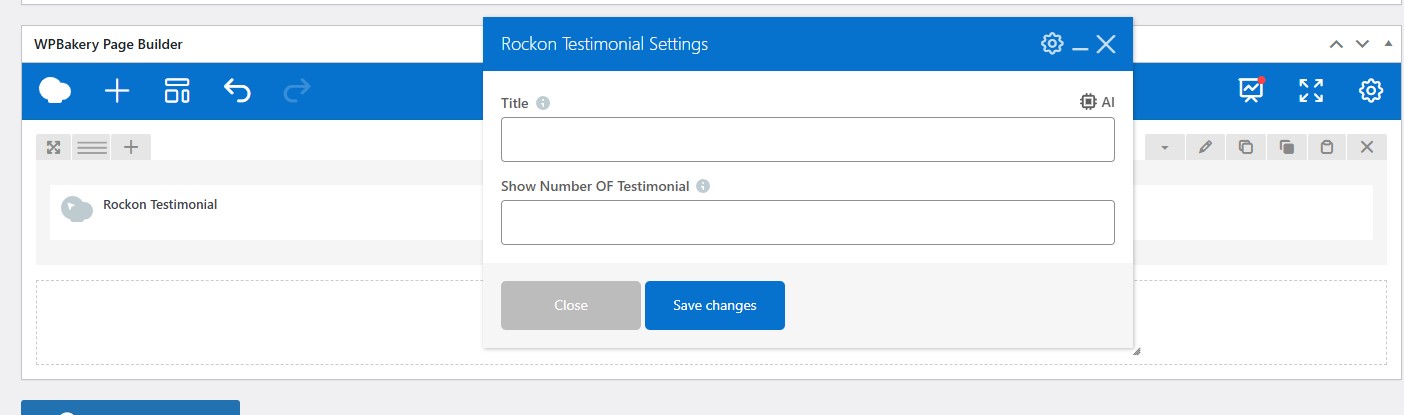
Rockon Testimonial
User can manage the Rockon Testimonial section through this shortcode. User have to add Title, Show Number OF Testimonial .
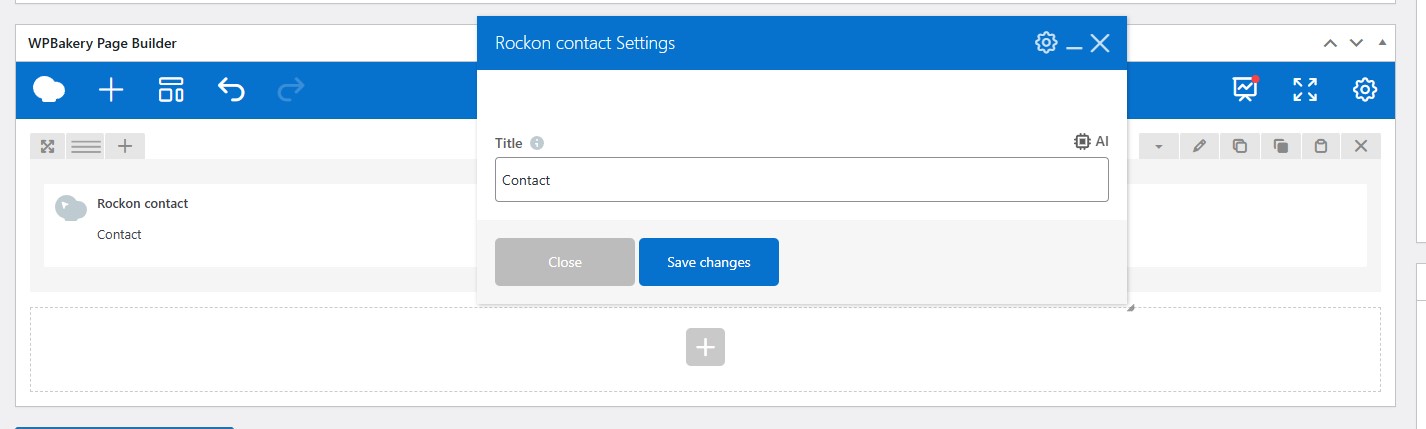
Rockon Contact
User can manage the Contact section through this shortcode. User have to add the Title.
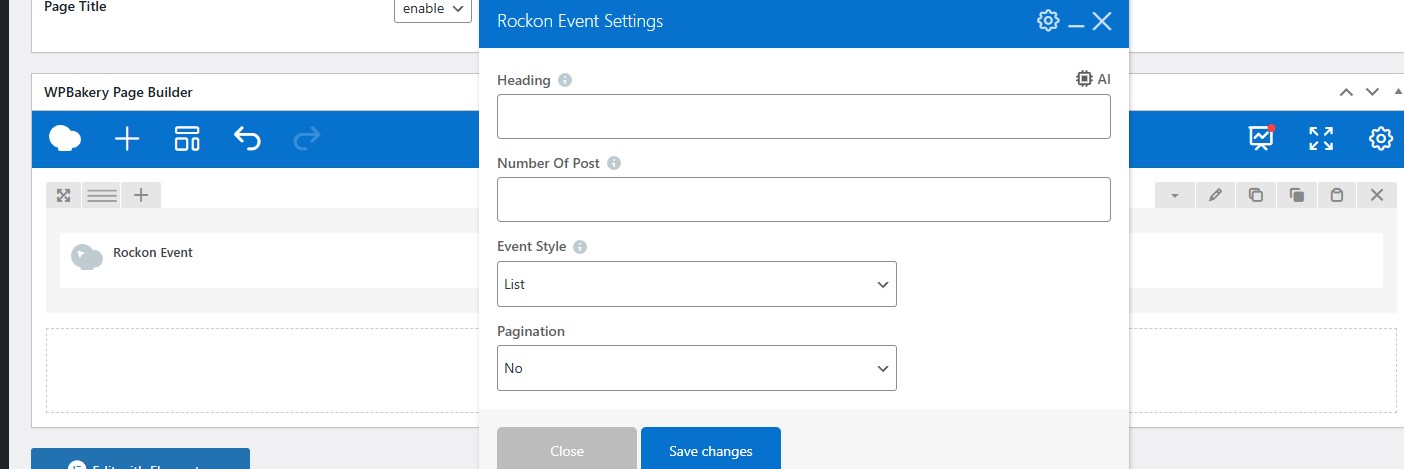
Rockon Event
User can manage the Event section through this shortcode. User have to add Heading, Number Of Post, Event Style, Pagination .
Rockon Slider Events
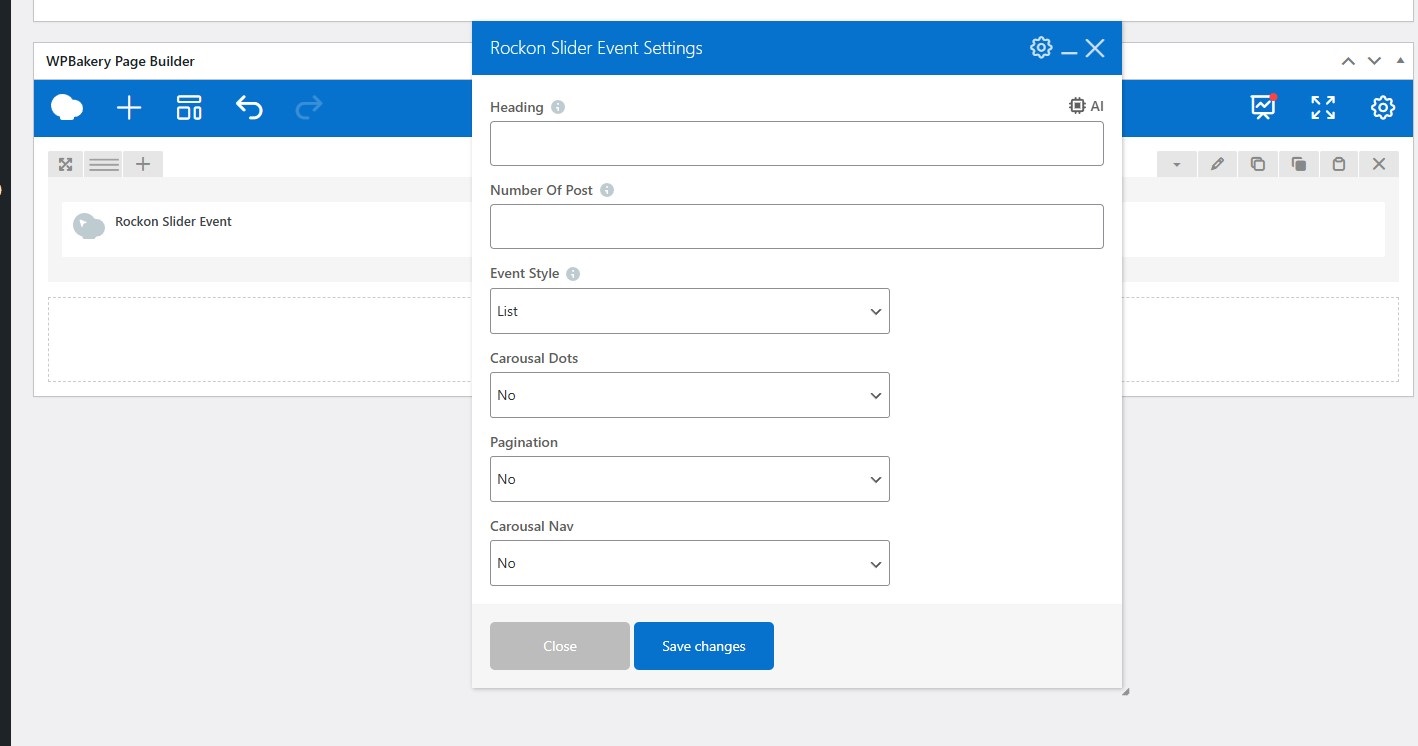
User can manage the Slider Events section through this shortcode. User have to add Heading, Number Of Post, Event Style, Carousal Dots, Pagination and Carousal Nav.
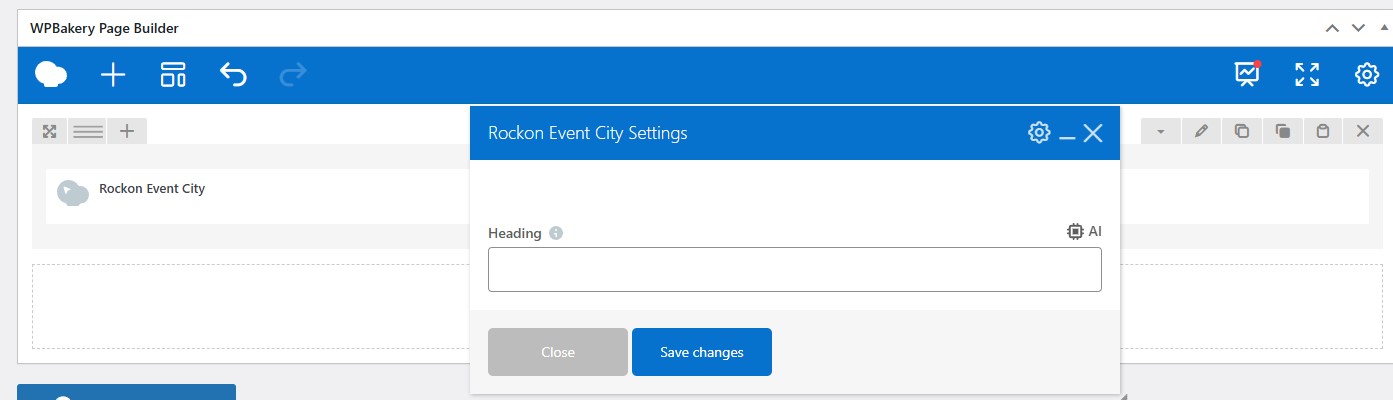
Rockon Event City Setting
User can manage the Rockon Event City section through this shortcode. User have to add Heading.
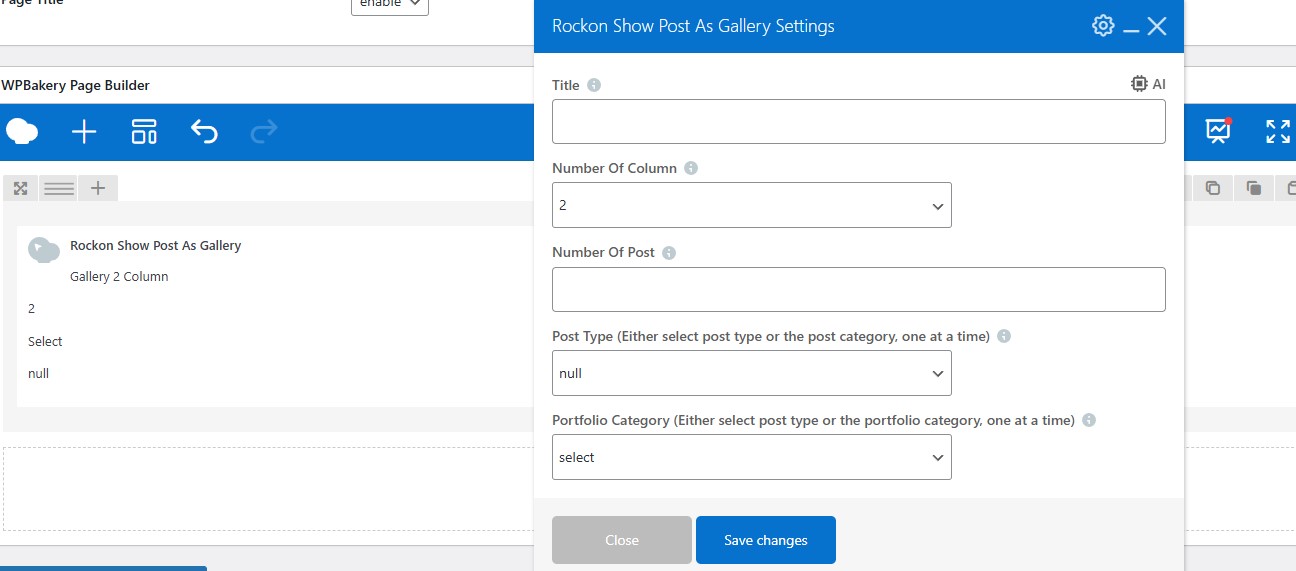
Rockon Show Post As Gallery
User can manage the Rockon Show Post As Gallery section through this shortcode. User have to add Title Number Of Column, Number Of Post, Post Type (Either select post type or the post category, one at a time), Portfolio Category (Either select post type or the portfolio category, one at a time) .
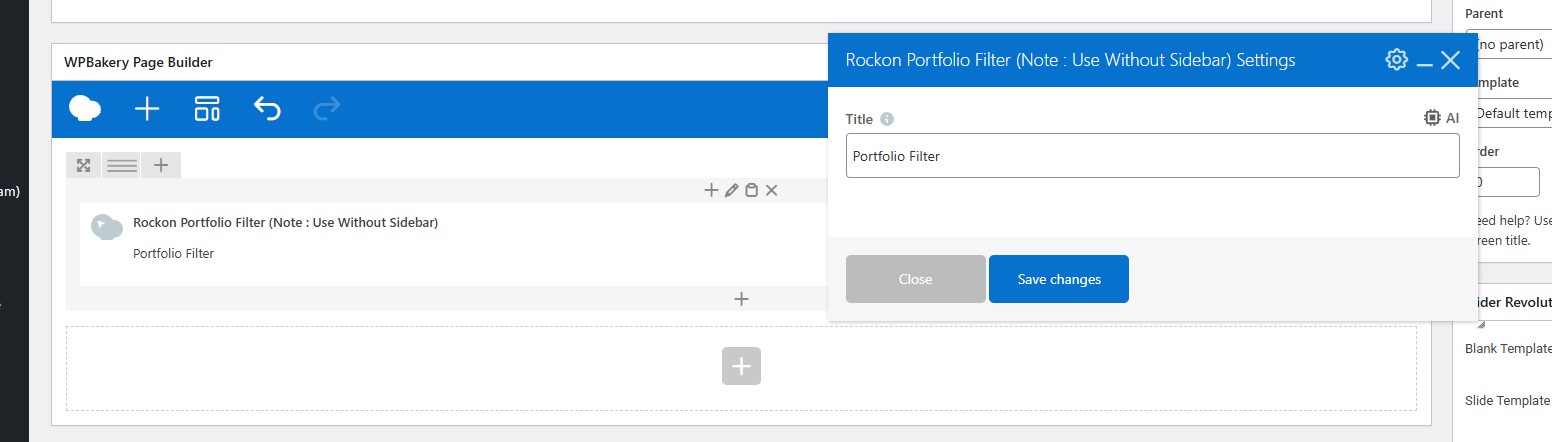
Rockon Portfolio filter settings
User can manage the Rockon Portfolio filter settings section through this shortcode. User have to add Title. it can be use without side bar.
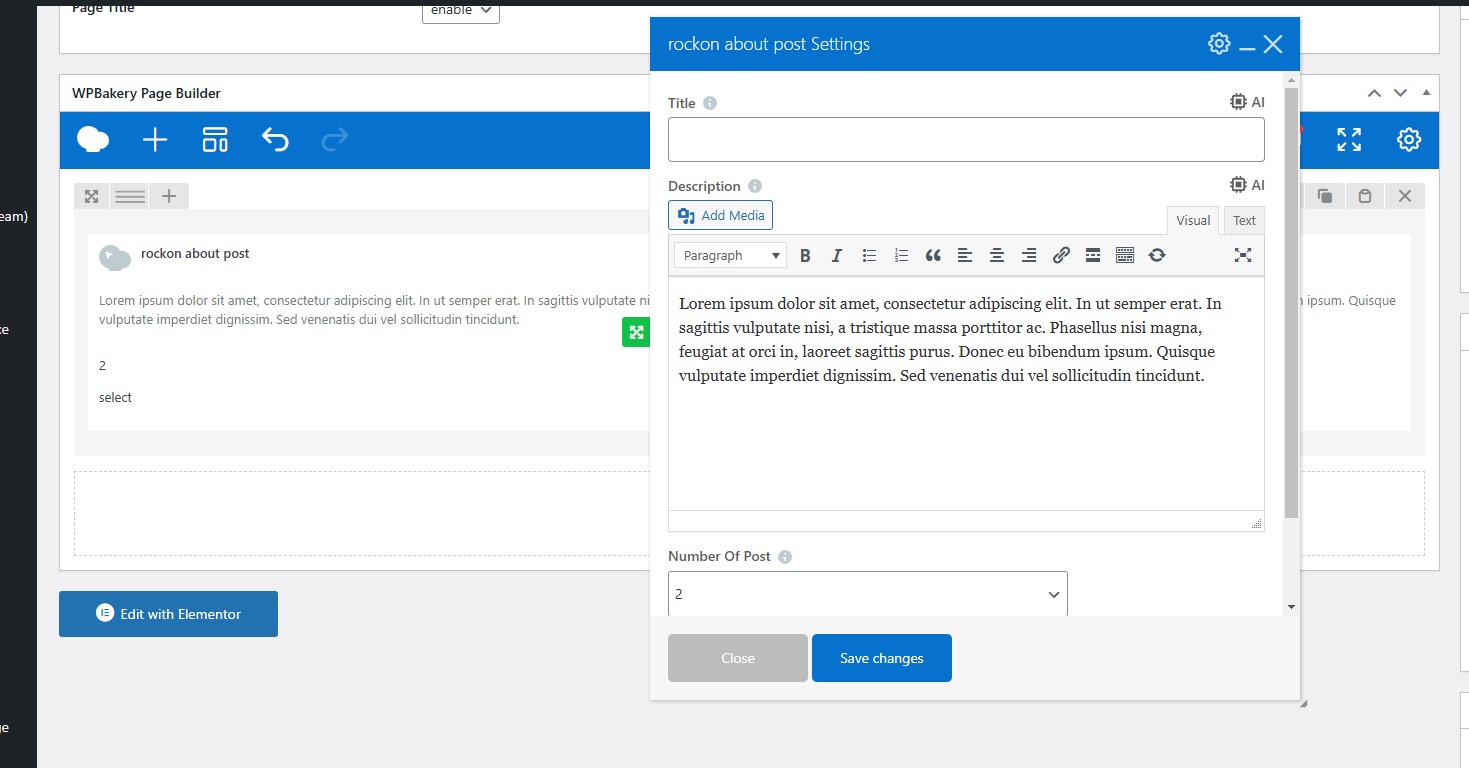
Rockon about Post
User can manage the Rockon about Post section through this shortcode. User have to add Title, description, with the option to add media and Number Of Post.
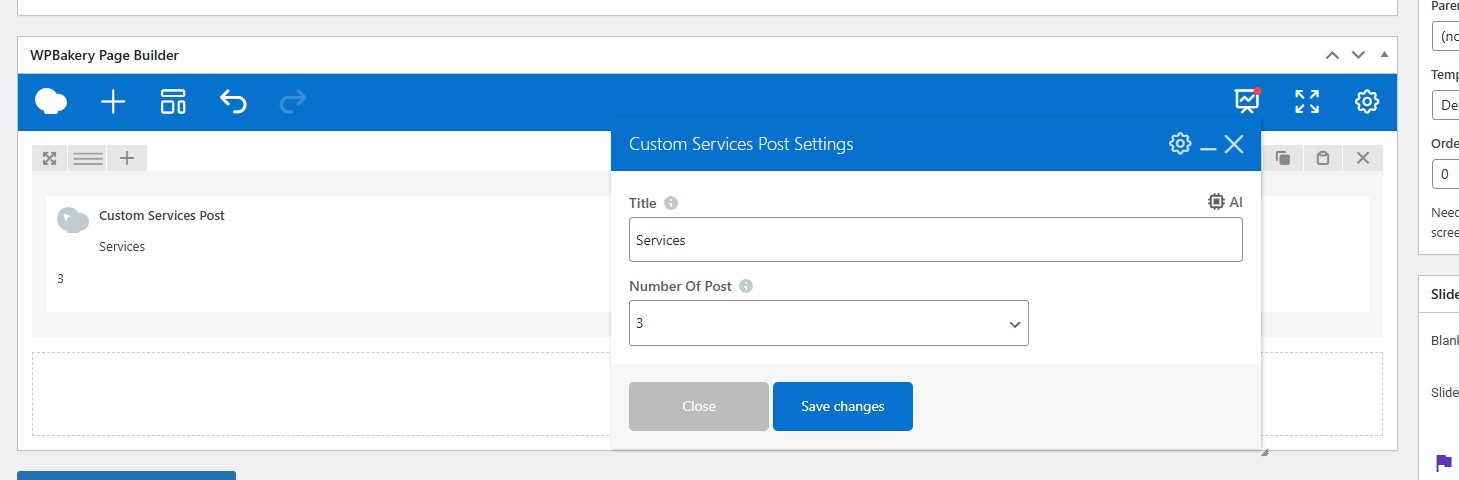
Rockon Custom Service Post
User can manage the Rockon Custom Service Post section through this shortcode. User have to add Number of Post and Tittle.
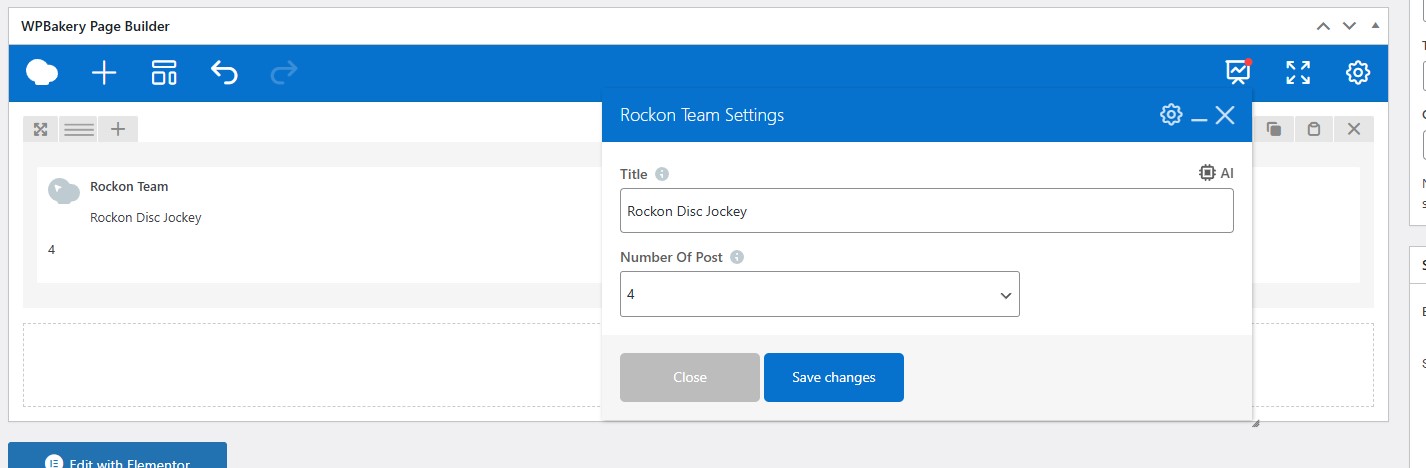
Rockon Team Settings
User can manage the Rockon Team Settings section through this shortcode. User have to add Number of post and title.
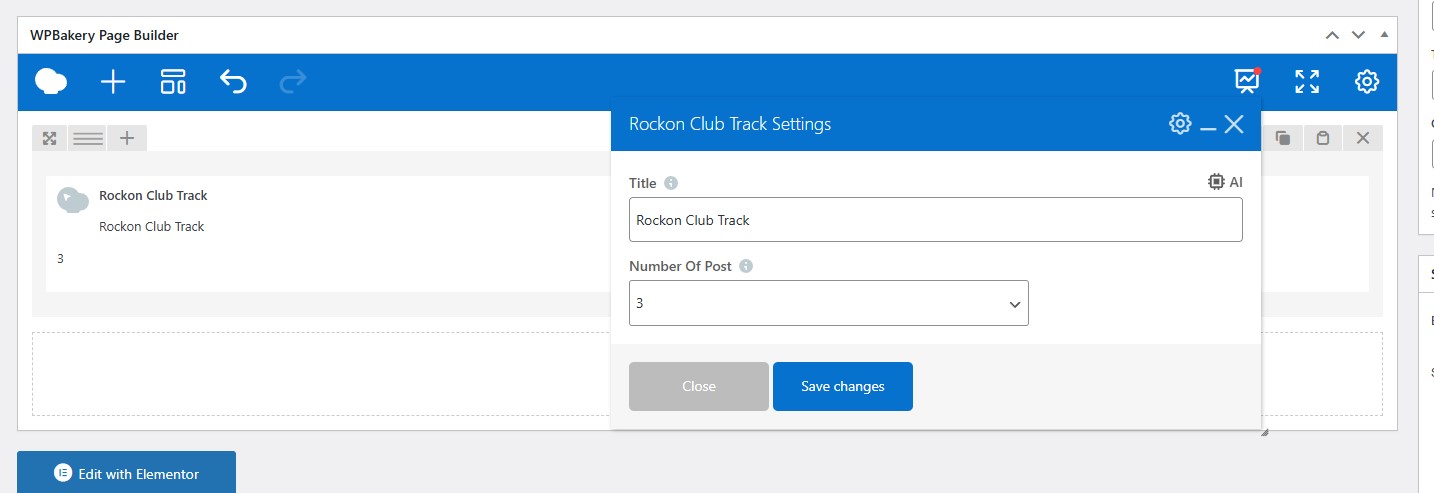
Rockon Club Track
User can manage the Rockon Club Track section through this shortcode. User have to add Number of post and title.
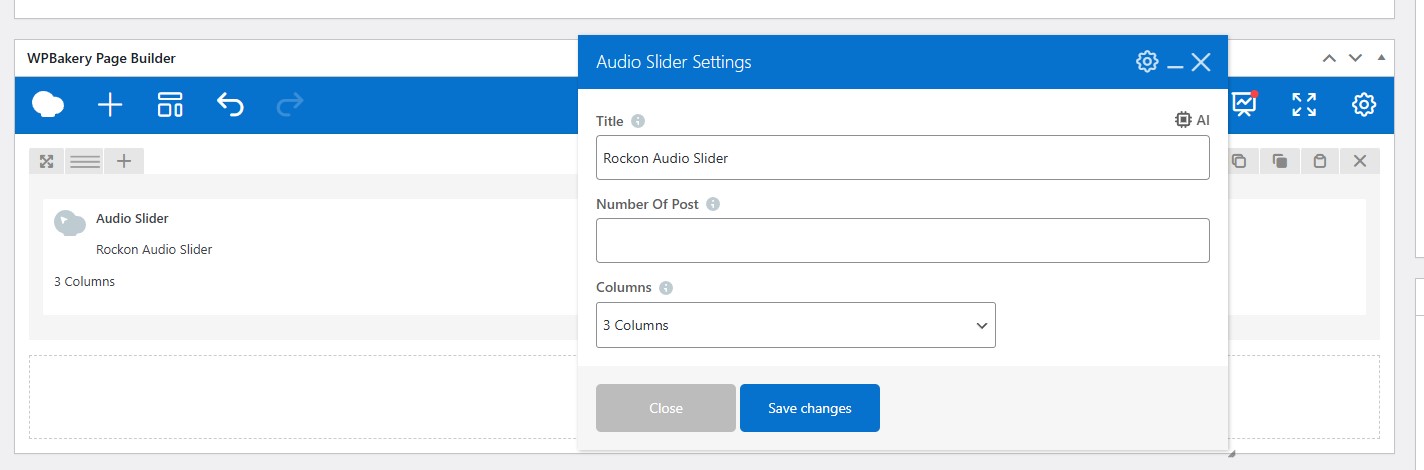
Rockon Audio Slider settings
User can manage the Rockon Audio Slider settings section through this shortcode. User have to add Title, Columns and number of post.
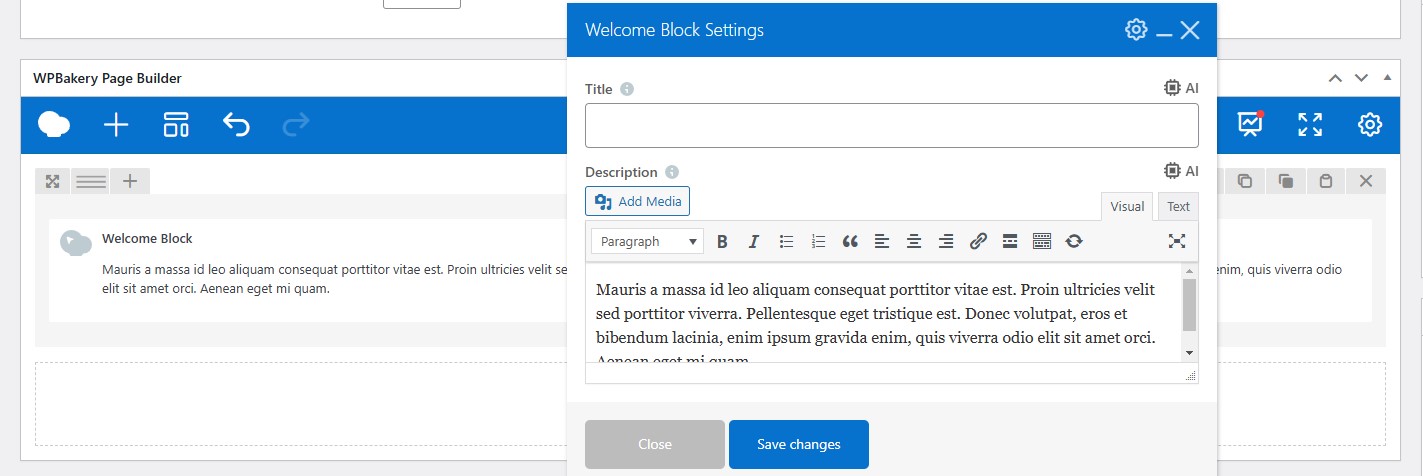
Rockon Welcome block settings
User can manage the Welcome block settings section through this shortcode. User have to add Title, Description and Media.
GPT Sniper
GPT Sniper plugin includes several settings and features. It generates and transforms text using OpenAI API.
Note : The OpenAI API requires payment based on usage. The cost of using this API will depend on the pricing plan that you select and the number of API requests that you make. Please carefully review the pricing plans and usage limit from here https://openai.com/pricing
When you sign up for first time then you can use API key for free for limited period of time and usage.
Settings
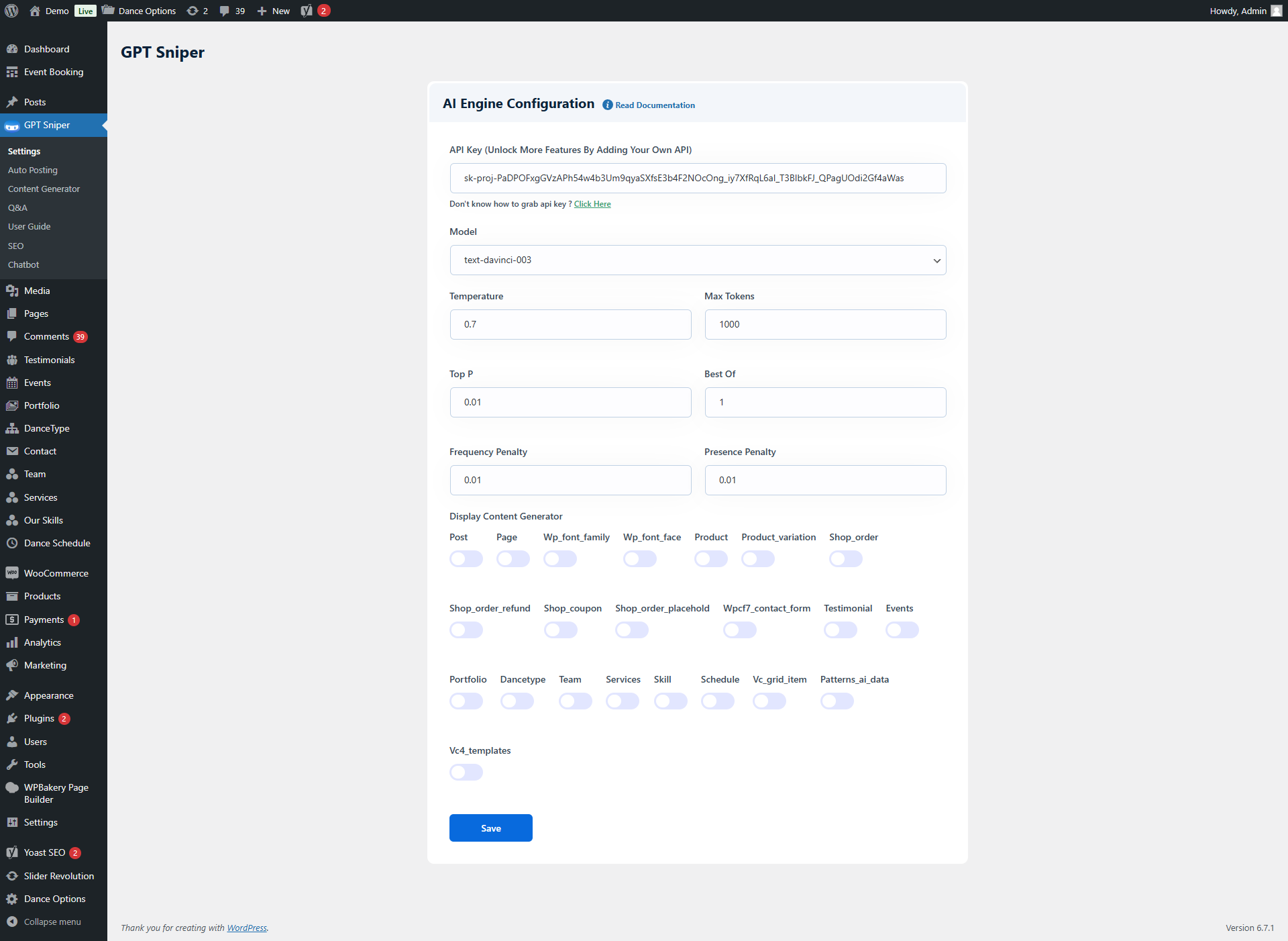
With GPT Sniper settings, you can customize the Openai API settings like Model, Temprature, Max Tokens, etc. After adjusting all the values click on Save button.
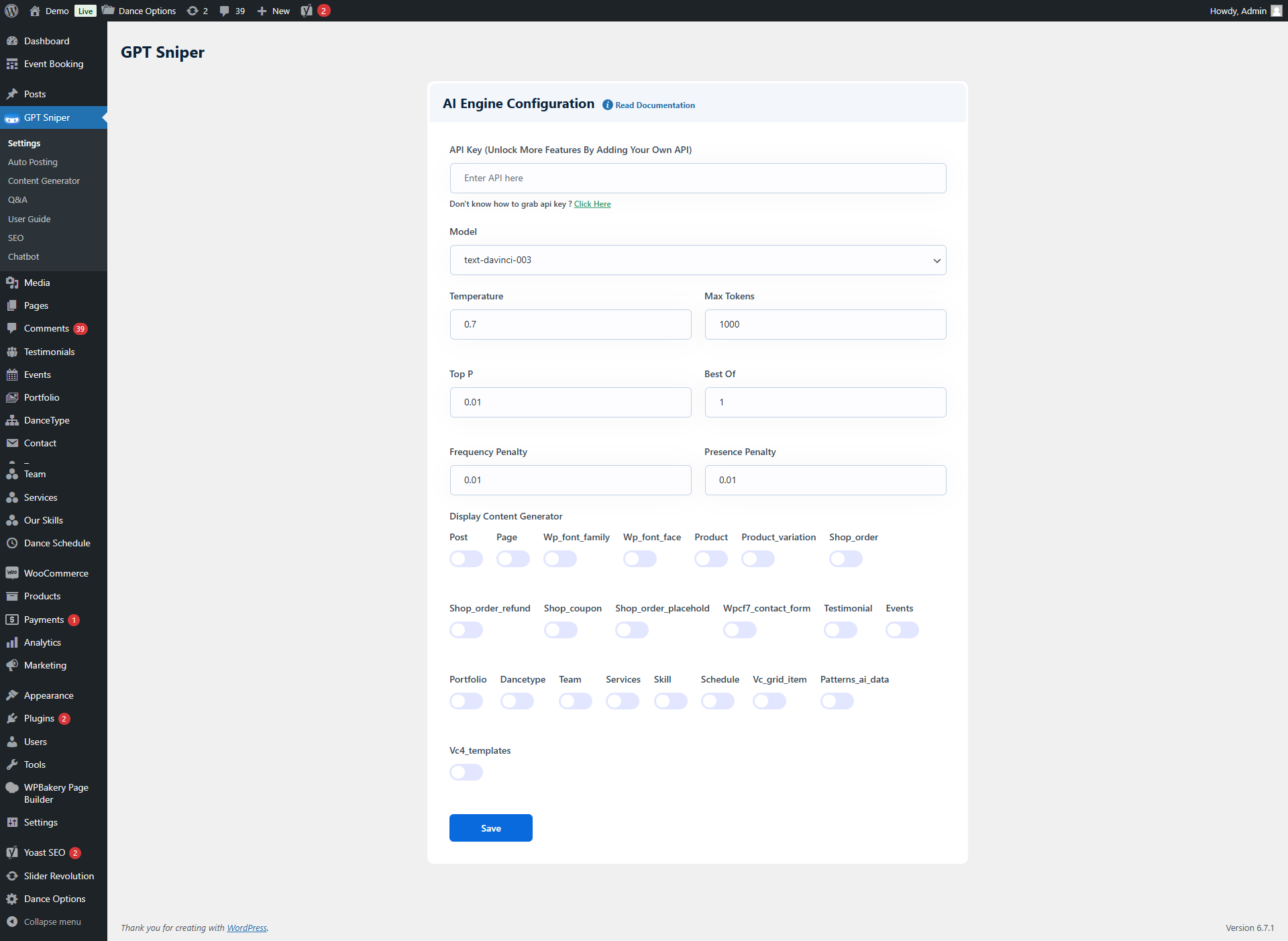
API key
Add the API key here to connect Auto Content Generator. To get the API key please Click Here
How to Get API Key
Step 1 - Click here https://openai.com/api/ You will be redirected to the Openai API's website.
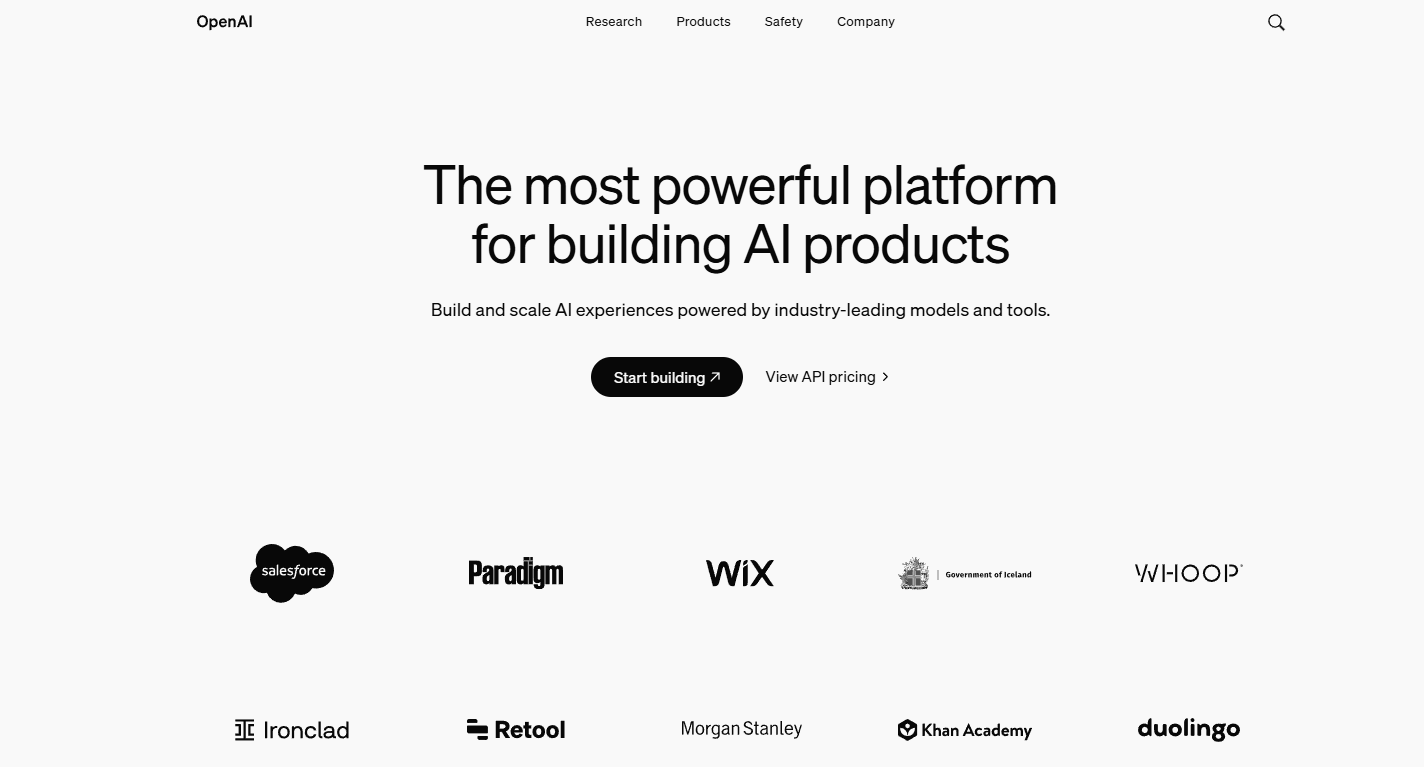
Step 2 - Login to your Openai account, if you already have an account on it. Or else first sign up and then login.
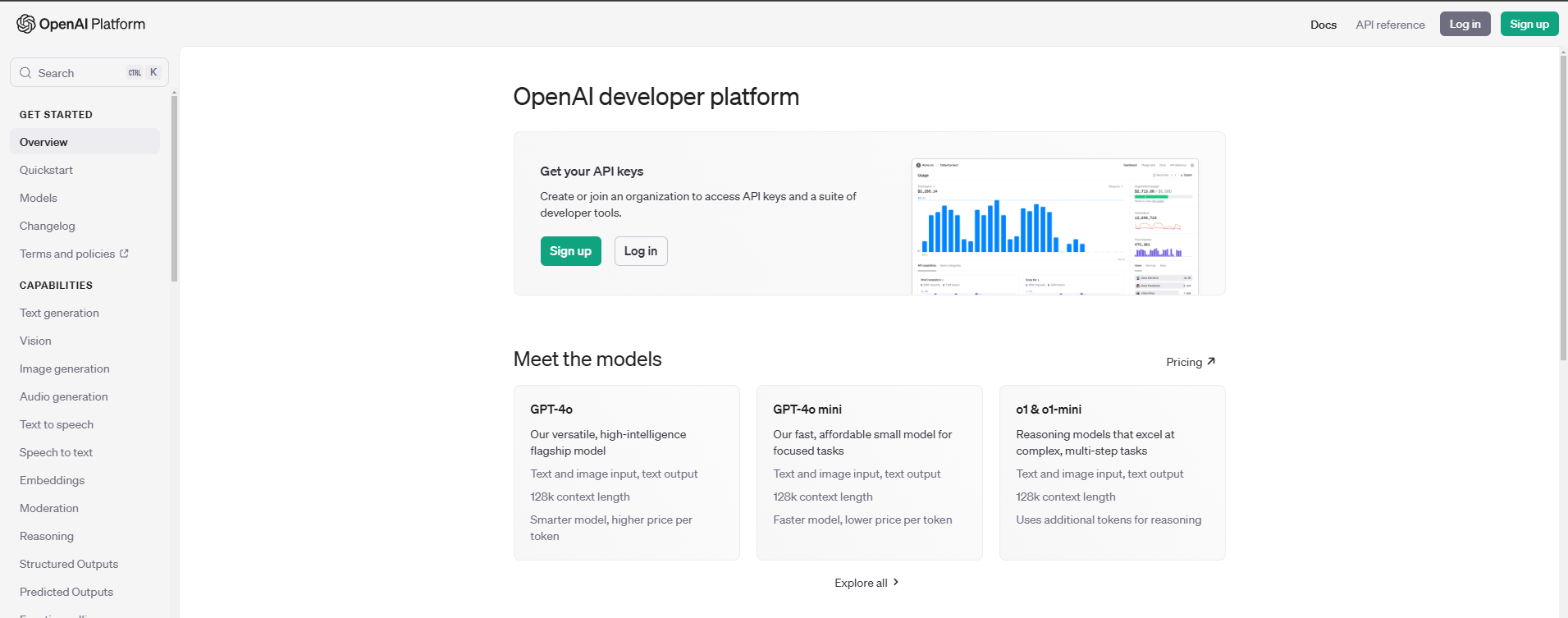
Step 3 - After login, you will be redirected to the dashboard of Openai. Click on the Profile menu and click on start building.
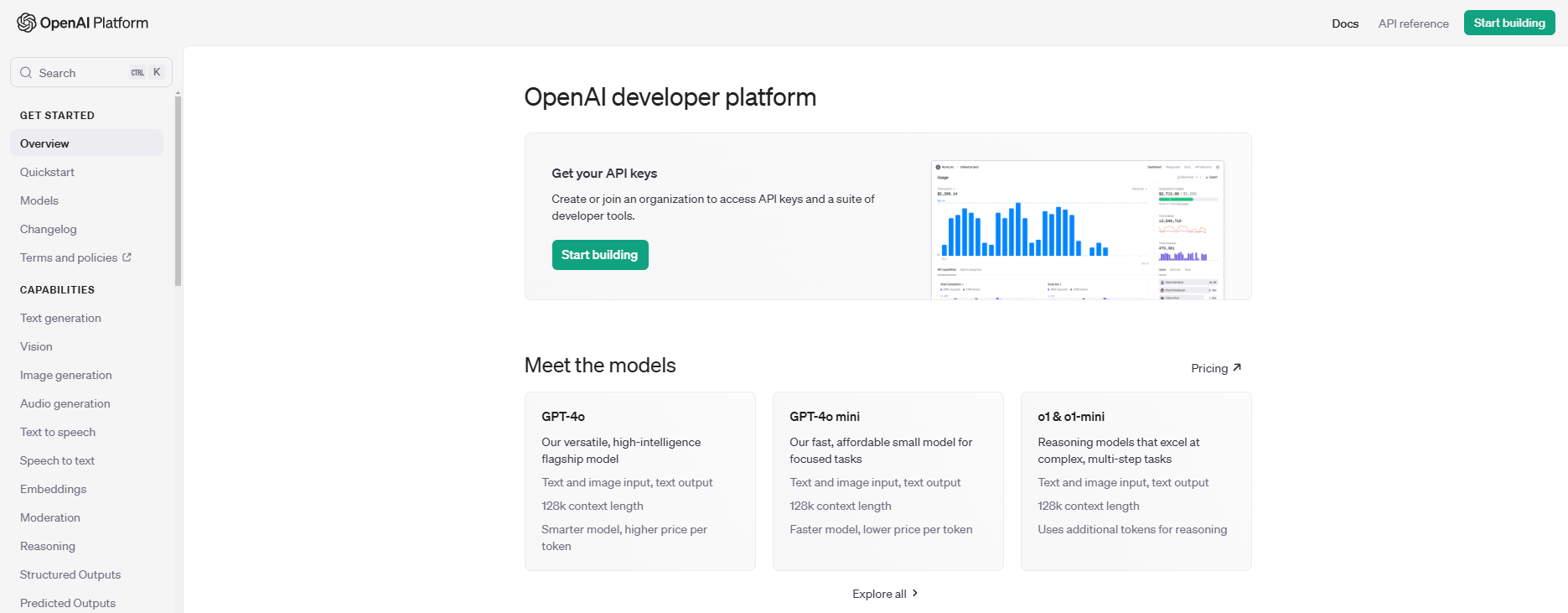
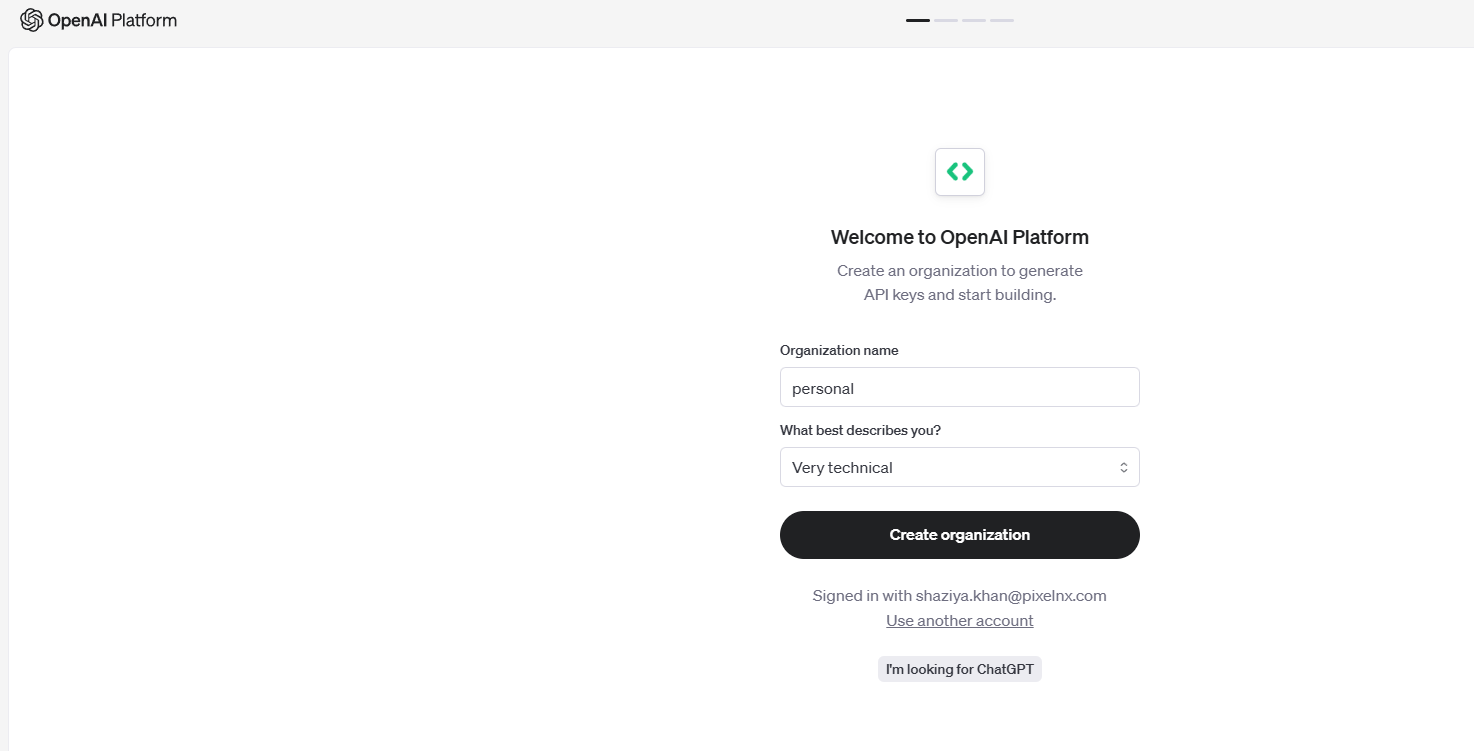
It will ask to create Organization. Enter the details of your Organization.
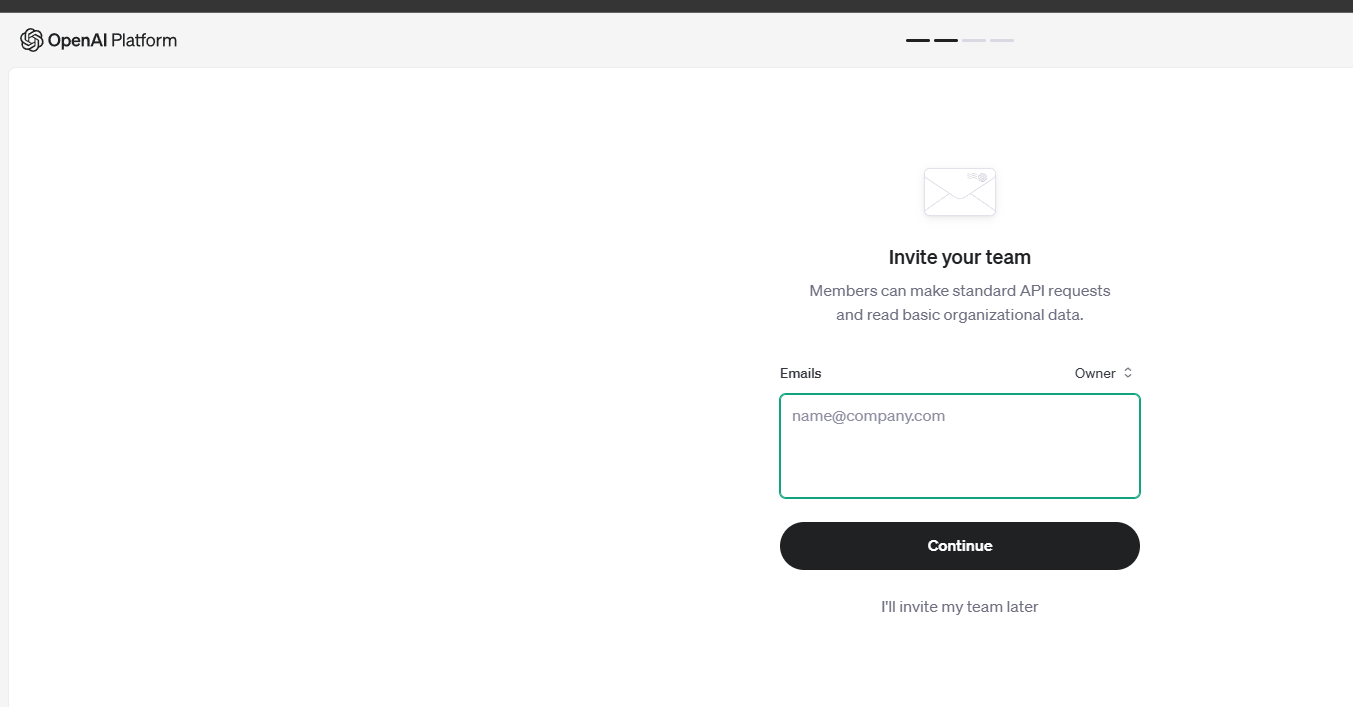
You can add your team members as well in this Organization
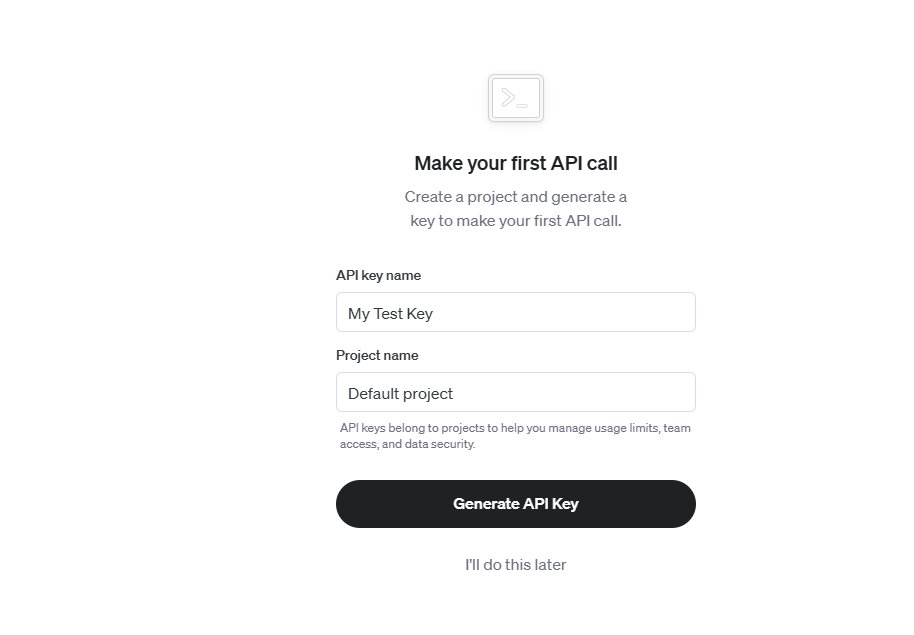
Step 4 - Then click on Generate API key button.
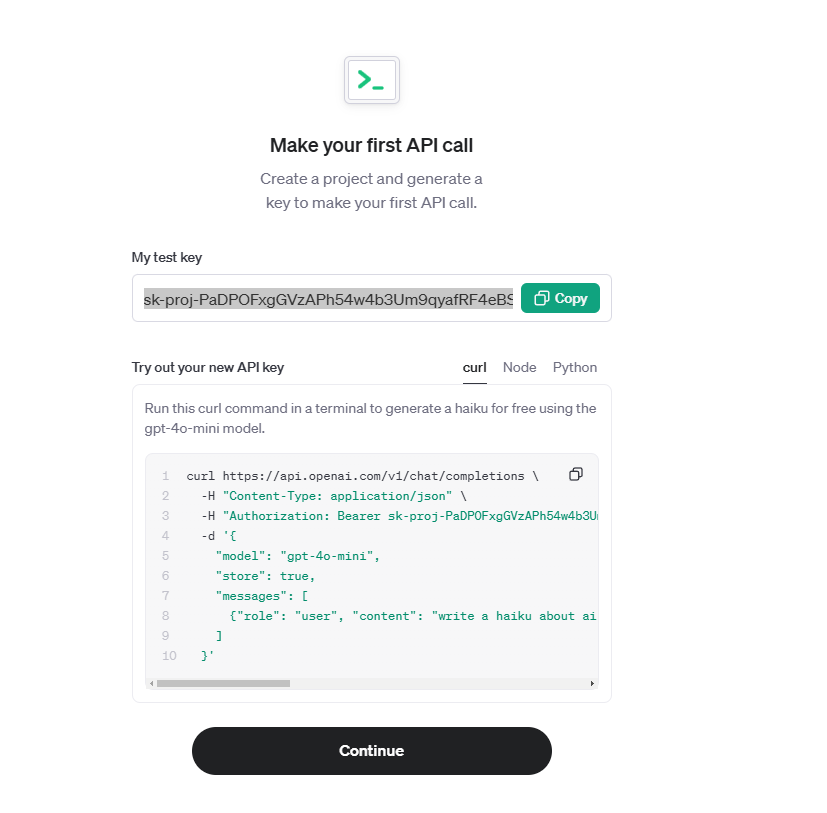
Step 5 - A popup will appear containing the API key. Copy and paste it into the API key field of GPT Sniper settings.
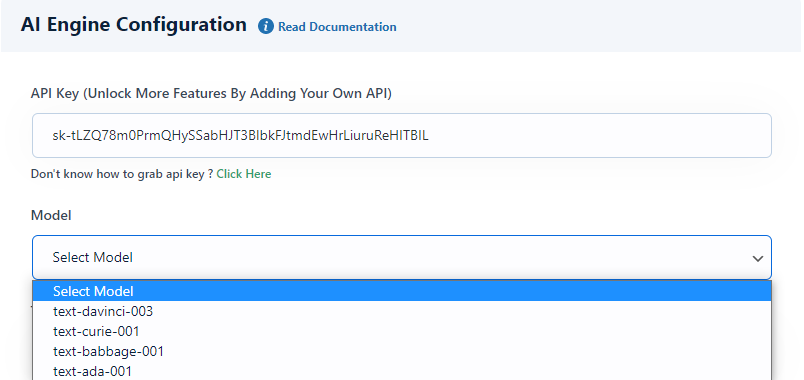
Model Model can understand and generate natural language. We have provided four main models with different levels of power suitable for different tasks.
text-davinci-003 It is the most capable model. Can do any task the other models can do, often with higher quality, longer output and better instruction-following. Also supports inserting completions within text.
text-curie-001 This is very capable, but faster and lower cost than Davinci.
text-babbage-001 It is capable of straightforward tasks, very fast, and lower cost.
text-ada-001 It is capable of very simple tasks, usually the fastest model in the GPT-3 series, and lowest cost.
Temperature This setting allows you to customize the temperature value. Temperature controls the randomness in the output, that can be customized to achieve different results. At lower temperatures, it will choose words with a higher probability of occurrence. As the temperature approaches to zero, the model will become deterministic and repetitive.

Max Tokens The API processes text by dividing it into tokens, which can be individual words or groups of characters. One token is roughly equivalent to 4 characters or 0.75 words for normal English text. Please make sure that combined length of the text prompt and generated completion must not exceed the model’s maximum context length, which is typically 2048 tokens.
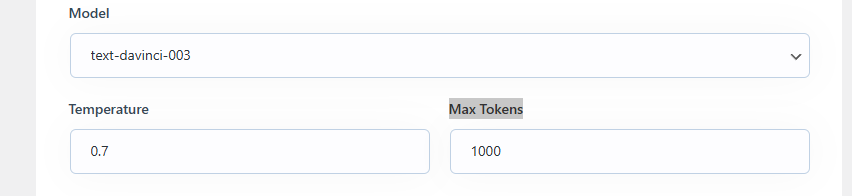
Top P Top P controls diversity using nucleus sampling. Value 0.5 means half of all likelihood weighted options are considered. You can adjust your top_p value in settings options of our plugin as shown below.

Best Of Best of settings generate multiple completions on server side and returns the best ones based on the highest log probability per token. Streaming will work when it was set to 1. You can customize this value from here.

Frequency and Presence PenaltyFrequency Penalty value can be in between -2.0 and 2.0 and it impacts how the model penalizes new tokens based on their existing frequency in the text. To slightly reduce repetitive samples, you can keep reasonable values for the penalty coefficients around 0.1 to 1. Positive values will decrease the likelihood of the model repeating the same line.
Presence Penalty is between -2.0 and 2.0 and it impacts how the model penalizes new tokens based on whether they have appeared in the text so far. Positive values will increase the likelihood of the model talking about new topics.

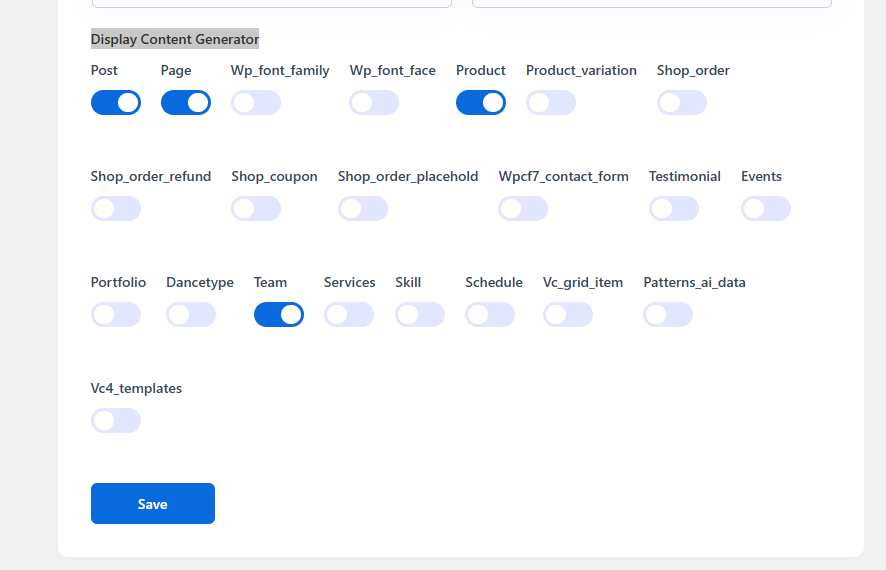
Display Content GeneratorYou can enable the options where you want to show the content generator section. You can enable to show it on blog Post, Page, custom posts like Movie, Trailer, Webseries, Tvshow, and Plans.
Auto Posting
This option allows you to create the schedule for the posts. With this setting you can create new schedule and delete the existing schedule.
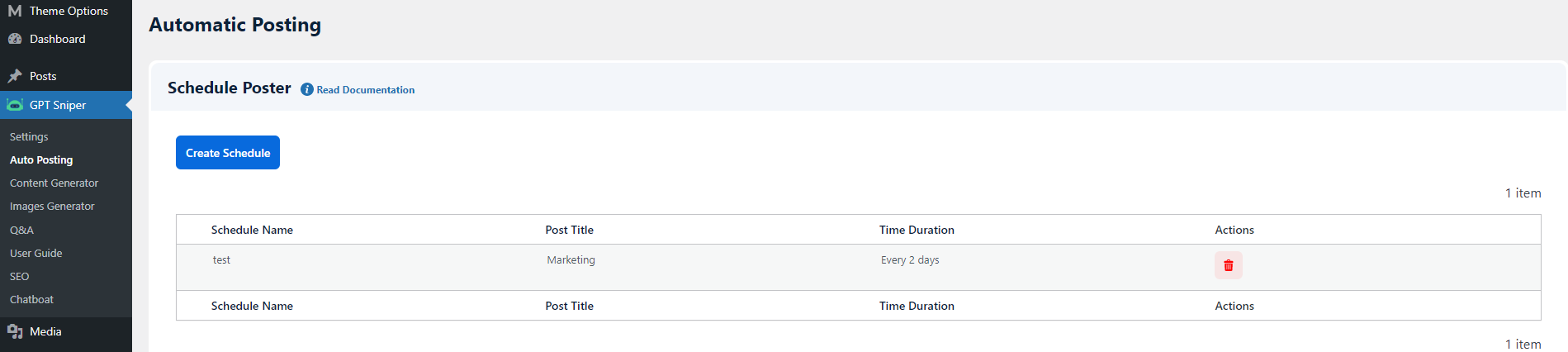
Create Schedule - To create new schedule, click on Create Schedule button, then a popup will appear containing various setting fields.
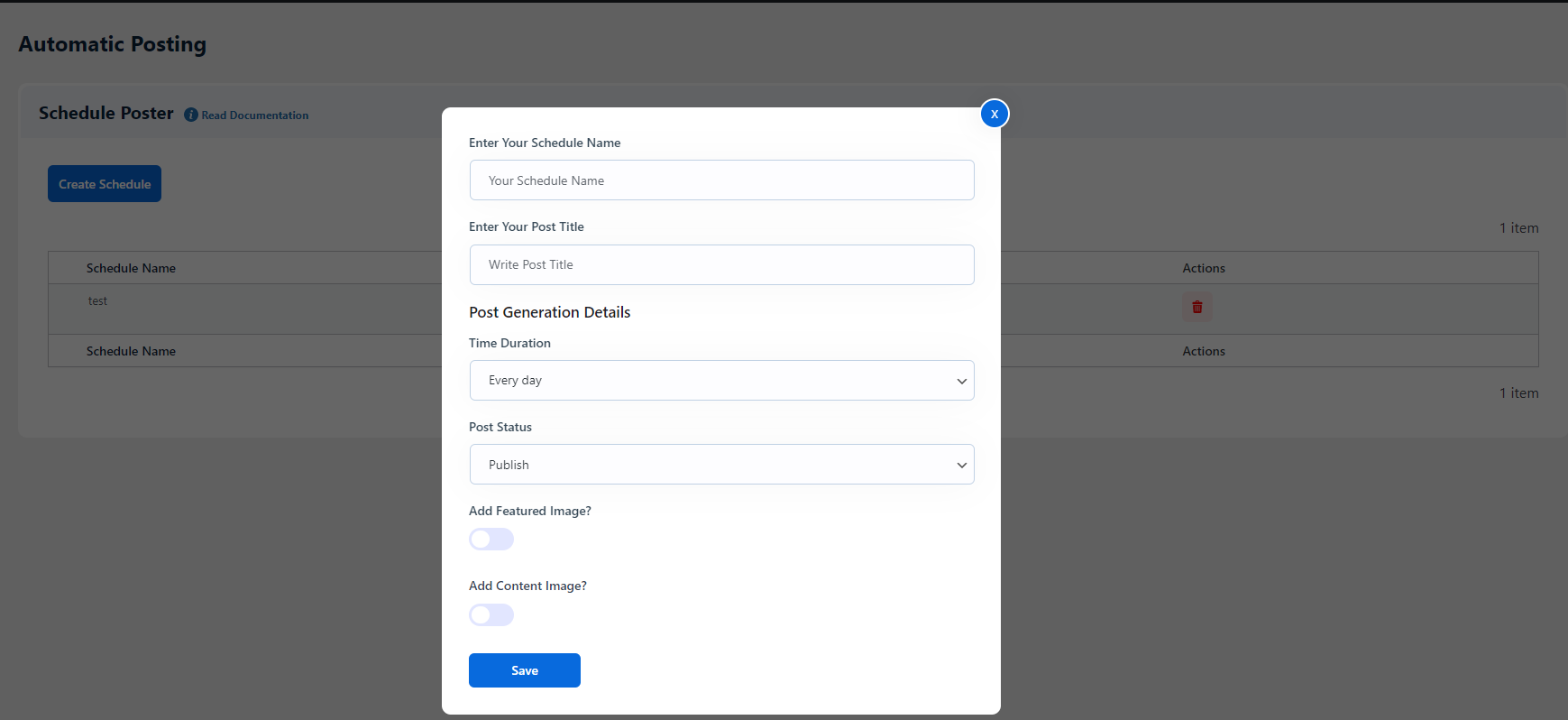
Enter Your Schedule Name - In this field, you can add schedule name.
Enter Your Keywords - In this field, you can enter keywords.
Time Duration - You can select the time duration from the options like everyday, 1 Every 2 days, etc.
.png)
Post Status - You can select Post status either as Publish or Draft.
Add Featured Image - Enable this option to add featured image.
Add Content Image - Enable this option to add content image.
GPT Image Size - You can select the image size from the three given options ( Small, Medium, and Big)
You can track the scheduled posts using a third party plugin named WP Crontrol. For detailed description of this plugin, please Click here
Content Generator
This option allows you to generate the content based on the title entered and the selected language.
Title - Enter the title of the content that you want to search.
No. of Paragraphs - Select the number of paragraphs from the given options.
Language - Select the desired language from this option.
Add Image - You can enable Add Image option if you want to add an image with content.
Image Size - You can select the image size from three given options ( Small, Medium, and Big)
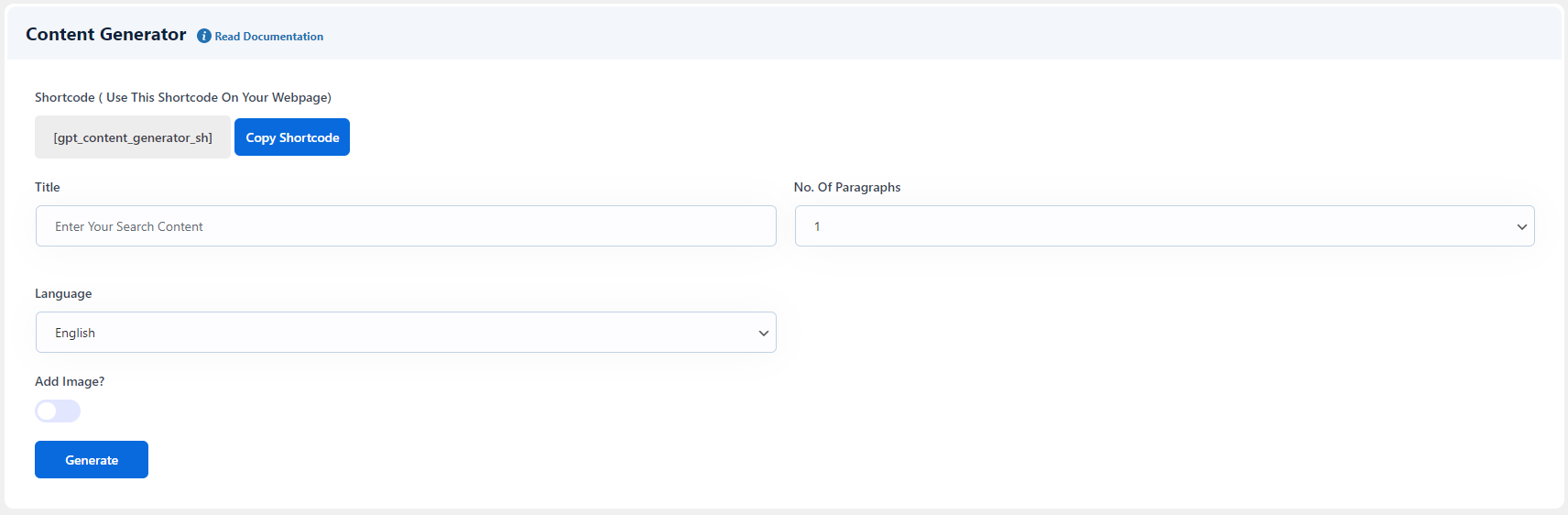
You can use this shortcode [gpt_content_generator_sh] on your webpage to show the content generator on frontend.
How to add shortcode in a page
Step 1 Navigate to WP dashboard >> Pages >> Add New
Step 2 Here you can add this shortcode [gpt_content_generator_sh] and publish the page. You can also add the shortcode on the existing page.
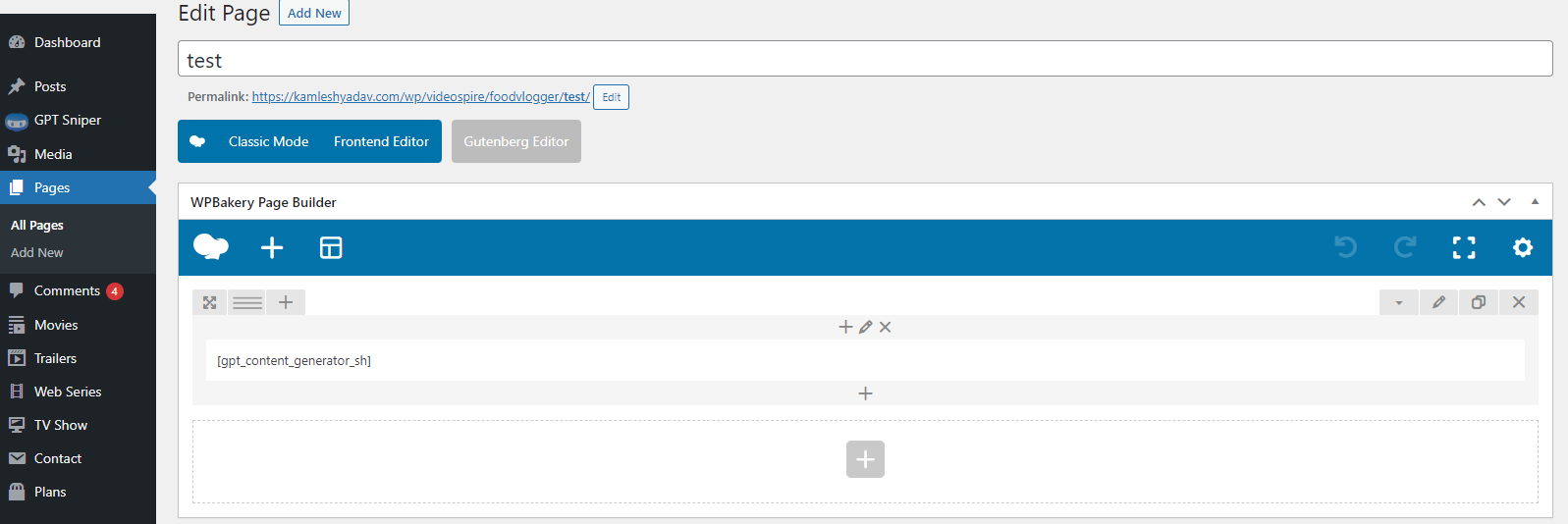
How to use Content Generator in a page
Step 1 Navigate to WP dashboard >> Pages >> Add New
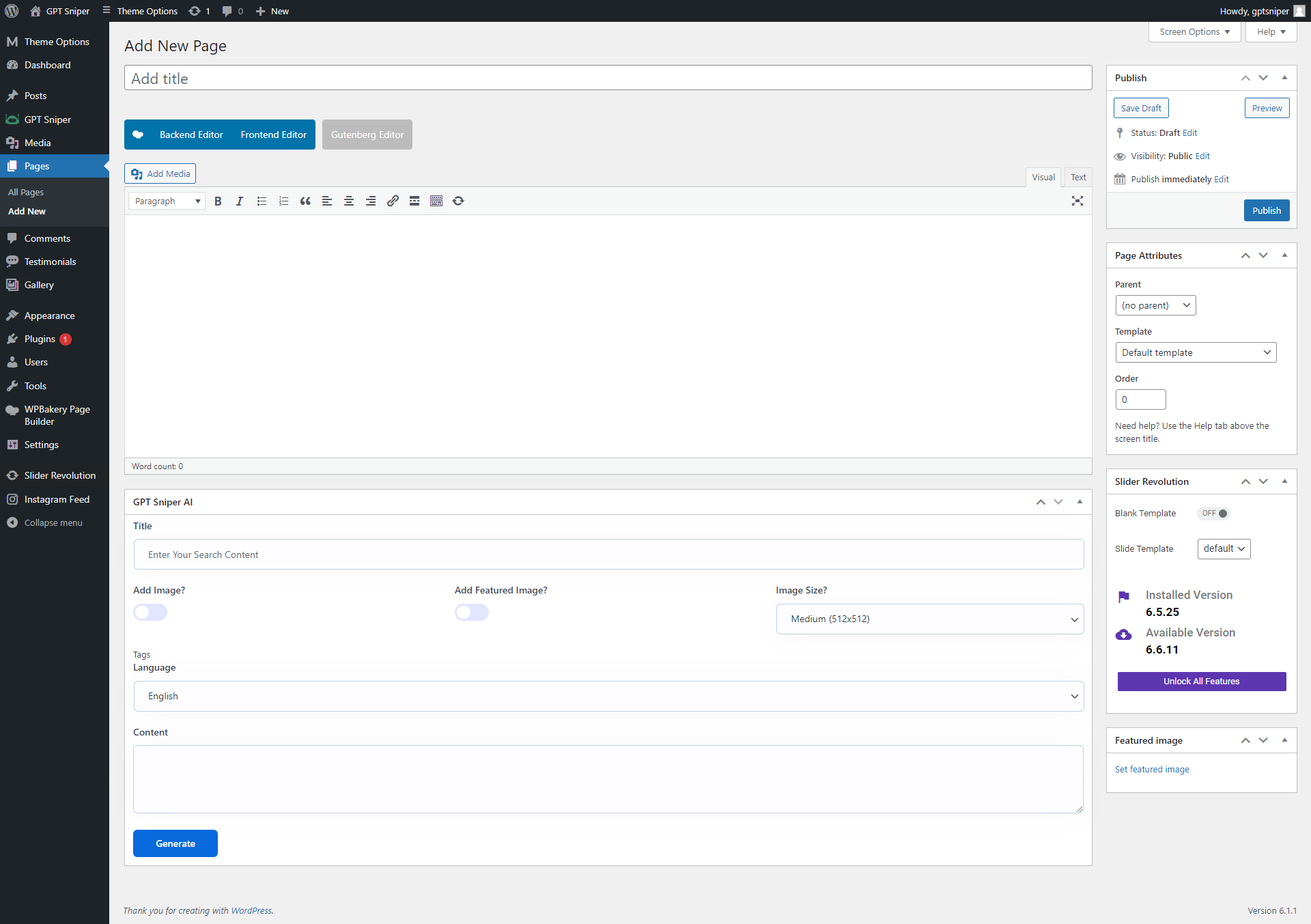
Step 2 Here you will get Gpt Sniper AI section like this. In this, you can enter title, select no. of paragraphs and desired language, enable image and featured image option if needed and select image size from the available options. After entering all the details click on Generate Button. You can use the generated content at the desired location.
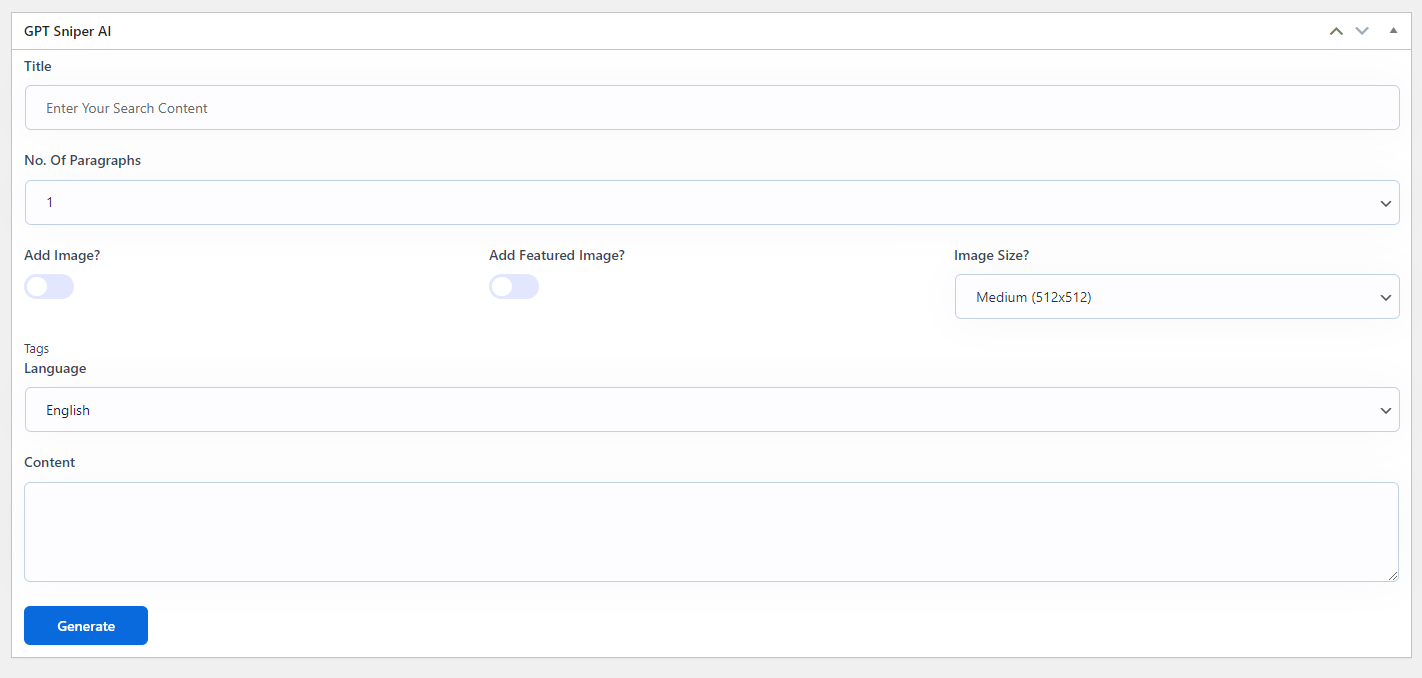
How to use Content Generator in a post
Step 1 Navigate to WP dashboard >> Posts >> Add New.
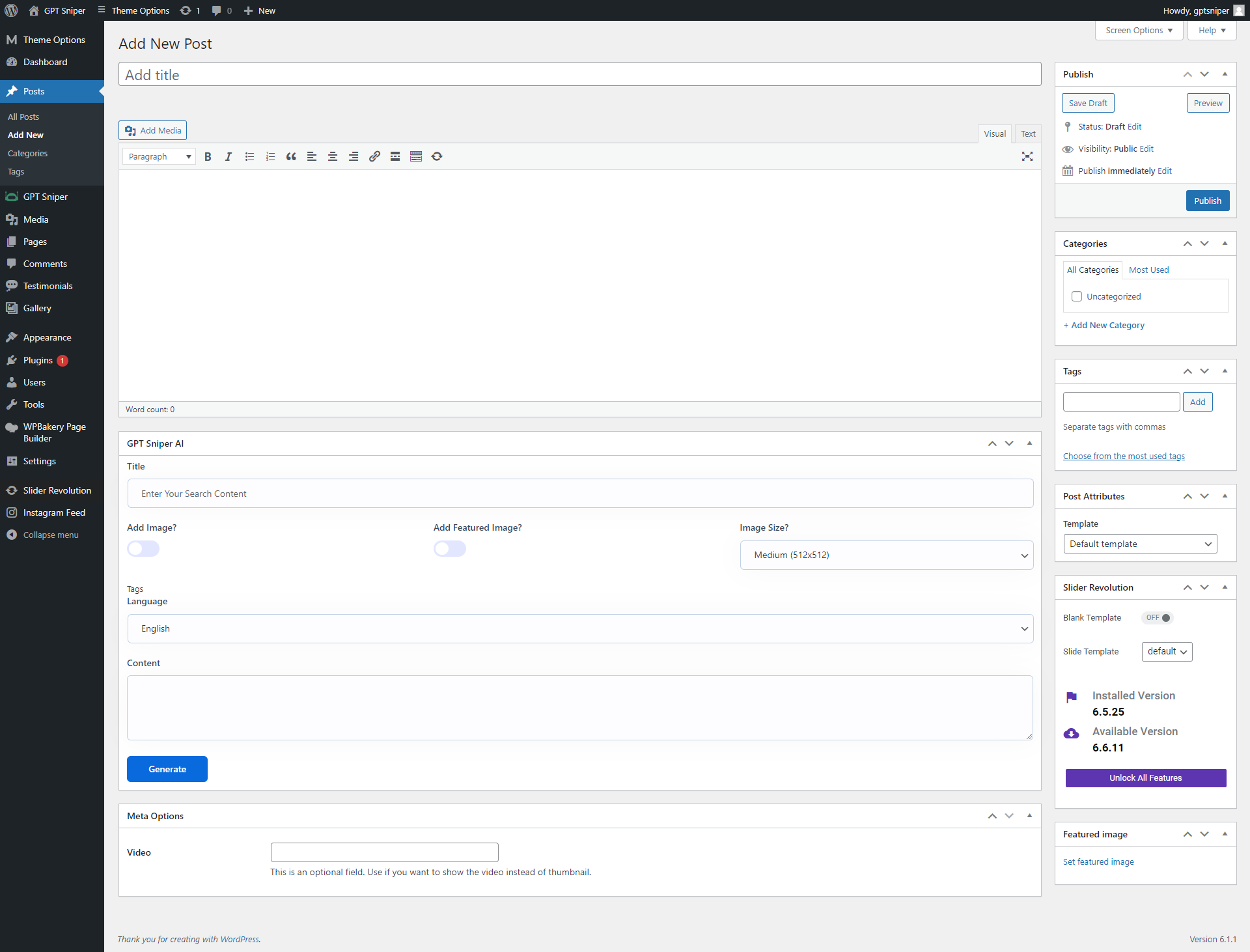
Step 2 Here you will get Gpt Sniper AI section like this. In this, you can enter title, select no. of paragraphs and desired language, enable image and featured image option if needed and select image size from the available options. After entering all the details click on Generate Button. You can use the generated content at the desired location.
Featured Image option
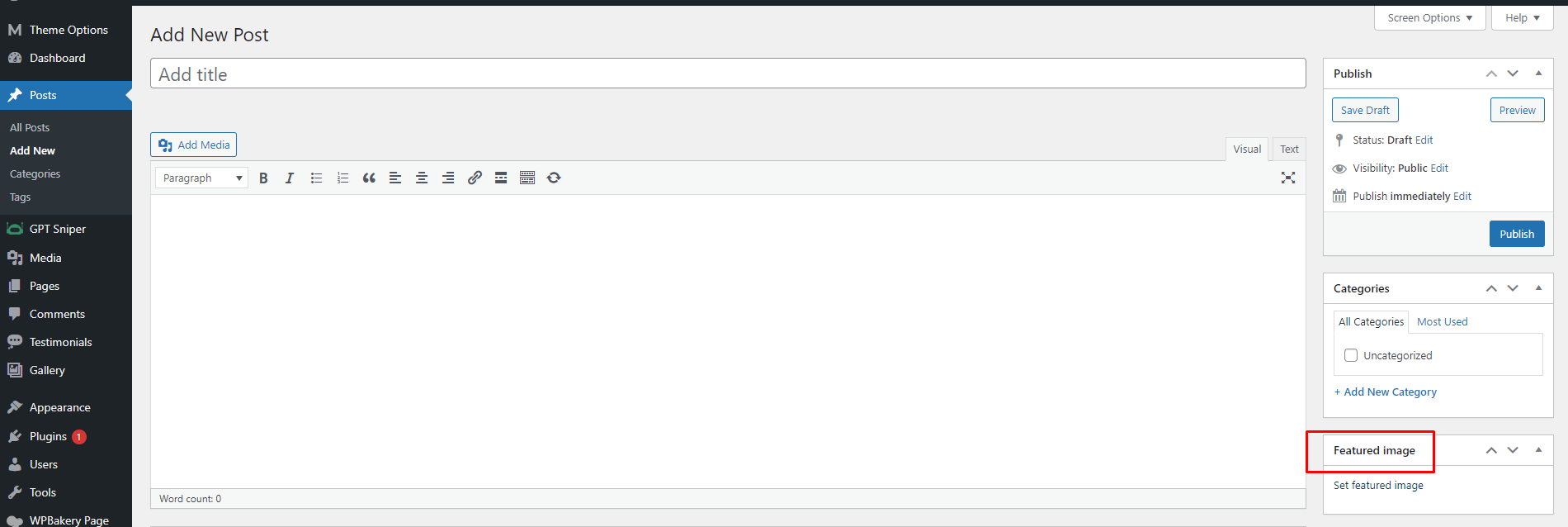
1. Navigate to WP dashboard >> Posts >> Add New. Here you will see Featured Image option at the right - side. Click on set featured image option.
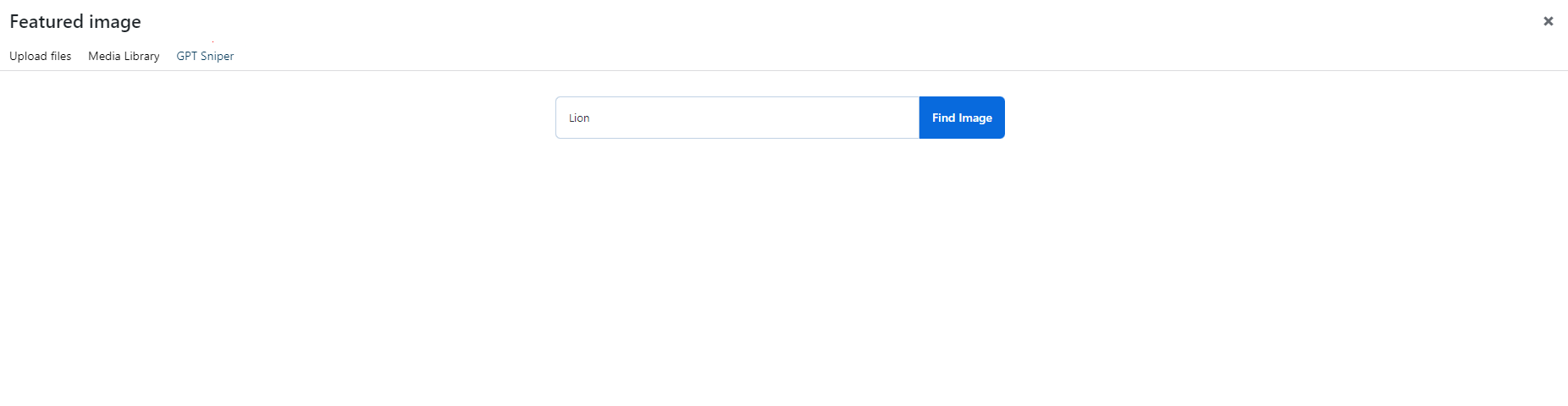
2. You will see GPT Sniper option in it. Enter the keyword in search bar and click on Find Image button.
3. On clicking, you will get multiple images and can use any of the image as a featured image in your post.
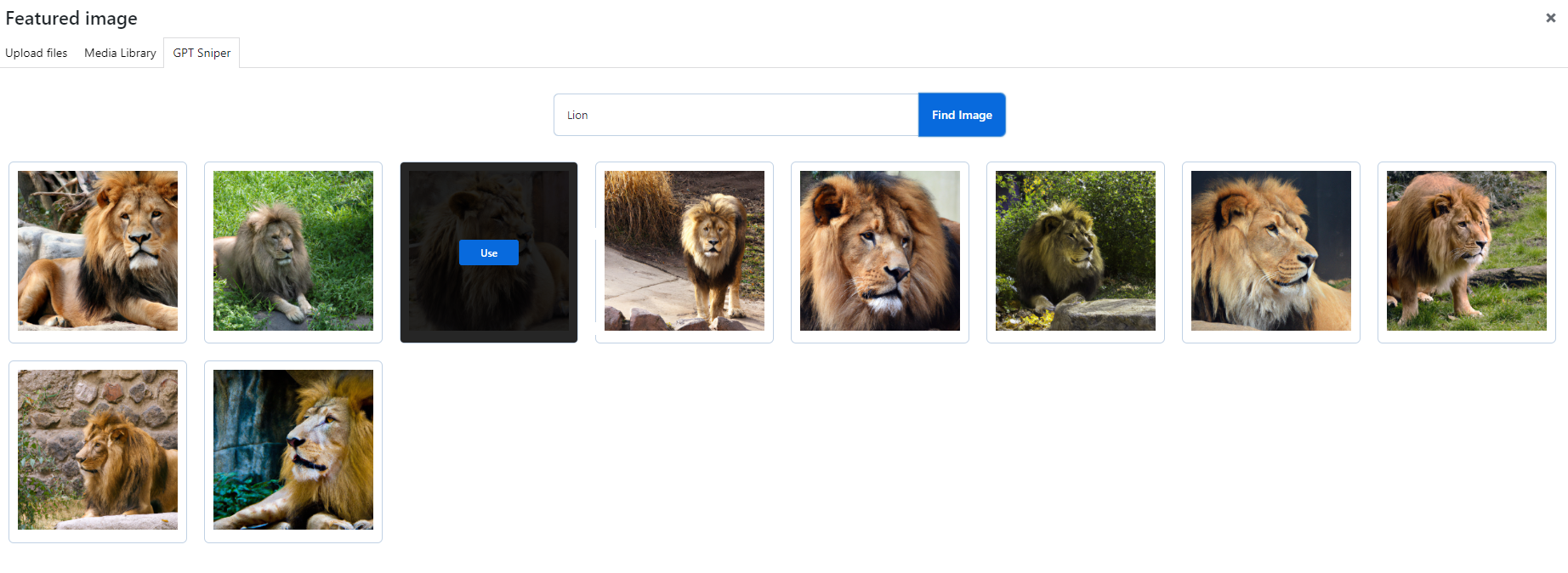
Note : Similarly you can add featured image to any of the custom post type.
Images Generator
The image Generator feature helps in image generation. This option allows you to enter an image keyword, and select the desired filters like the size of the images, the number of images to generate, the artist, style, lighting, resolution, and many more. You can use this shortcode [gpt_image_generator_sh] on your webpage to show the image generator on frontend.
Note: Please make sure to enter the image keyword because it serves as a basis for image generation.
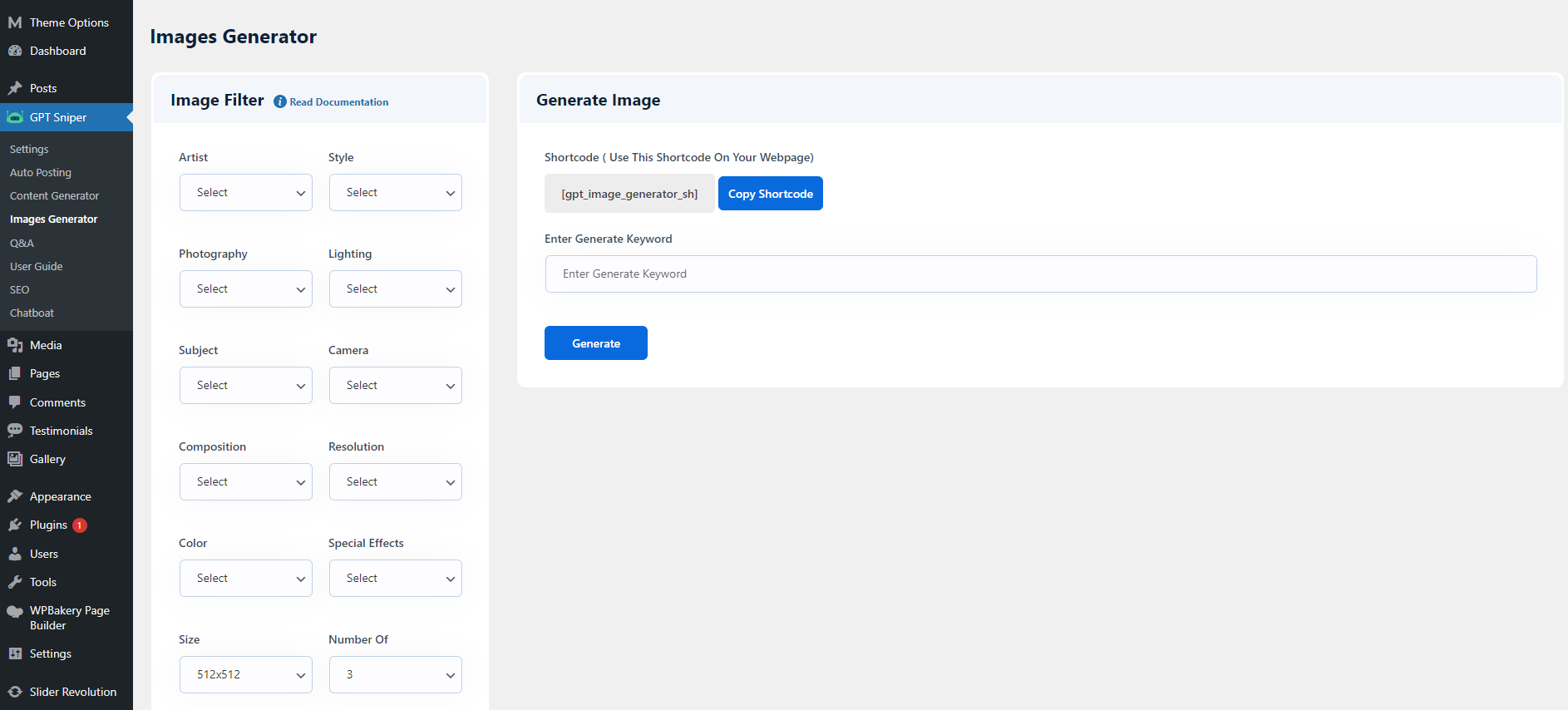
Image Filter Image Filter option allows you to filter the image on the basis of various parameters like Artist, Style, Photography, Lighting, Subject, Camera, Composition, Resolution,Color, Special Effects, Size, and Number of Images to generate.
You can select the images with the following options : 256x256, 512x512, and 1024x1024.
Number of images to generate ranges from 1 to 10. The Artist filter includes Salvador Dali, Leonardo da Vinci, Frida Kahlo and many more.
There are several Subject option are available to choose from, including Landscapes, People, Animals, Food, Cars and more.
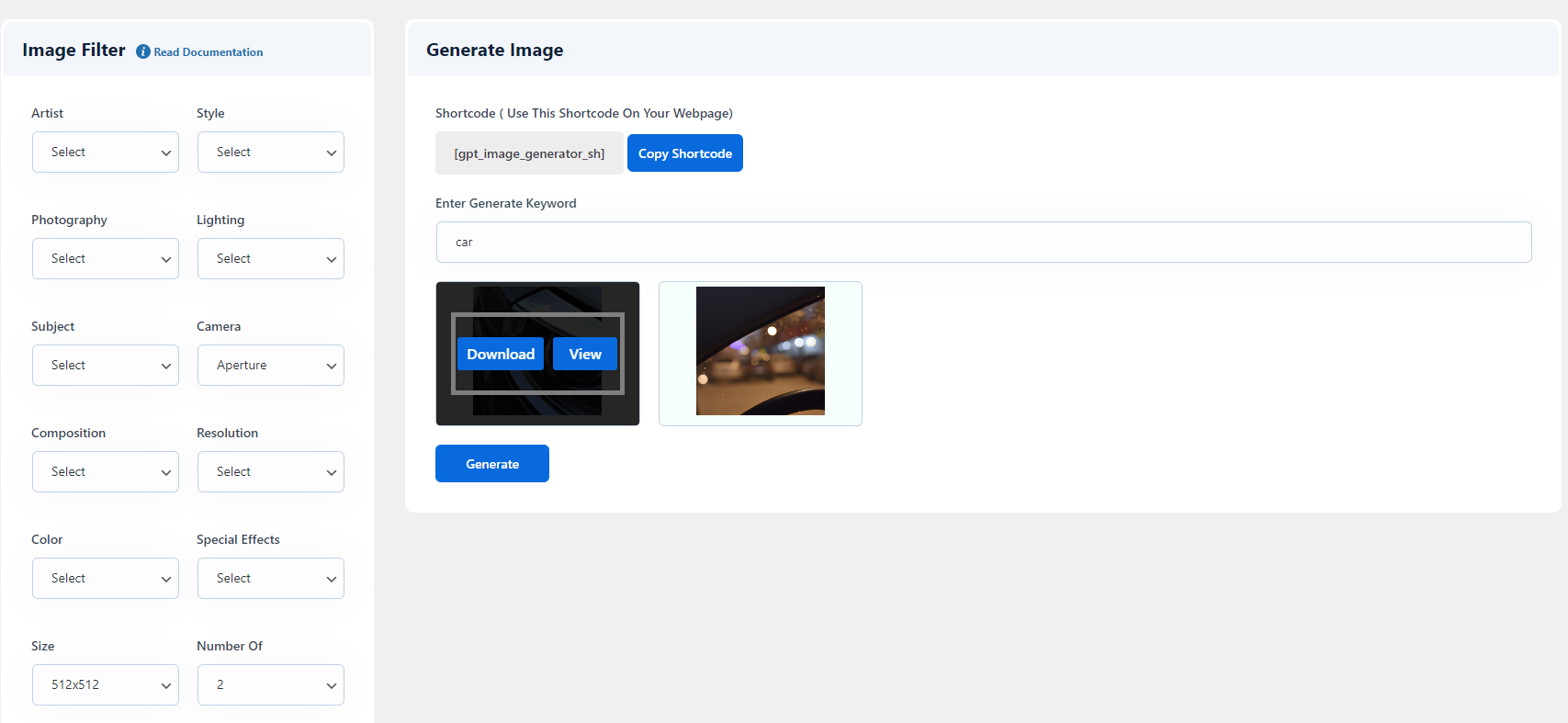
Generate Image You need to enter the image keyword here, and after selecting the desired filters click on Generate button. Once images get generated, hover on the image, and you will get two options: Download and View. You can select any of the desired options.
The Download option allows you to download images in the media library, and with the View, you can preview images before downloading.
How to add shortcode in a page
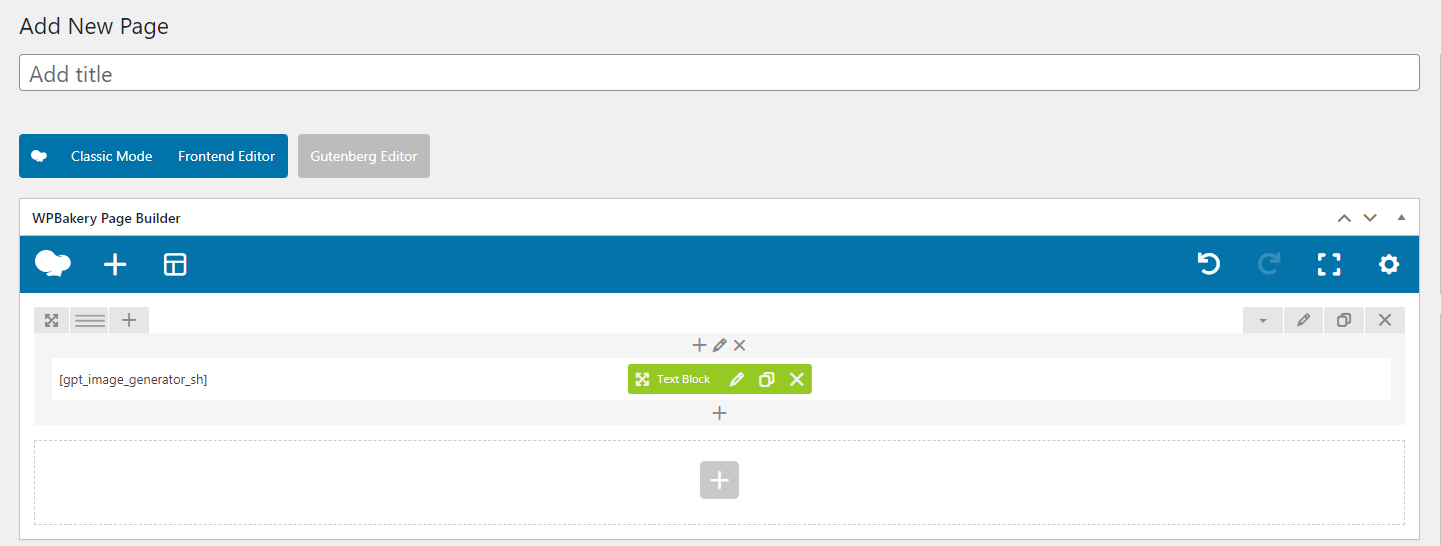
Step 1 Navigate to WP dashboard >> Pages >> Add New
Step 2 Here you can add this shortcode [gpt_image_generator_sh] and publish the page. You can also add the shortcode on the existing page.
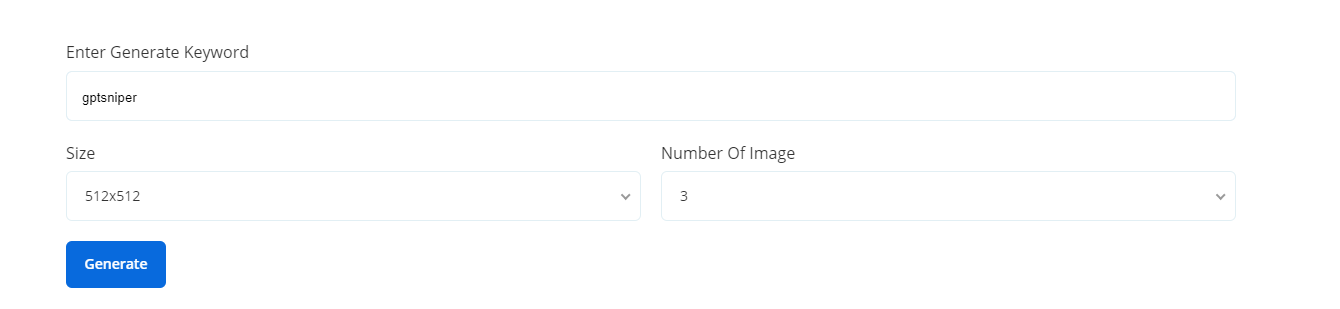
It will look like this on frontend.
Q&A
Q & A is an extraordinary feature of the plugin. It allows you to add relevant Q&A to your content. You can generate a list of questions and answers by simply entering questions one by one. Along with this, you can copy the shortcode and can show it on the desired webpage.
It consist of two settings : Q&A Settings and Ask Questions
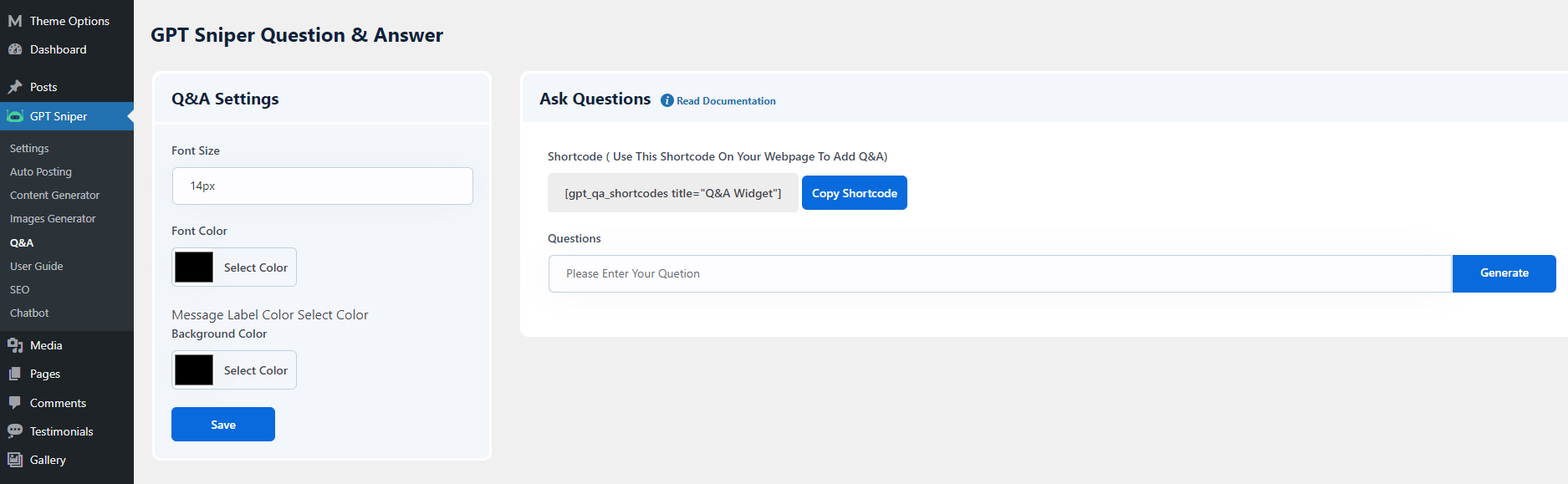
Q&A Settings - This setting allows you to customize the font size, font color, and background color of Q&A. These changes will be reflected on the frontend page on which you have added Q&A shortcode.
Ask Questions - This setting contains Q&A shortcode which can be used to show Q&A section on the desired page. Along with this you can also generate questions and answers here also
Enter the question and click on Generate button.
How to Add Q&A in a page
To add a Q&A to your website, please add the shortcode[gpt_qa_shortcodes title="Q&A Widget"] in the desired page like this.

SEO
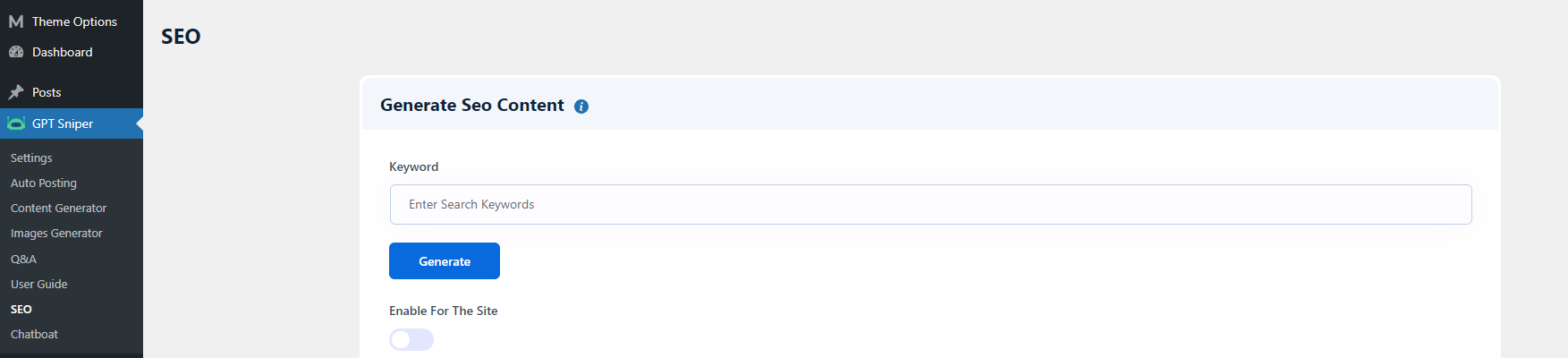
The SEO option enables you to generate SEO-optimized content. For this, you need to enter search keywords. After entering the keyword, click on Generate button. The plugin will automatically generate Page Title and Meta Description.
Enable for Site You can enable this option to show the Meta Description and Page Title in the HTML code of the page.
Chatbot
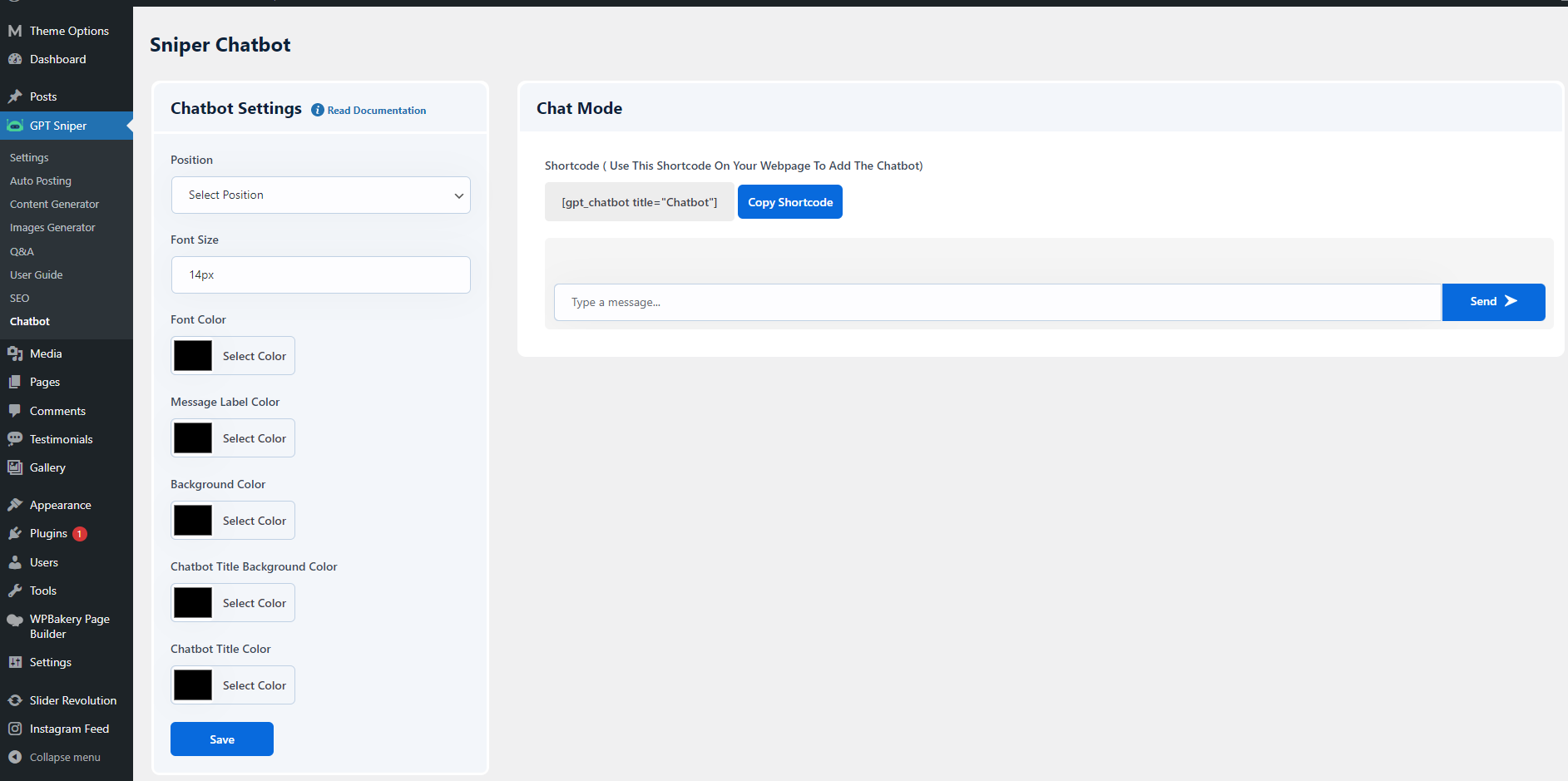
Chatbot feature consists of Chatbot Settings and Chat Mode.
Chatbot Settings - This setting allows you to customize the chatbot position either on Left Side or Right Side, and enter the font size in which you want to display the text. Along with this, you can also adjust the Font color, Message Label color, and Background color.
Chat Mode This setting contains chatbot shortcode which can be used to show chatbot on the desired page.
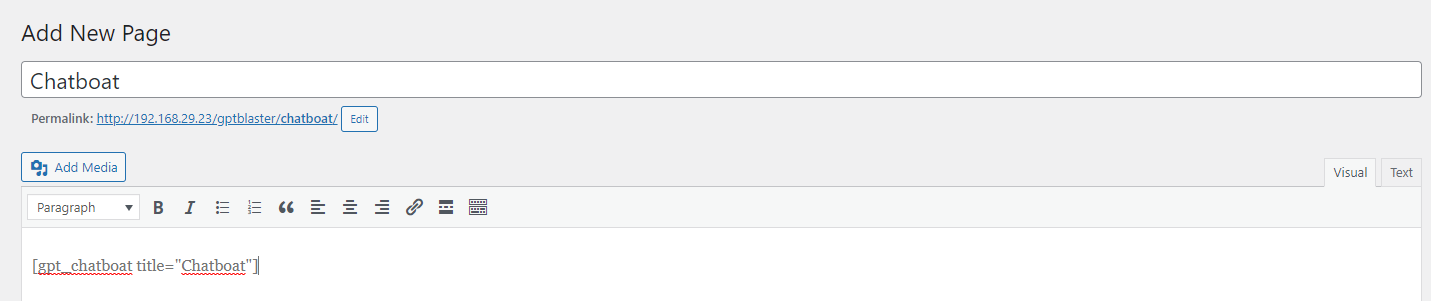
How to Add Chatbot in a page
To add a chatbot to your website, please add the shortcode [gpt_chatbot title="Chatbot"] in the desired page like this.
Woocommerce Setup
RockOn comes with full featured eCommerce platform integrated in it.
You just need to install & activate the woocommerce plugin .
In the recommended plugins section RockOn theme will ask you to install the woocommerce plugin.
1) Just install the plugin.
2) After Installation activate the woocommerce plugin.
3) WooCommerce plugin will prompt you to create its default pages. Its hardly recommended to create those pages for better functionality.
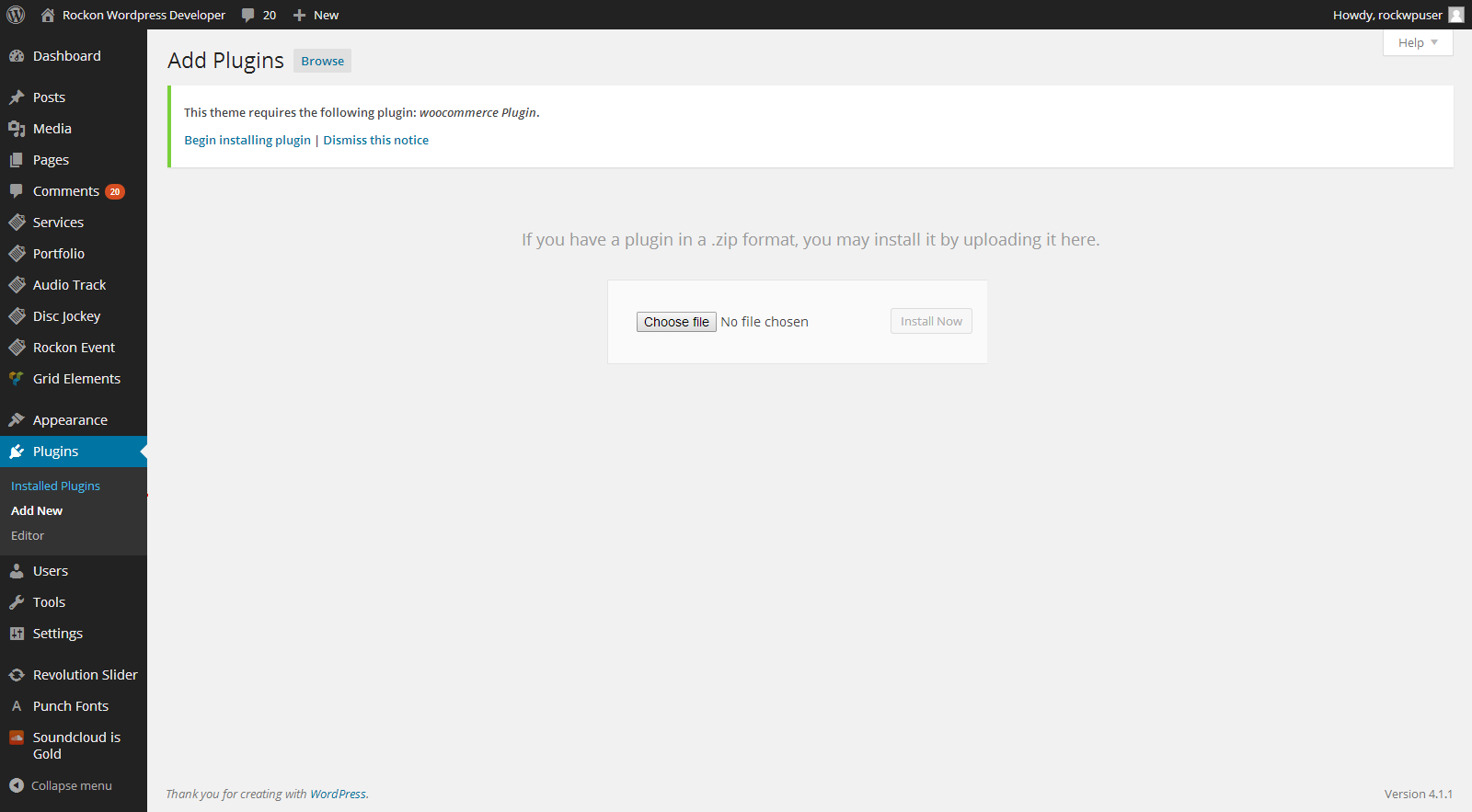
After successful installation and activation of Plugin you need to upload the demo xml file provided with in the purchased theme folder.
Navigate to Tools > Import > Now, you can select the xml file by clicking on the choose file button. Select the xml file & click on "Upload file and import".
Shop Page Setup
Since, this page is generated by woocommerce so it is recommended that you should not edit / delete its content, for any further modification consult/hire any developer.
Now create the Menu of Shop
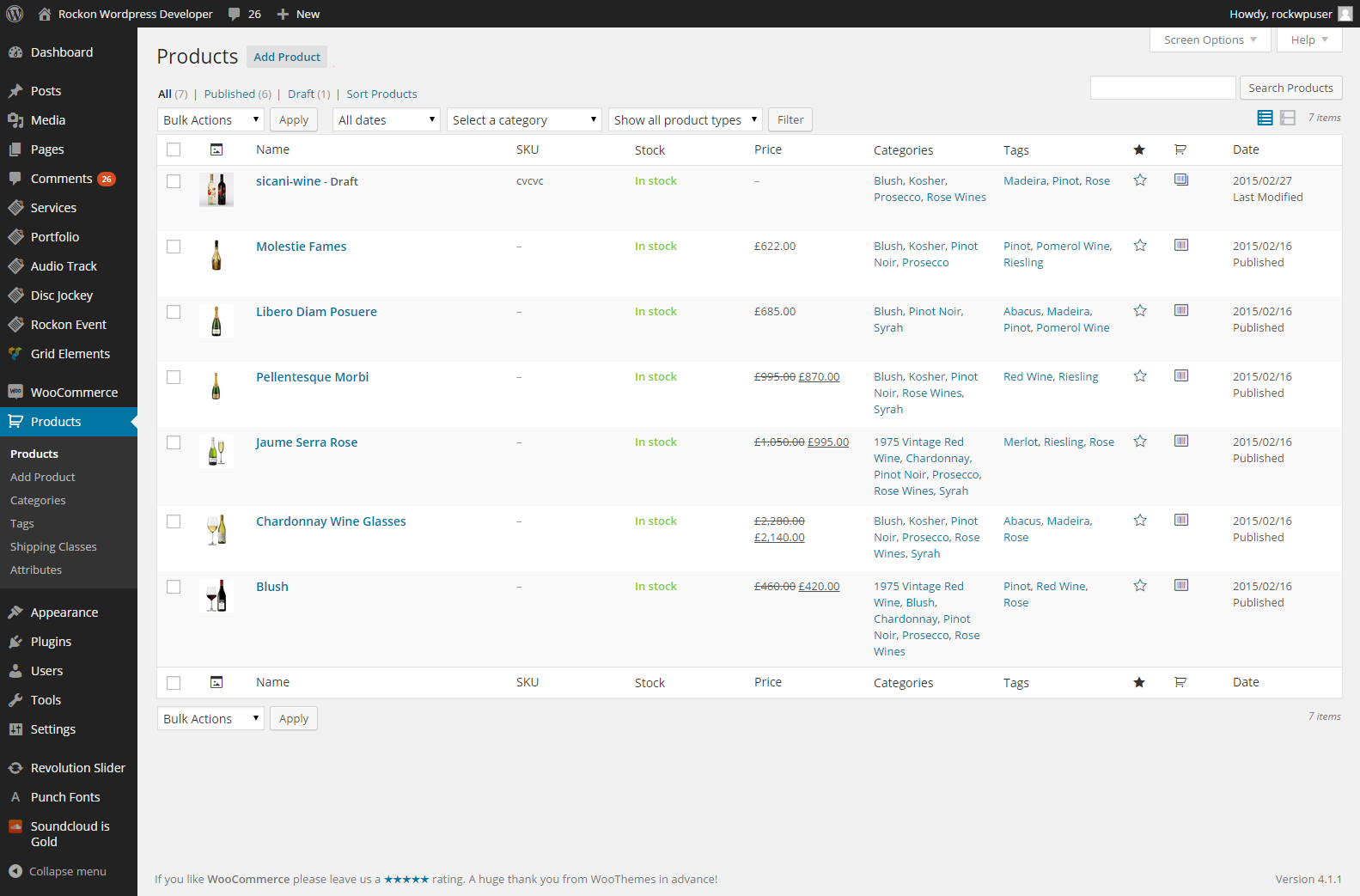
Then Navigate to Product > Add Product > Or edit the product present in the theme
Soundcloud Setup
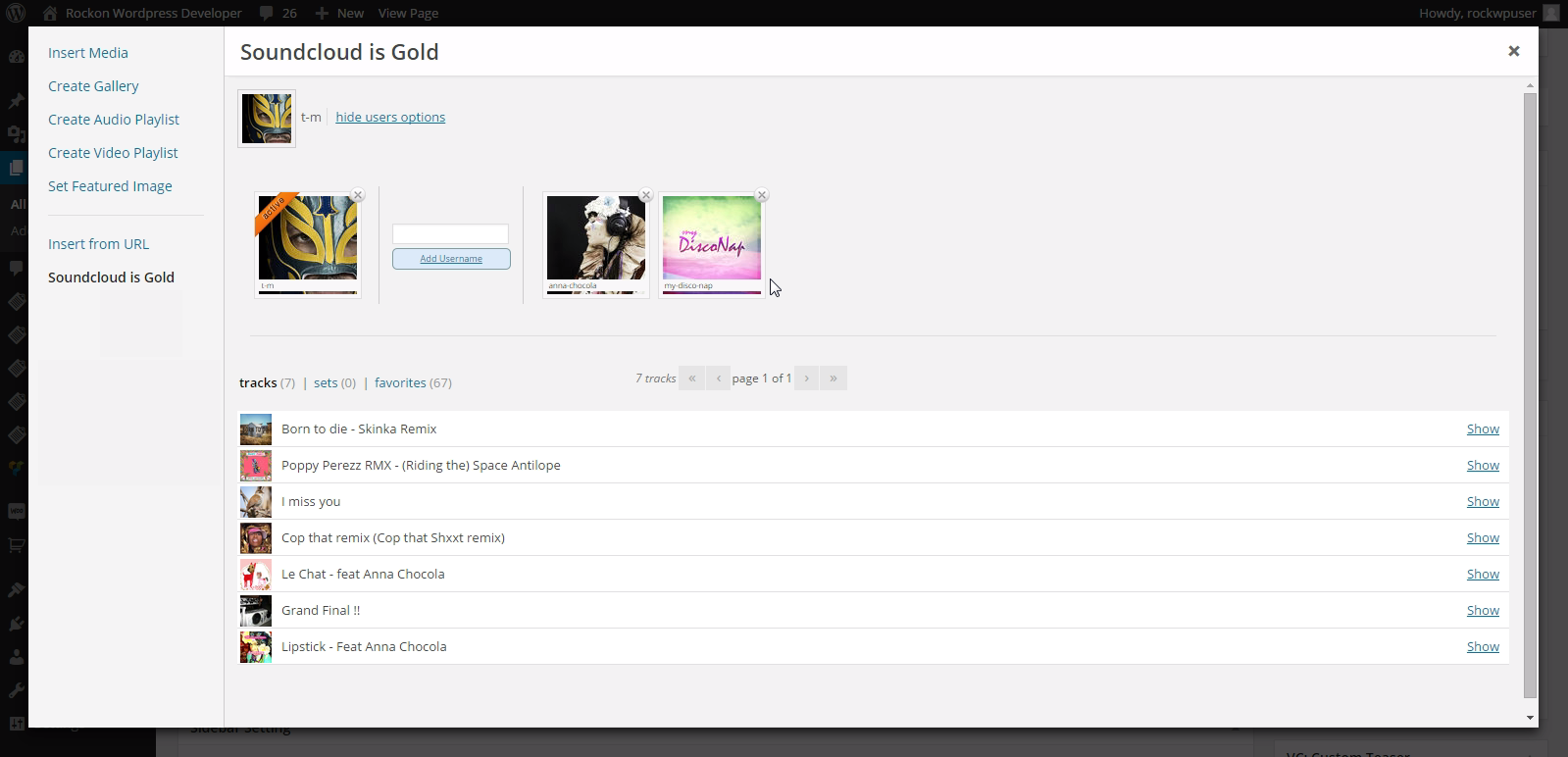
Now you can easily integrate your soundcloud profile with the Rockon Theme.
- 1. First you need to make your profile on soundcloud. Sound Link
- 2. Activate the soundcloud plugin.
- 3. Set the Soundcloud player style. Click on Soundcloud is Gold
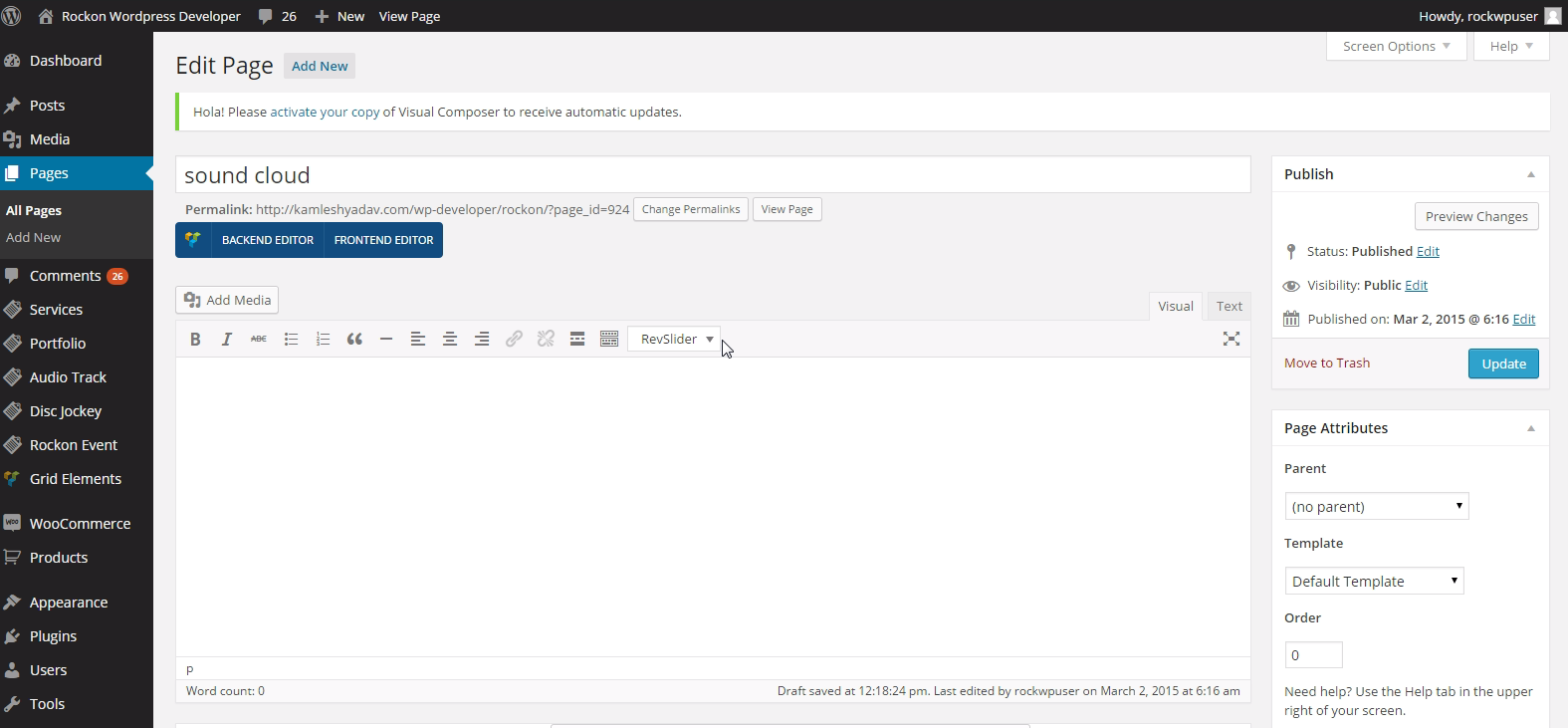
- 4. Now where you add the sound player need to click on Add media Button after creating a page.
- 5. Now where you add the sound player need to click on Add media Button after creating a page.
- 6. Click on Insert Soundcloud Player Button and Update it.
Footer Widgets
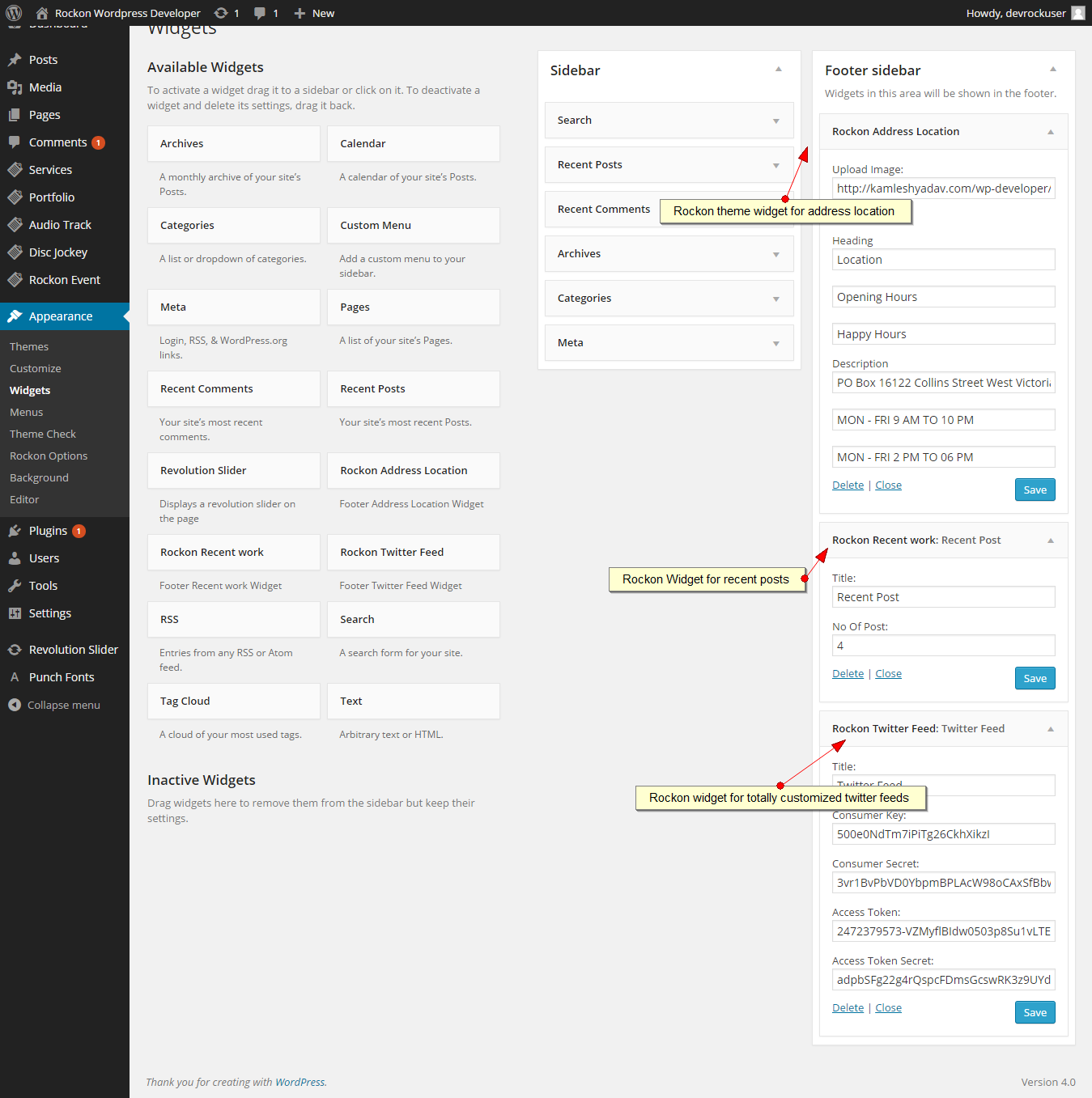
Rockon theme comes with three widgets
01) Rockon Address Location - Address location to be shown on the site footer.
02) Rockon Recent Posts - Posts on the footer with auto scrolling feature
03) Rockon Twitter Feed - Fully customized twitter feeds, just need to add some tweaks.
Help And Support
In order to receive a technical support assistance, you need to have a valid purchase code. To get the code, please navigate to your ThemeForest "Downloads" page and click on the theme download link.
After getting the Purchase code, please follow the steps mentioned on the link click Here to get your product verified. And then share your Purchase code and token ID with the support team.
If you have any questions that are beyond the reach of this help file, feel free to contact us. We will respond as soon as possible (within 24 – 48 hours, usually faster). We are open from 10:00am to 7:00pm (IST), from Monday till Friday.
NOTE: As authors of this theme we do provide support only for the theme-related features.
Outro
Once again, thank you so much for purchasing this Theme. As I said at the beginning, I'd be glad to help you if you have any questions relating to this Theme. No guarantees, but I'll do my best to assist. If you have a more general question relating to the Theme on ThemeForest, you might consider visiting the forums and asking your question in the "Item Discussion" section.
www.kamleshyadav.com
Support Email: support@pixelnx.com
If you want to use any images used in the demo on your live website then do purchase theme from there respective authors, theme does not provide you rights to use this images.