
- Created : 12/04/2023
- Support URL: support@pixelnx.com
Introduction
YT Auto CaptionCrafter - Video Content Generator WordPress Plugin
YT Auto CaptionCrafter - Video Content Generator is a WordPress plugin that allows you to generate high-quality video content, can create a blog post, and download video content. It is easy to use, flexible, and can be used with any WordPress website. To utilize the plugin options, the user needs to connect the Youtube API key with the plugin first.
Viewers can quickly find the necessary videos by inputting a keyword and choosing an appropriate language. The plugins have a variety of settings that make customization simple and easy. Users can change title, tags, post status and other video related details. It also has option to either include thumbnail in post or include video in post. Apart from generating the content, you can also download the video content for further usage.
Plugin can now generate the blog post content through OpenAI GPT 3 and RSS feeds. Enter the API key of OpenAI API and generate the relevant and engaging content for the blog post in few clicks. Enter custom RSS feed URL to get the blog post from any website.
Grab YT Auto CaptionCrafter to get more visitors to your website!!!
Plugin Created Date:
Plugin Updated Date:
Please check Live Preview:
Creative Author Portfolio:
Features
There are more than enough features squeezed in this plugin like
Features of the plugin
- Auto post from OpenAI GPT3 to WordPress
- Auto post from RSS feeds to WordPress
- YouTube API Intergration
- Download YT Video Content
- Onclick Add Blog
- Large Caption Contain
- No Subscription Plan
- Customize Post
- Unique Design
- Latest WordPress Support
- Amazing Support
- SEO Friendly

Installation
YT Auto CaptionCrafter Plugin installation doesn’t differ from any other plugin installation process, so you might be familiar with this process already. If not, please follow instructions below. The zip you have received from code canyon, please unzip it and then you will see 2 files.
- ytauto-captioncrafter.zip
- Documentation
Plugin Installation
Steps of Installation
Step 1 Login to your website (WordPress admin) .
Step 2 Navigate to Plugins >> Click on Add New.
Step 3 Click on Upload Plugin button.
Step 4 Browse to the ytauto-captioncrafter.zip file and choose that file.
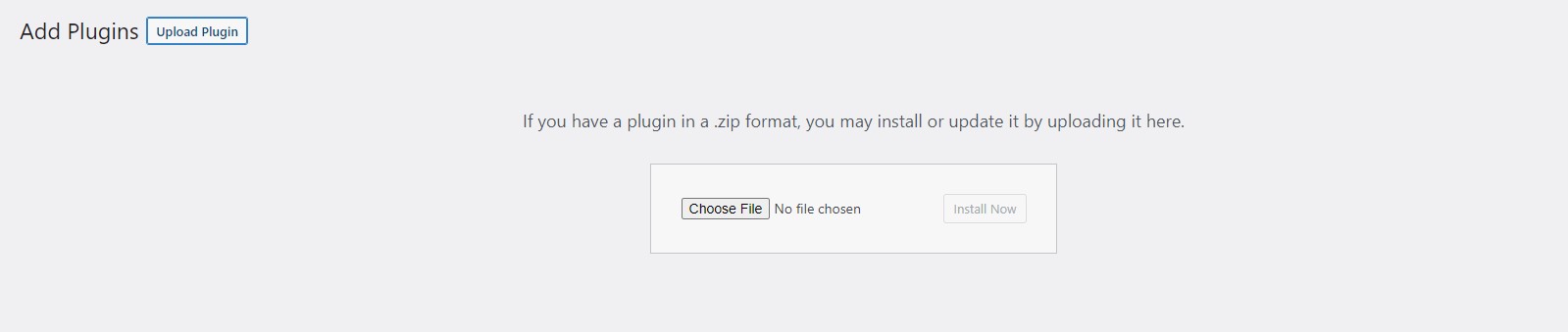
Step 5 Click “Install Now” button and wait while plugin is uploaded on your server.
Step 6 Now, Activate the plugin by clicking on "Activate Plugin" button.
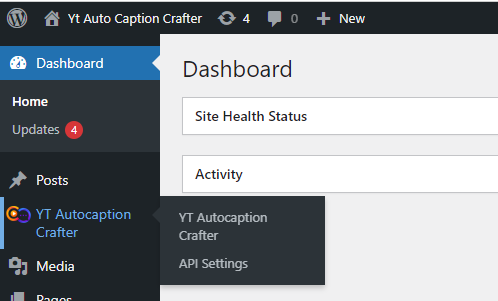
Step 7: Once it will get Activated you will see YT Autocaption Crafter icon on WordPress dashboard.
Plugin Options
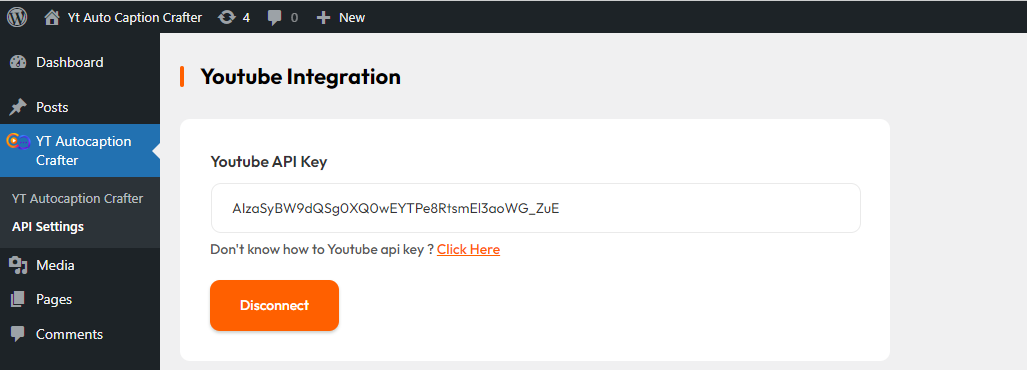
API Settings
In the API settings, user need to connect their YouTube API key.
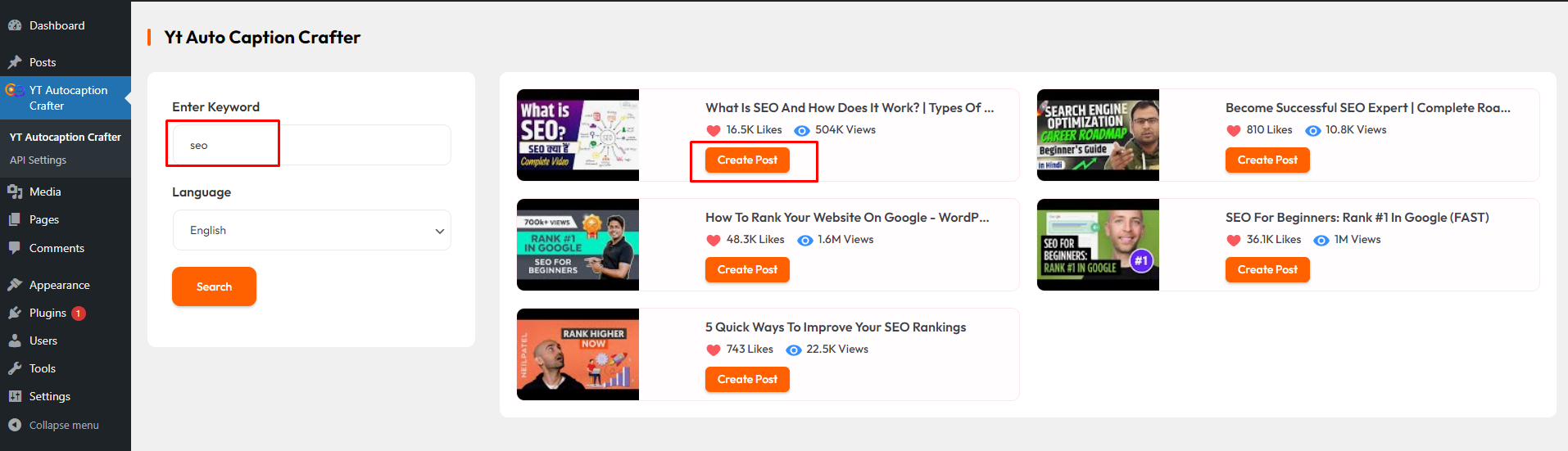
YT Autocaption Crafter
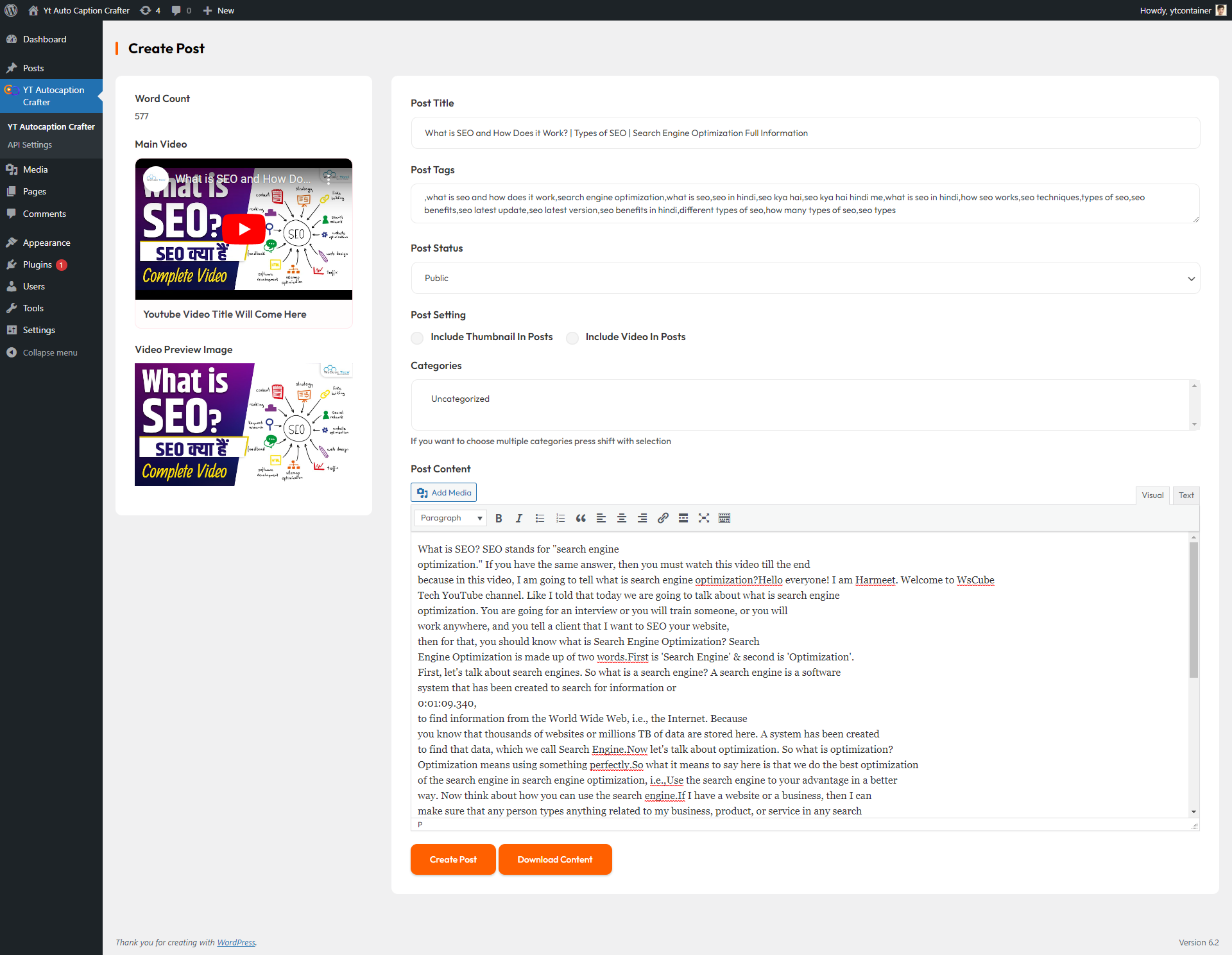
This setting allows users to search videos on the basis of keywords and selected languages. After getting the desired video, click on Create Post button.
Then you will be redirected to the screen, from where you can change the post title, post tags, post content, select categories, post status as Public or Private, and choose whether to include a thumbnail or video in the post. After making the desired customization you can either Create a Post or Download Content.
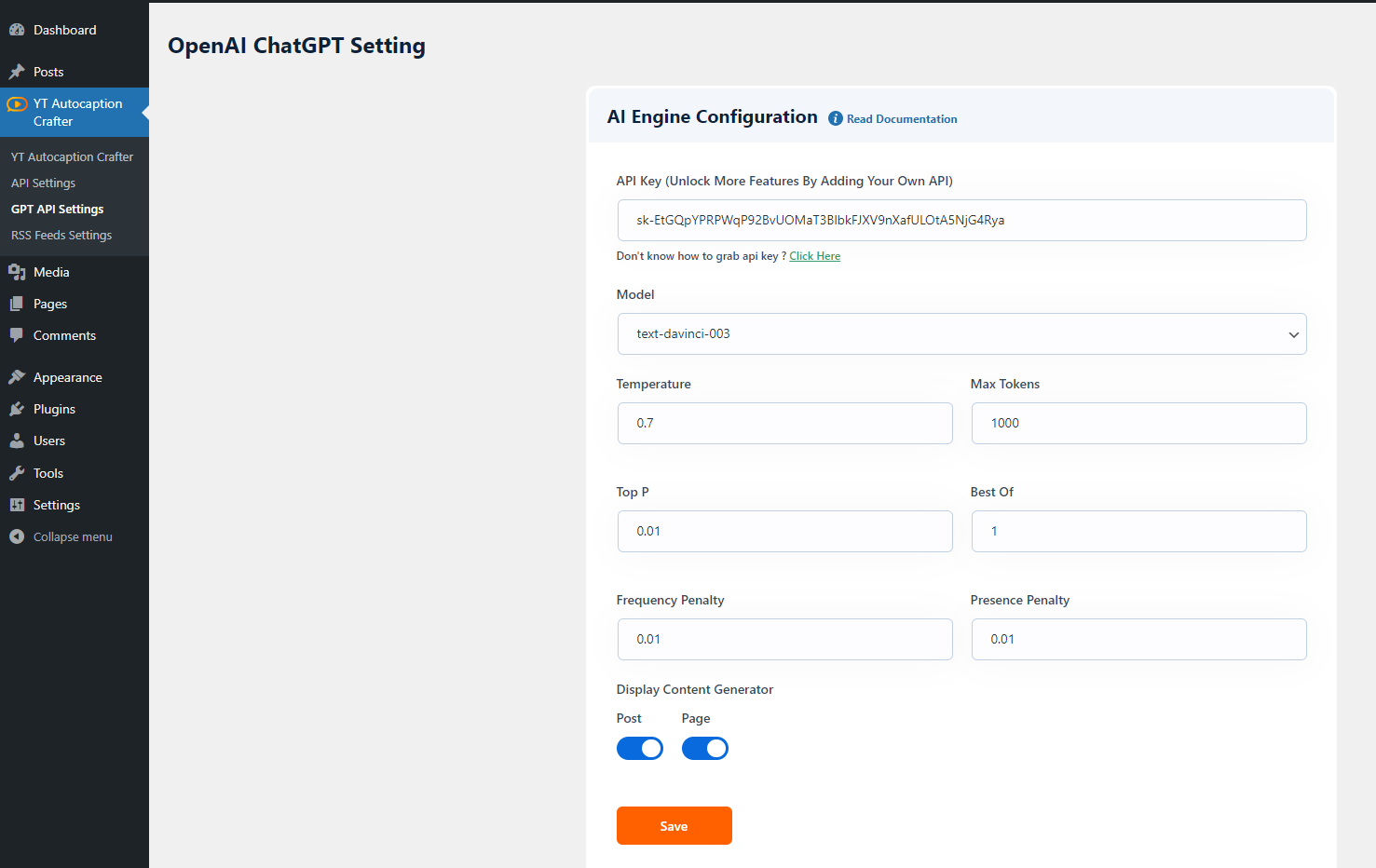
OpenAI ChatGPT Setting
This setting allows you to add the API key of Open AI API. You can also setup other settings like can select Model, Temperature, Max Tokens, Top P, Best Of, Frequency Penalty, Presence Penalty and enable/disable the settings to display content generator on post or page.
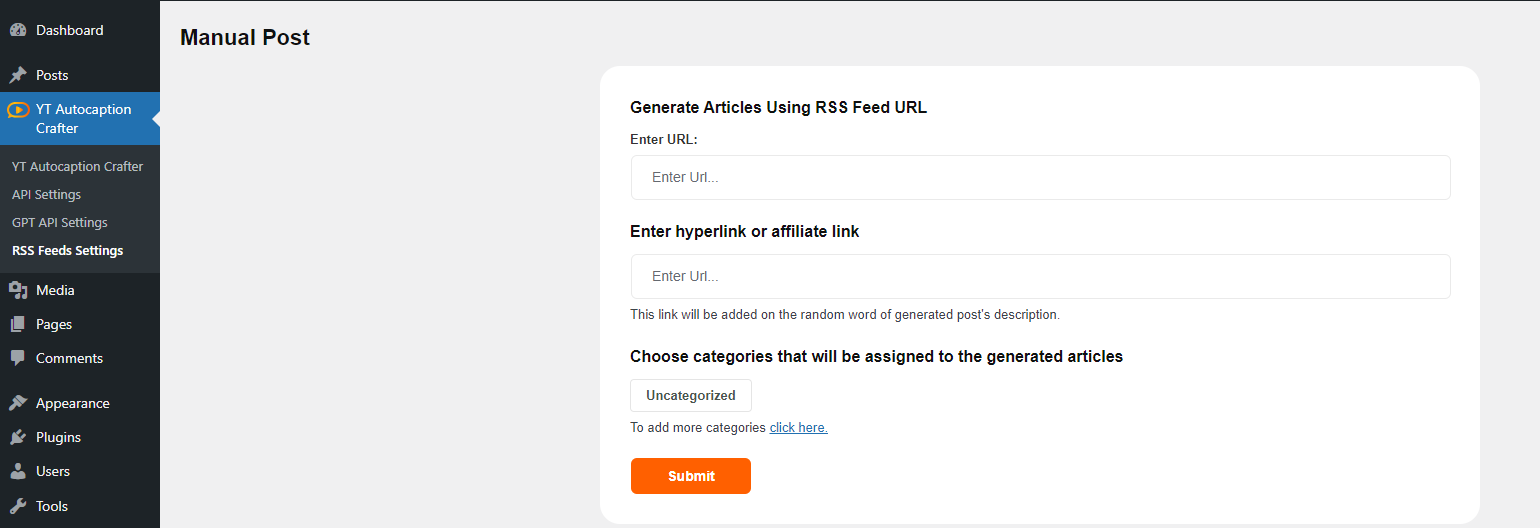
RSS Feeds Setting
You can enter the custom RSS feed URL to import the blog posts. If you add hyperlink or affiliate link, then this link will be added on the random word of generated post's description.
How to Get API Key
API key
Step 1 First login to your Google Cloud Account here, after login you will be redirected to Welcome screen.
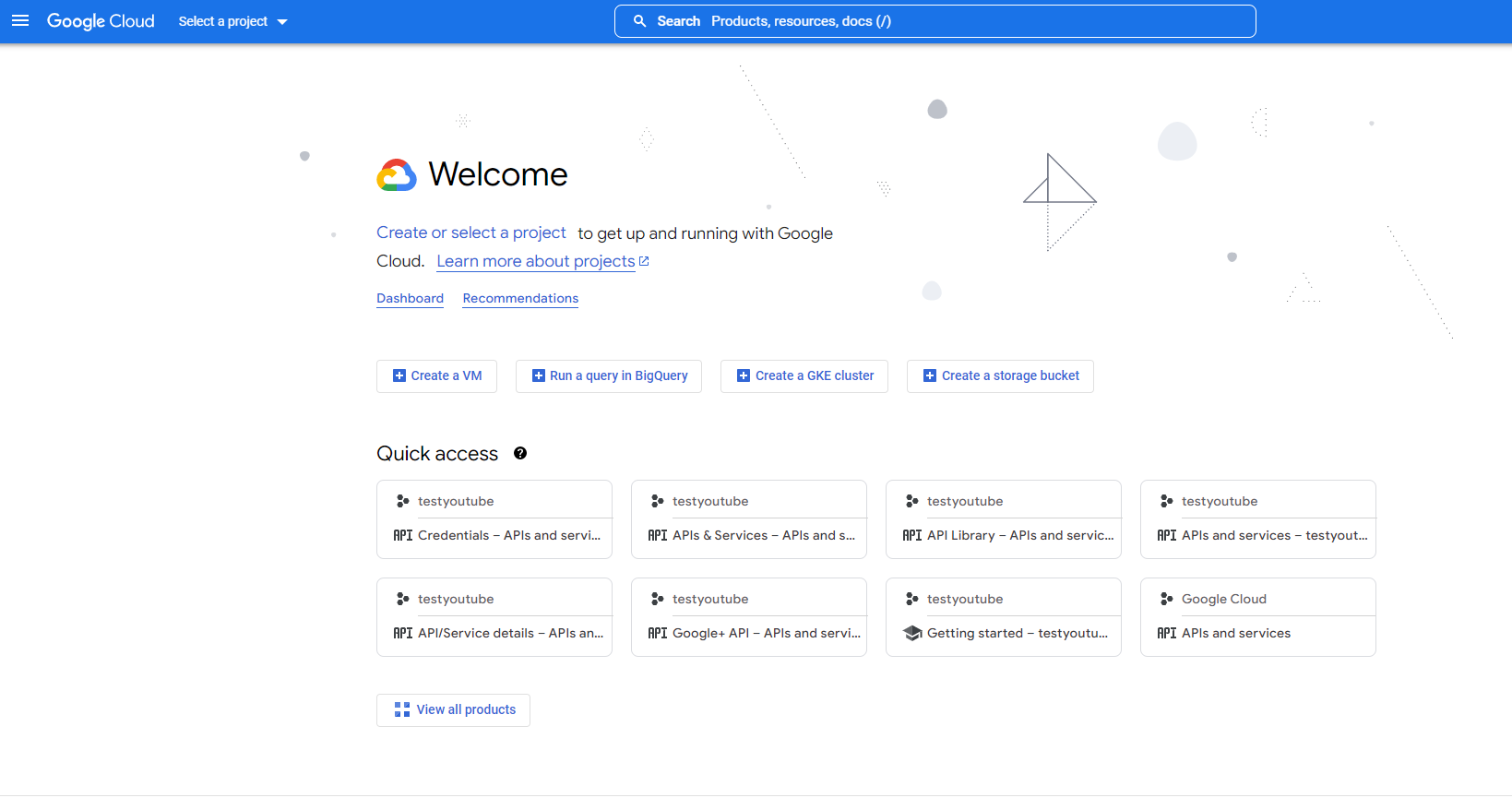
Step 2 Click on Select Project dropdown, a popup will open, in which you can either select the existing project or else create New. To create, click New Project option.
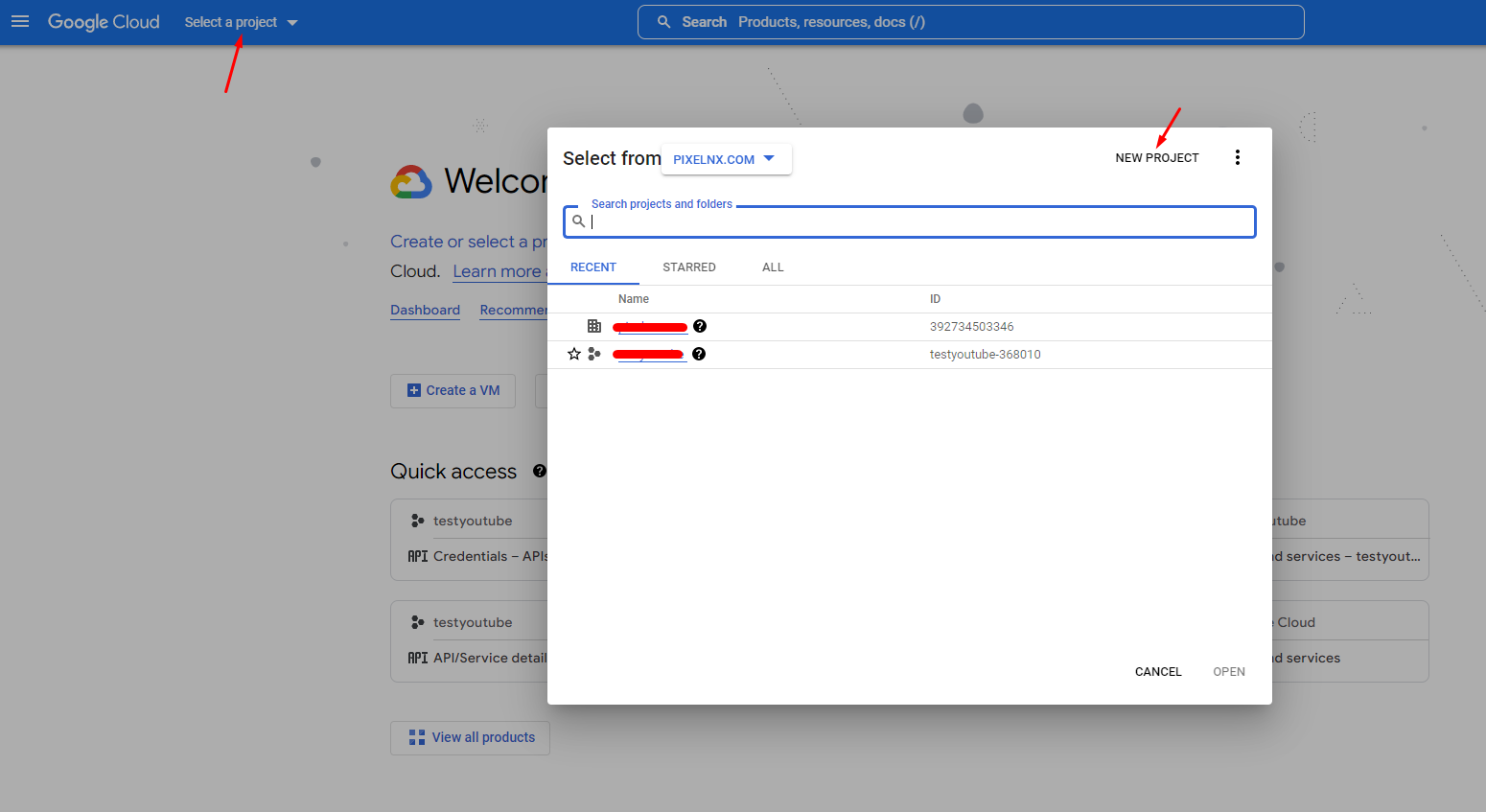
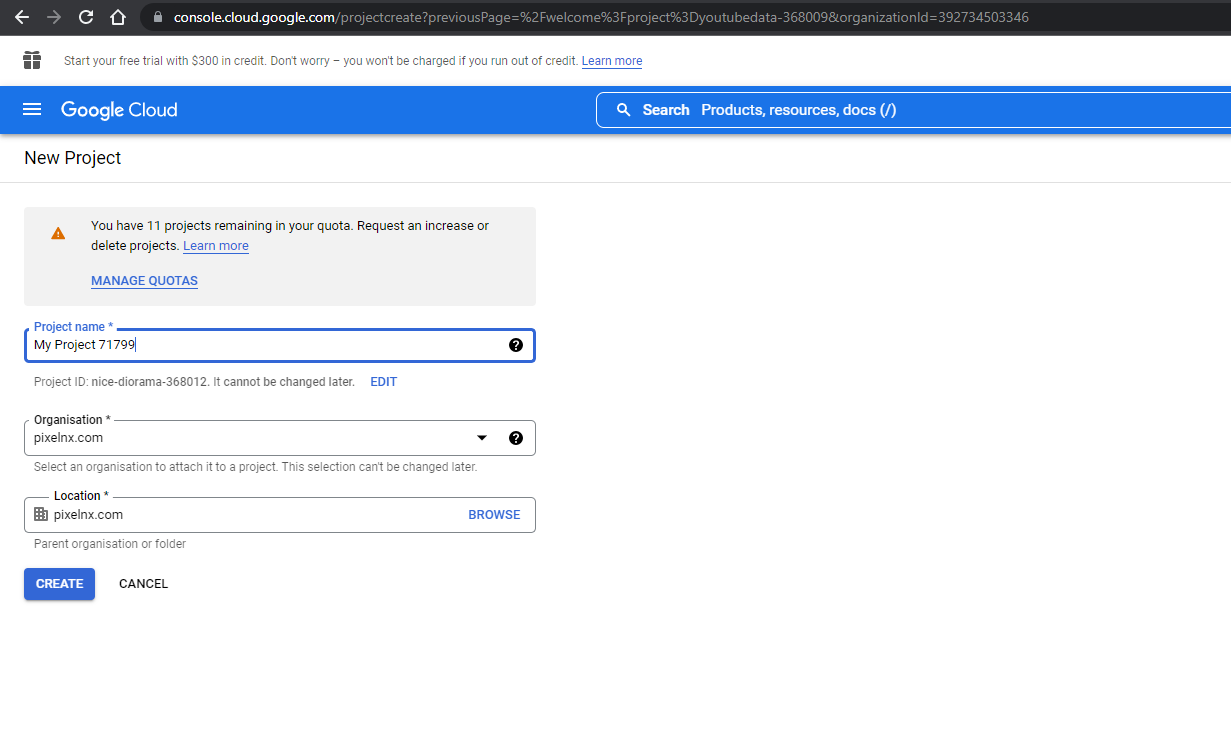
Step 3 Fill the details and click on Create button.
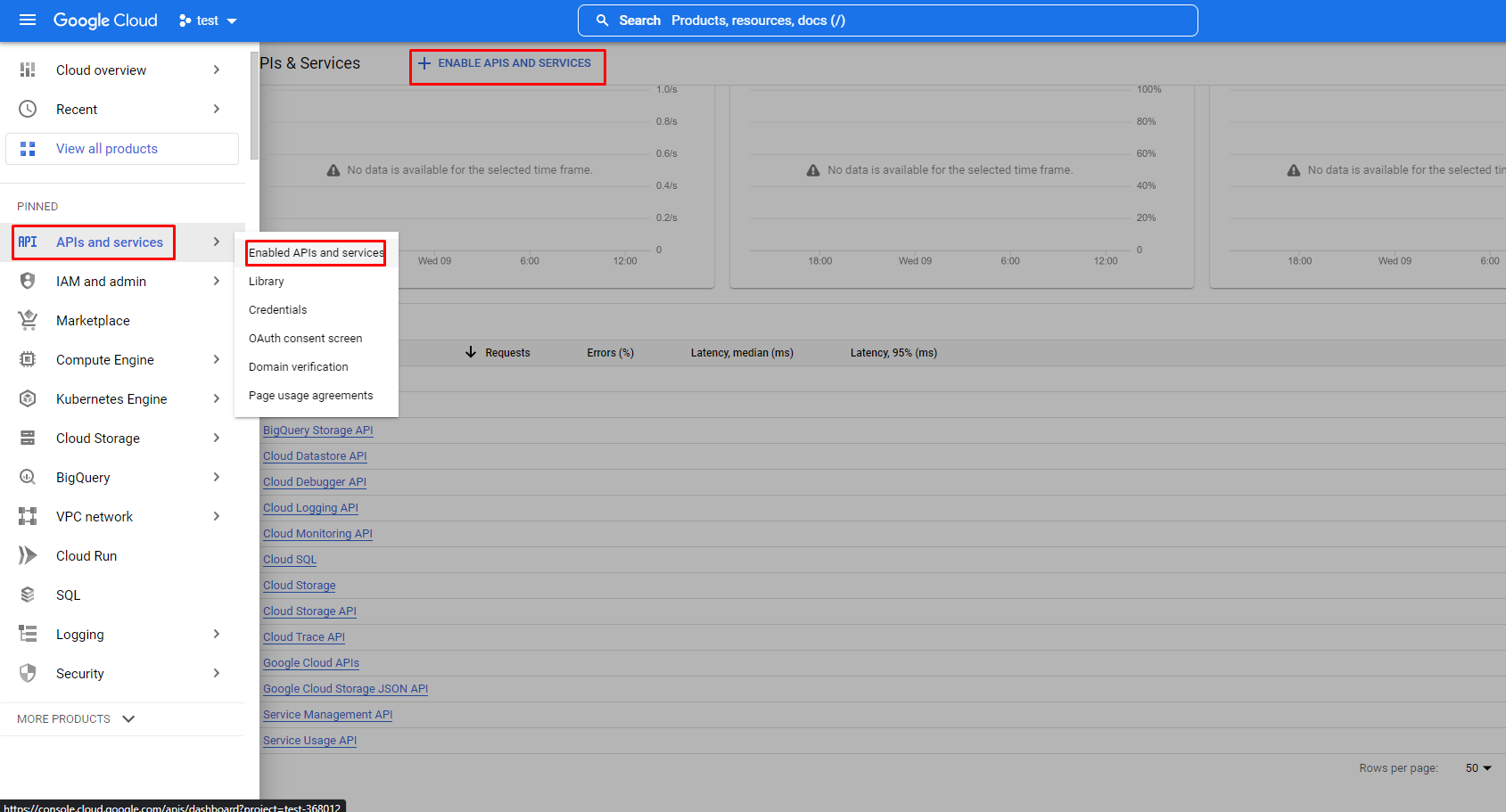
Step 4 Navigate to Menu >> Select API and Services >>Enable API services >> Click on + Enable API And Services option.
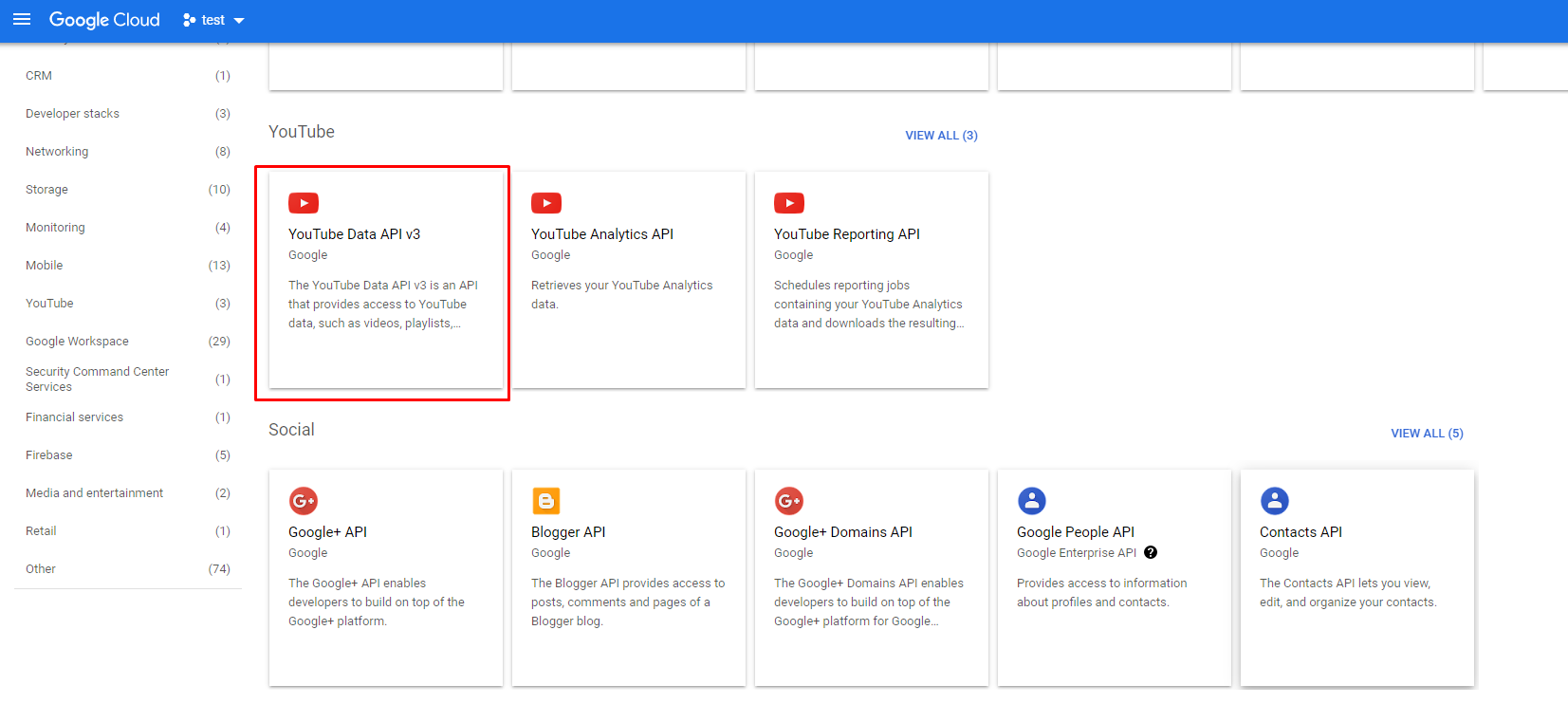
Step 5 After clicking, you will be redirected to screen where you need to enable YouTube Data API v3. Click on the box, you will be redirected to a screen, where you need to click on Enable Button.
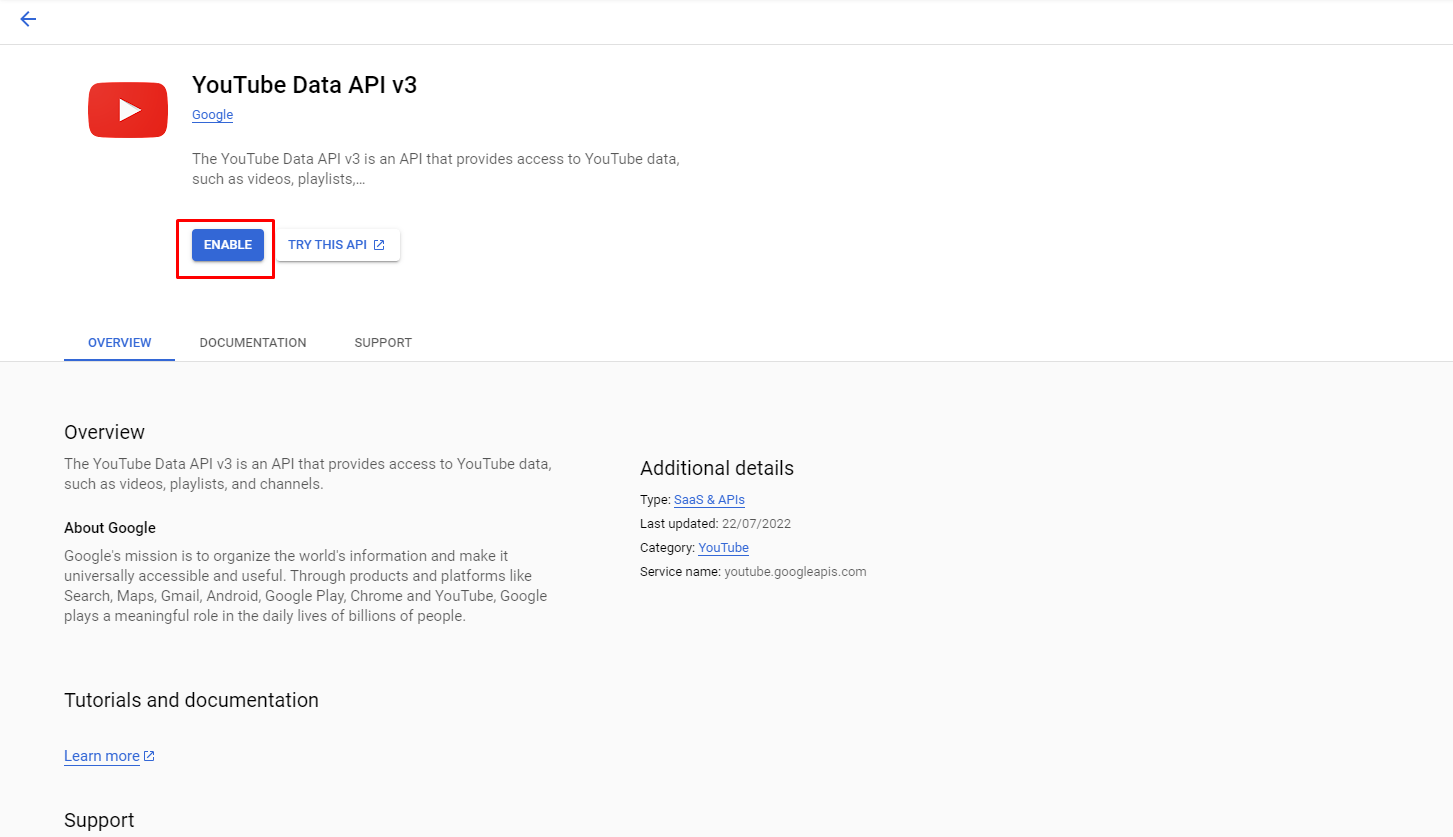
Once enabled successfully you will get this screen.

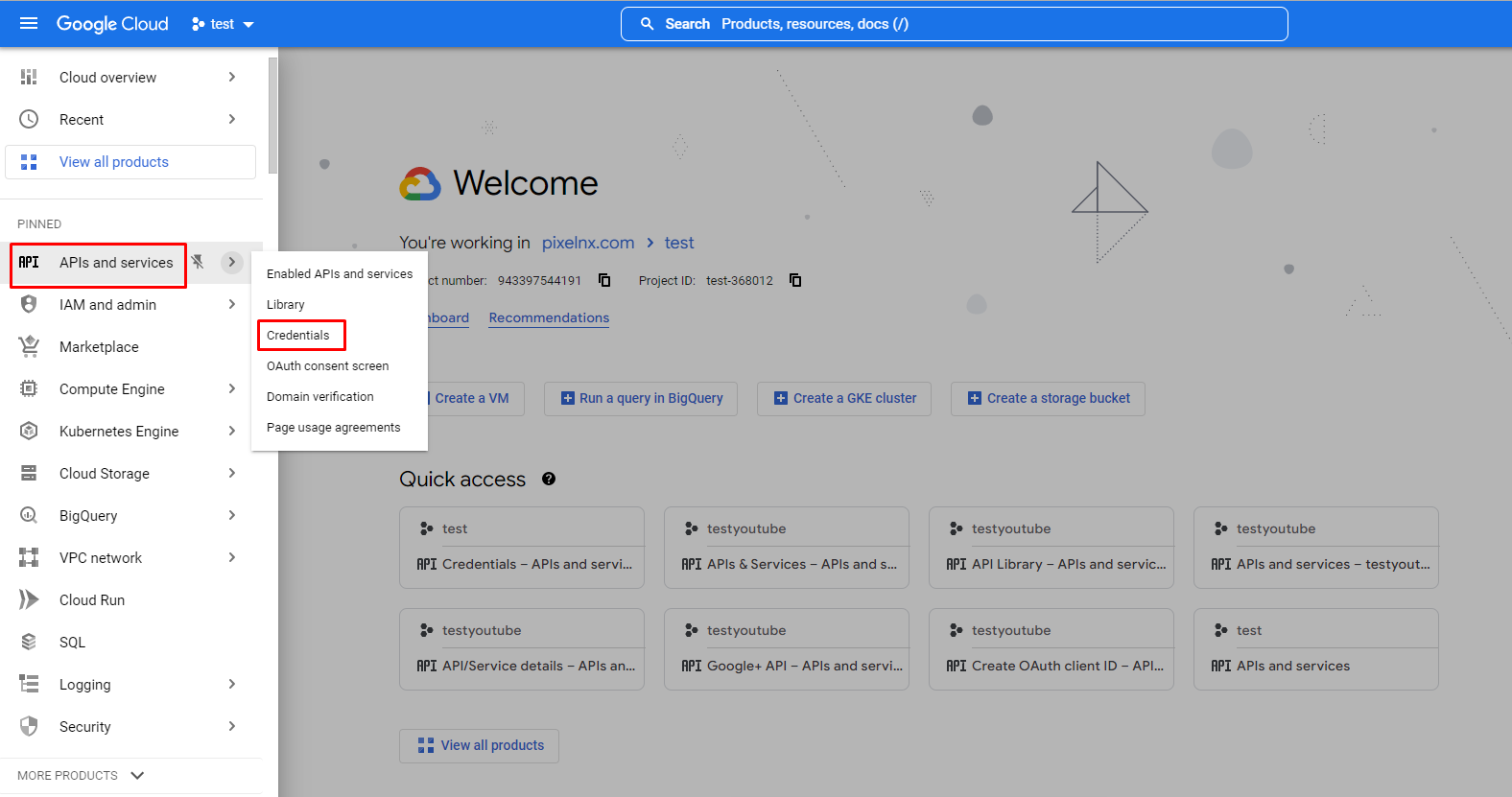
Step 6 Navigate to menu option. Select APIs and Services >> Credentials.
Step 7 Click on Create Credentials and select API key.
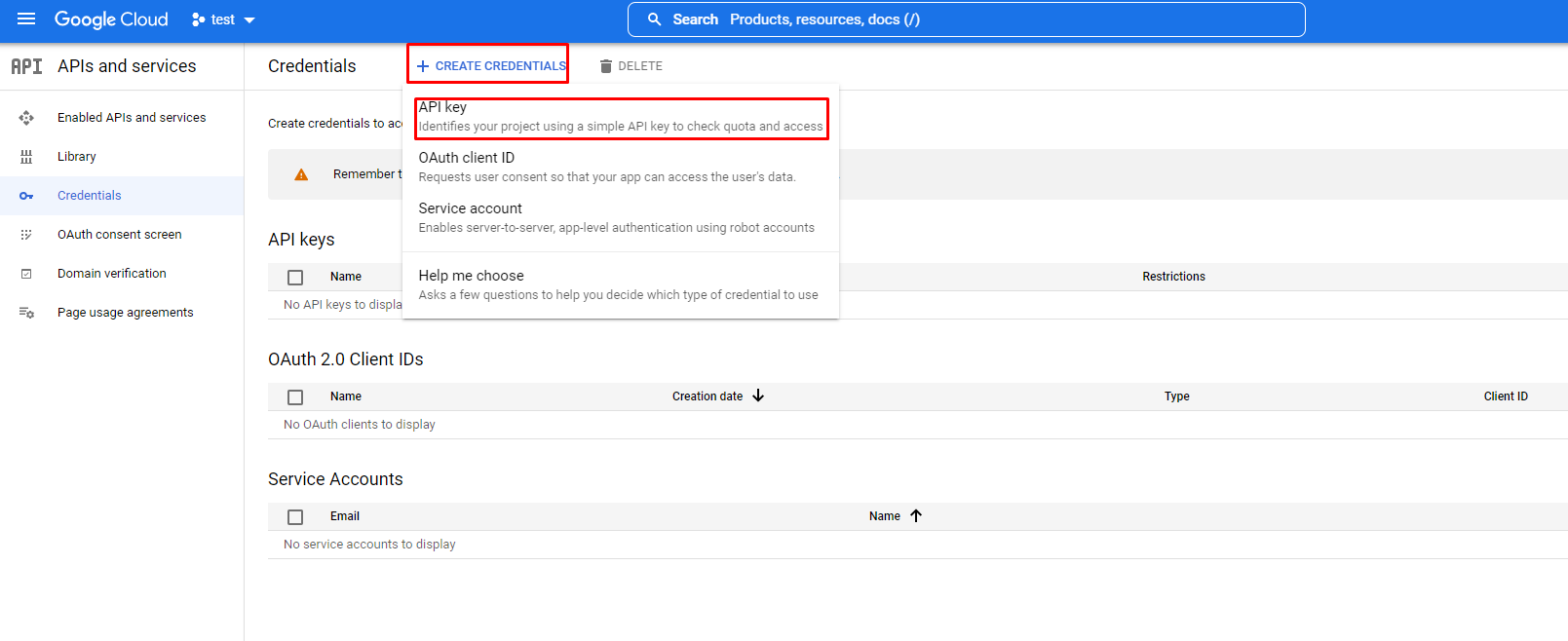
Step 8 A popup will appear where you will get API key that you need to paste in the API Setings here.
Help And Support
In order to receive a technical support assistance, you need to have a valid purchase code. To get the code, please navigate to your Codecanyon "Downloads" page and click on the plugin download link.
After getting the Purchase code, please follow the steps mentioned on the link click Here to get your product verified. And then share your Purchase code and token ID with the support team.
If you have any questions that are beyond the reach of this help file, feel free to contact us. We will respond as soon as possible (within 24 – 48 hours, usually faster). We are open from 9:30am to 6:30pm (IST), from Monday till Friday.
NOTE: As authors of this plugin we do provide support only for the plugin-related features.
Outro
Thank you for your purchase. If you have any questions that are beyond the scope of this help file, please contact us through https://support.motothemes.net/
Once again, thank you so much for purchasing this plugin. As I said at the beginning, I'd be glad to help you if you have any questions relating to this plugin. No guarantees, but I'll do my best to assist. If you have a more general question relating to the plugin, you might consider visiting the forums and asking your question in the "Item Discussion" section.